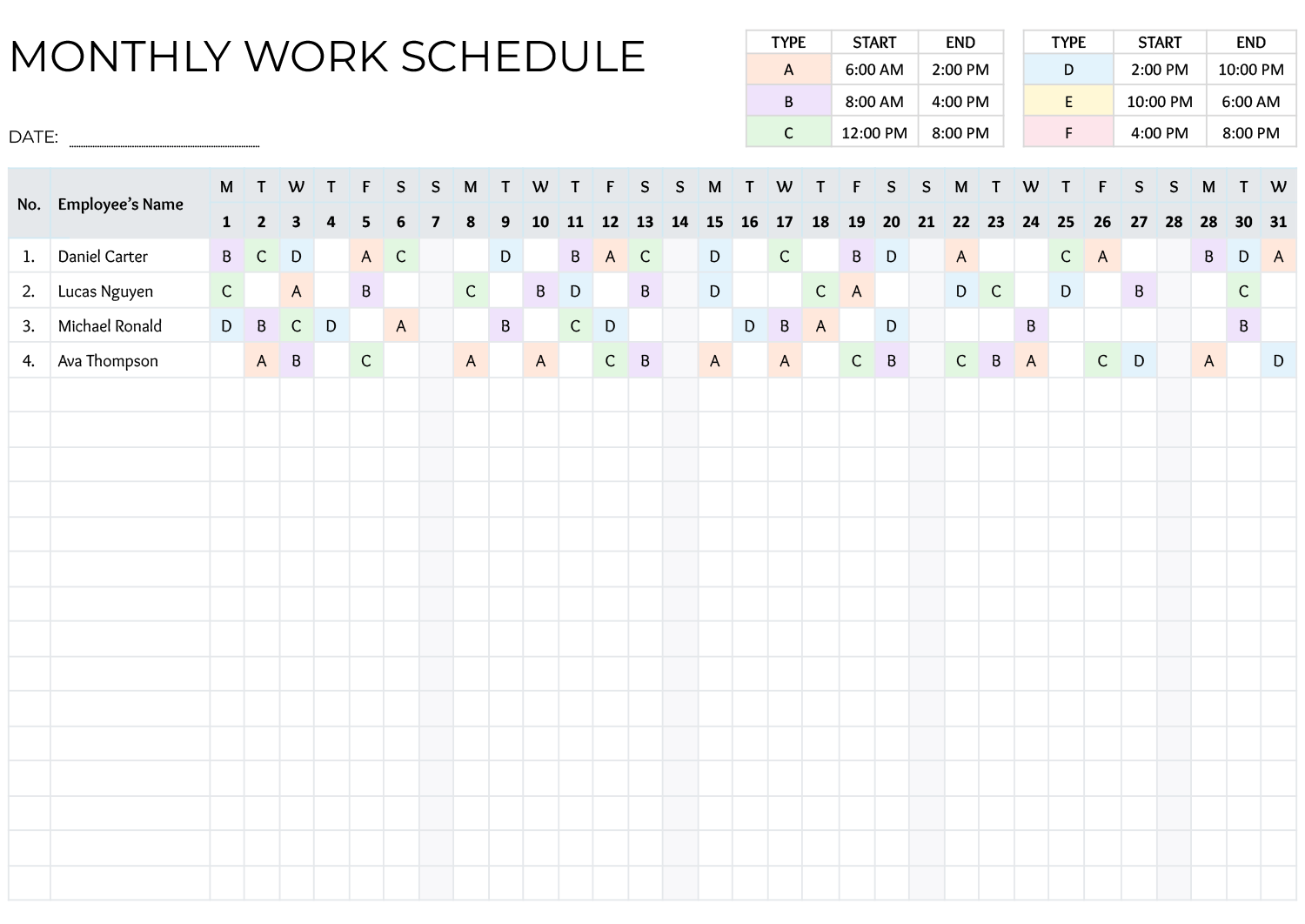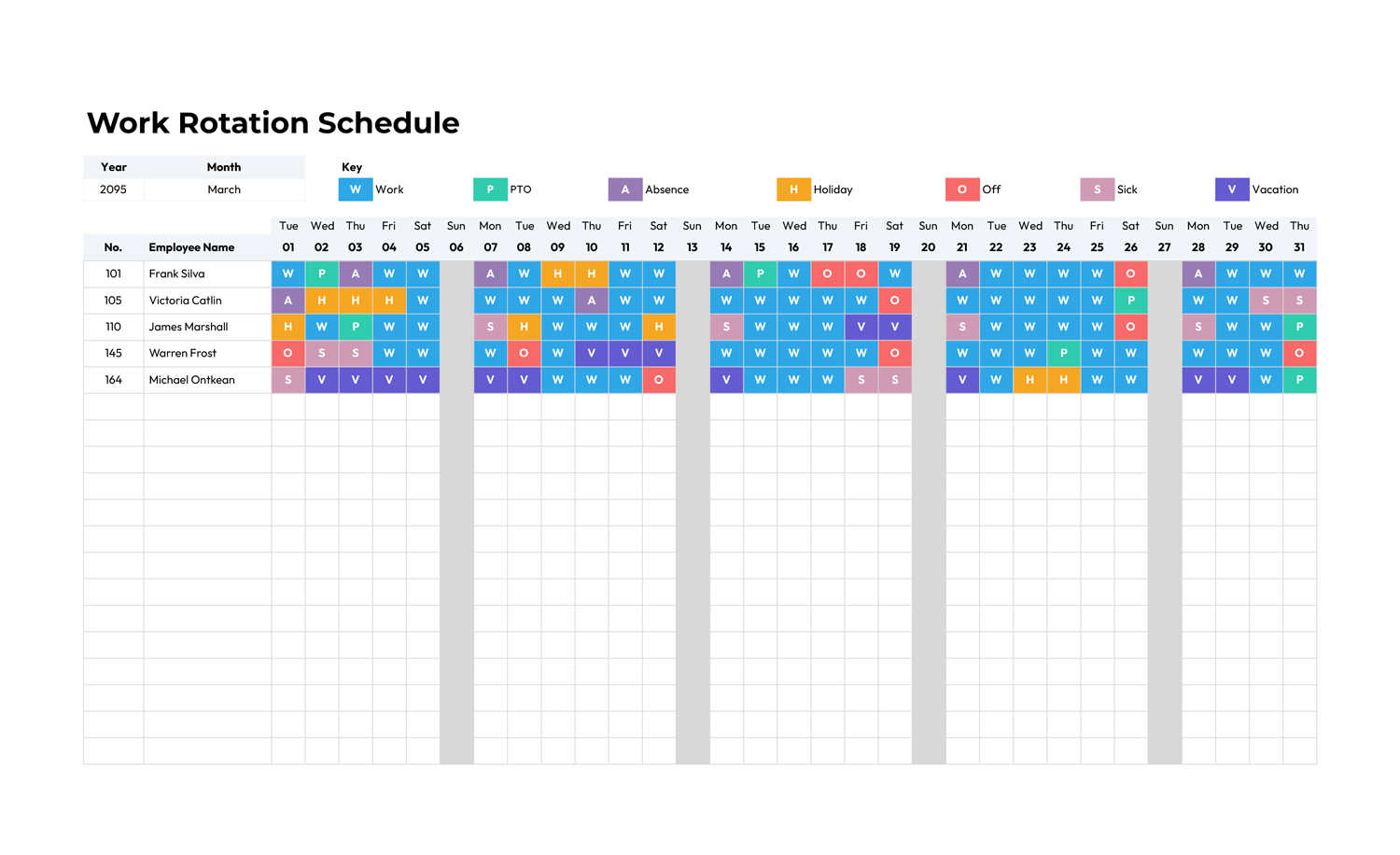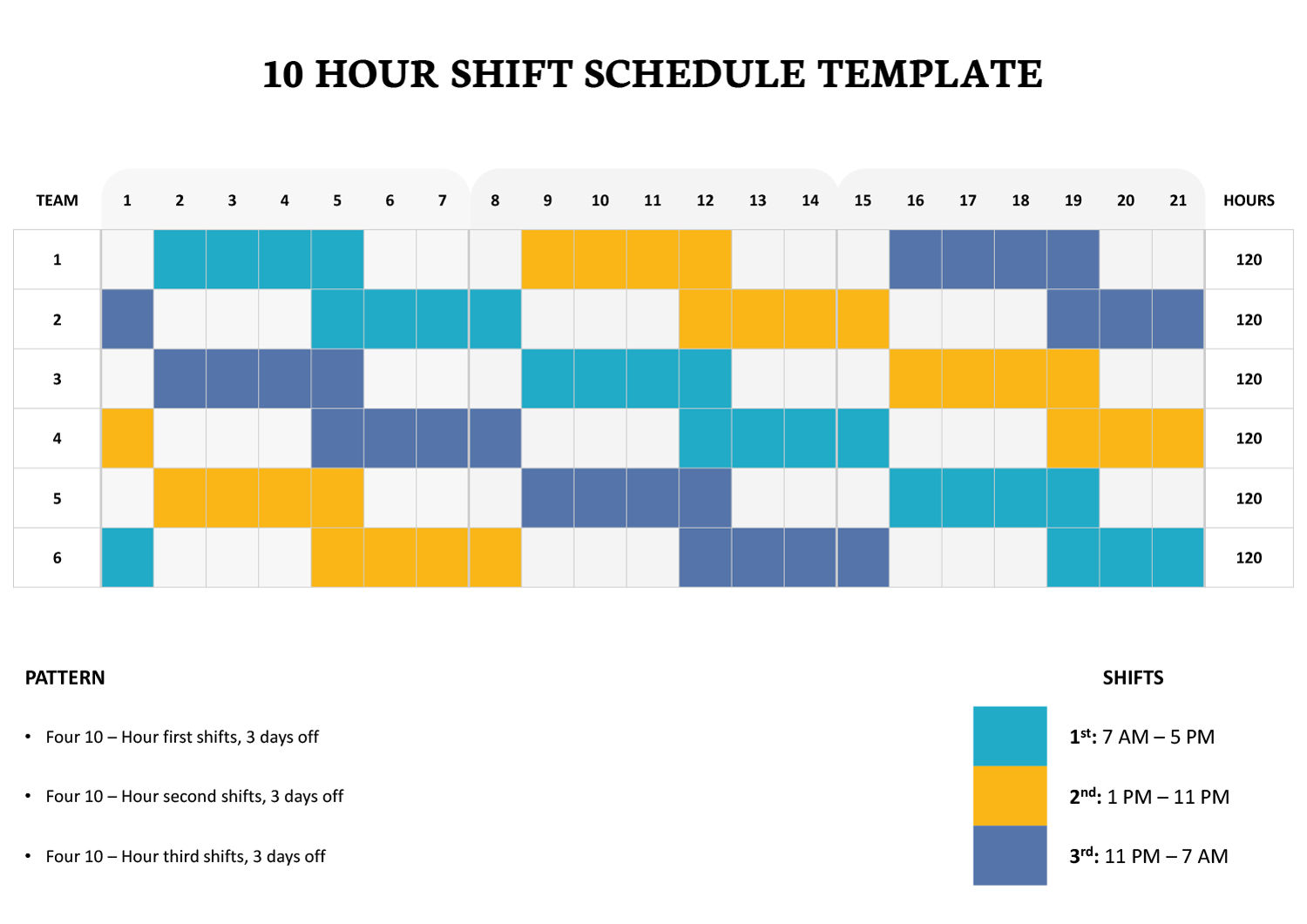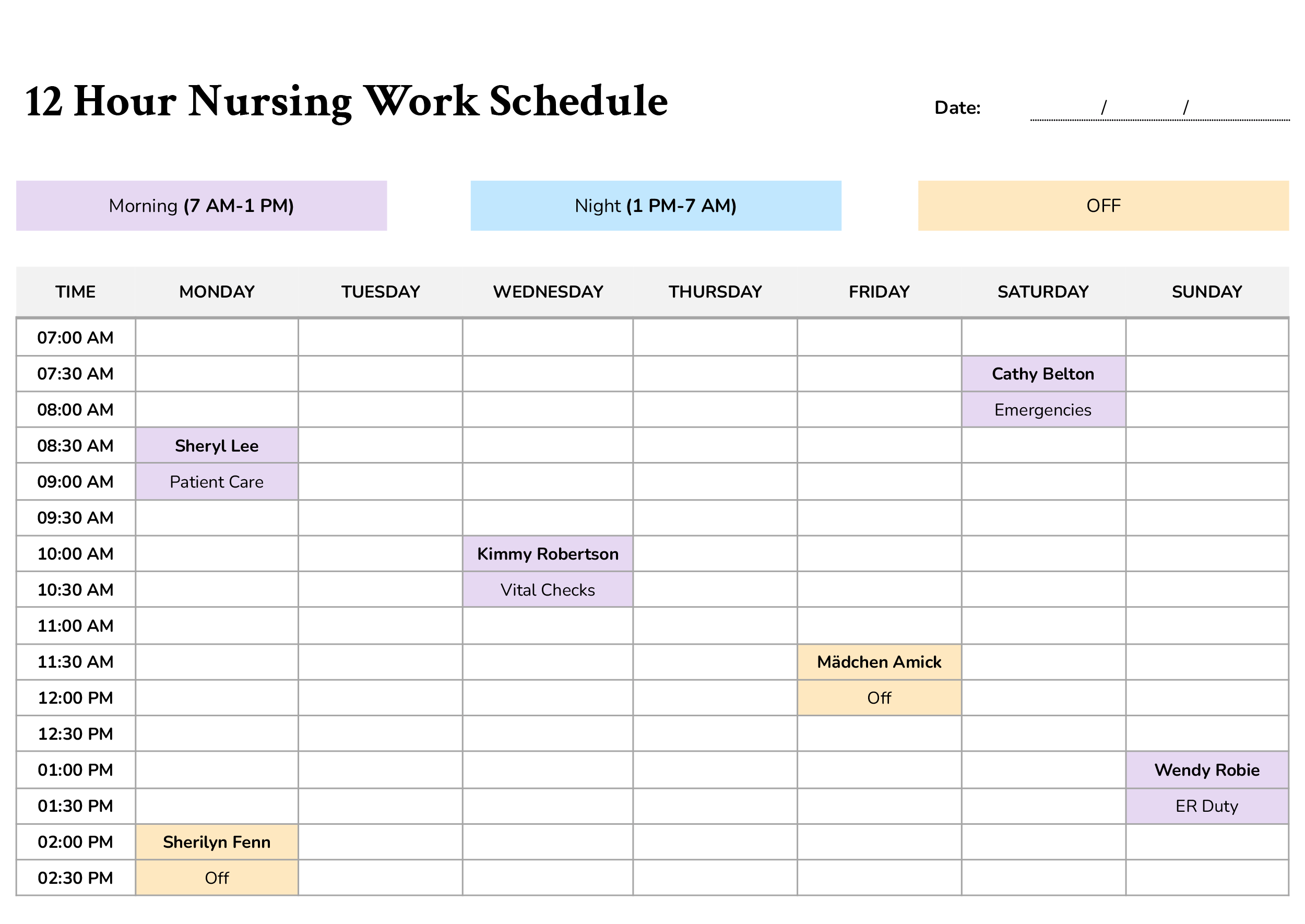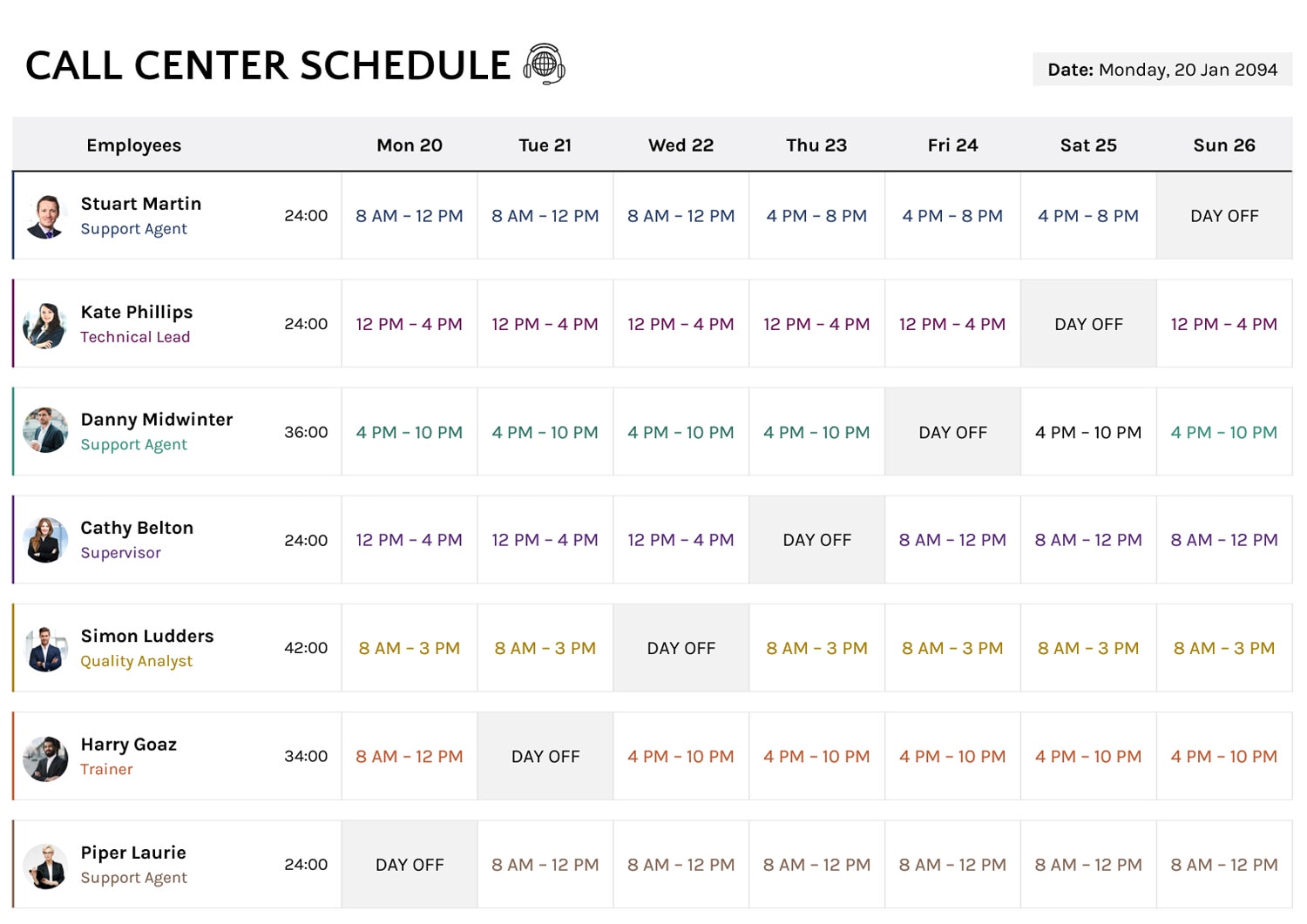




This 8-Hour Shift Schedule for 7 Days a Week template is designed for teams that need daily coverage and rotate staff between two 8-hour shifts. Using this template, you can plan a full week at a time, assign each team to a Day or Night shift for each day, and review weekly hours totals without building the schedule from scratch. It is intended for operations that schedule by crews or teams, such as manufacturing, facilities, security, support desks, field service, clinics, dispatch, and on-site coverage roles.
Who This Schedule Template Is For
This schedule template is meant for workplaces that schedule by team and use a repeating weekly pattern. Each row represents a team, each column represents a day of the week, and the Hours column totals the team’s scheduled time across the week.
If you manage rotating coverage for multiple teams, this format keeps the entire week visible so you can check staffing at a glance and spot rotation gaps early.
Shift Times and Weekly Hours
The shift key in the template lists two daily shifts.
- Day Shift is 6 AM to 2 PM.
- Night Shift is 2 PM to 10 PM.
Because each shift is 8 hours, a team scheduled on all 7 days shows 56 hours for that week. The notes area also references a 7-day cycle, 12 teams, a 56-hour work week, and a planning note about 2 overtime hours per employee per week.
If your operation uses 10-hour, 12-hour, or 6-hour shifts, you can update the template in two places. First, edit the shift-time key so the displayed start and end times match your actual shift. Second, update the Hours calculation so the weekly totals reflect your paid shift length.
Update the Hours multiplier. In the Excel sheet, go to the Hours column and click the first total cell J6. In the formula bar, change the ending *8 to your shift length, then fill the updated formula down the Hours column.
=(COUNTIF(C6:I6,"Day")+COUNTIF(C6:I6,"Night")+COUNTIF(C6:I6,"D")+COUNTIF(C6:I6,"N")+COUNTIF(C6:I6,"1")+COUNTIF(C6:I6,"2"))*8Update the shift-time key. Edit the text in the SHIFTS box at the bottom, and replace the displayed time ranges for Day Shift and Night Shift to match your real start and end times.
If Day and Night have different lengths. Replace the Hours formula in J6 with a split calculation, then fill down. Change the *8 and *10 numbers to your paid hours per shift.
=(COUNTIF(C6:I6,"Day")+COUNTIF(C6:I6,"D")+COUNTIF(C6:I6,"1"))*8 +(COUNTIF(C6:I6,"Night")+COUNTIF(C6:I6,"N")+COUNTIF(C6:I6,"2"))*10If you also track unpaid meal breaks, set the multiplier to the paid hours, and keep the time ranges as your real start and end times. This keeps the schedule readable while the weekly totals stay accurate.
Weekly Grid and Team Setup
Using this template, you can rename Team 01 through Team 12 to match your real crews, departments, or lines. The Week of field at the top gives you a simple place to label the schedule for a specific week so copies stay organized.
If you need more teams, you can extend the table by copying an existing team row, pasting it below, and updating the team name.
Excel and Google Sheets Scheduling Logic
In the Excel file, the Day and Night labels in the grid come from formulas, not manual typing. Each team has a hidden rotation pattern stored in a hidden column, and the schedule pulls the correct character for each day of the week.
The formula logic follows this conversion.
- D becomes Day
- N becomes Night
- 0 becomes a blank cell
- Any other character stays as-is, which can be used for custom codes like O for off, T for training, or M for meeting
The Hours column is calculated with a COUNTIF-based formula that counts Day and Night entries and multiplies the total by 8. The hours logic also counts some common alternative codes, including D, N, 1, and 2, so hours can still calculate if you switch to numeric shift codes.
If you introduce custom codes for off-days or partial coverage, review the Hours totals after your edits so the weekly totals reflect your workplace rules.
Color Coding For Day And Night
The Excel version uses conditional formatting to color shift cells based on the text shown in the cell.
- Day cells are filled when the cell reads Day.
- Night cells are filled when the cell reads Night.
If you add a custom code such as O, it will stay uncolored unless you add a matching conditional formatting rule for that code.
Notes Area and Scheduling Assumptions
The Scheduled Notes area is editable text. You can replace the default notes with your own items, such as shift swap rules, handoff instructions, call-in coverage, supervisor sign-off details, or any overtime guidance that applies to your teams.
PowerPoint and Google Slides Version
The PowerPoint and Google Slides versions present the same weekly layout as a formatted table. They work well when you need a schedule for printing, posting, emailing, or sharing in meetings. A simple approach is to duplicate the slide for each new week, update the Week of field, then adjust the Day and Night assignments and the notes section.