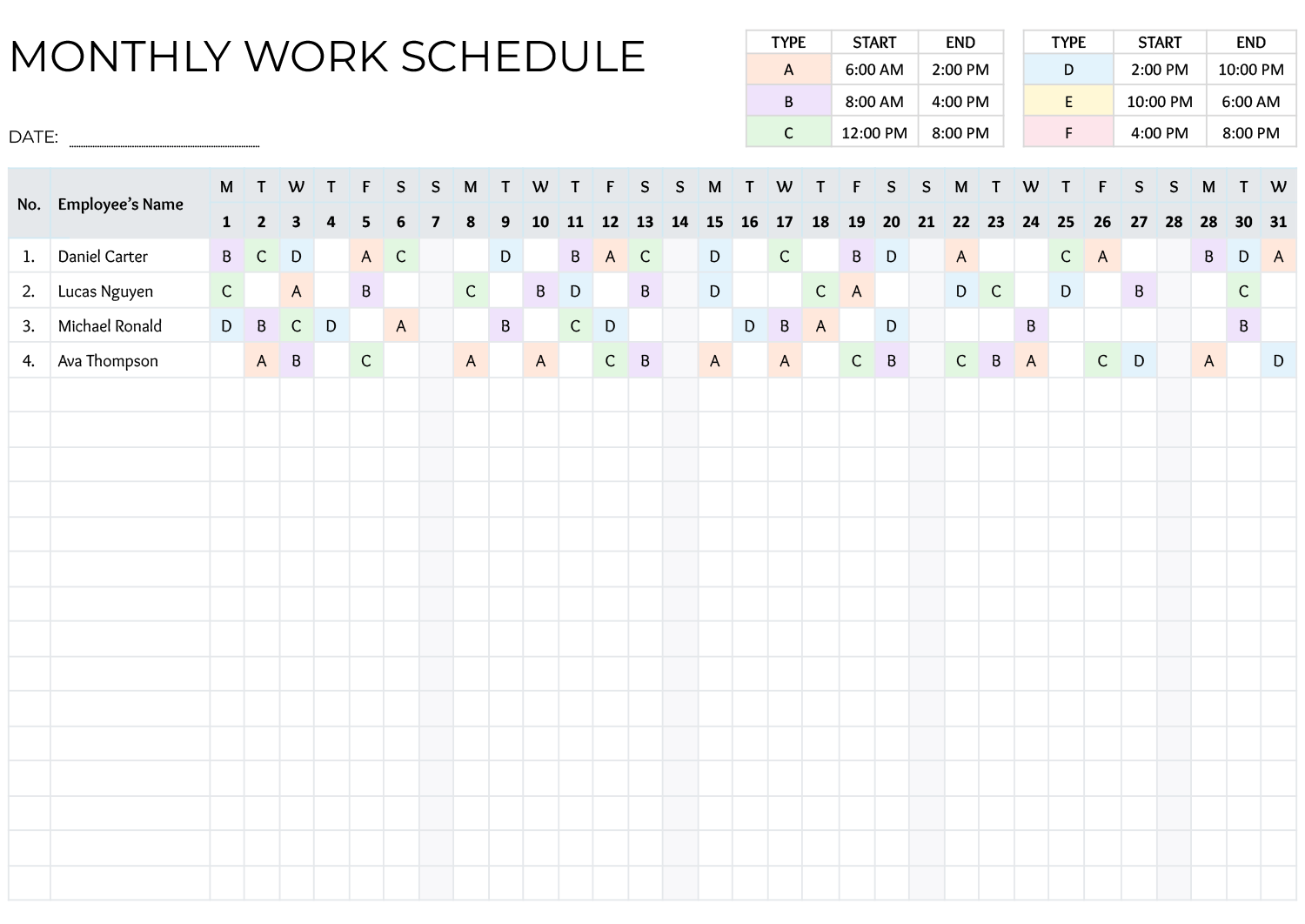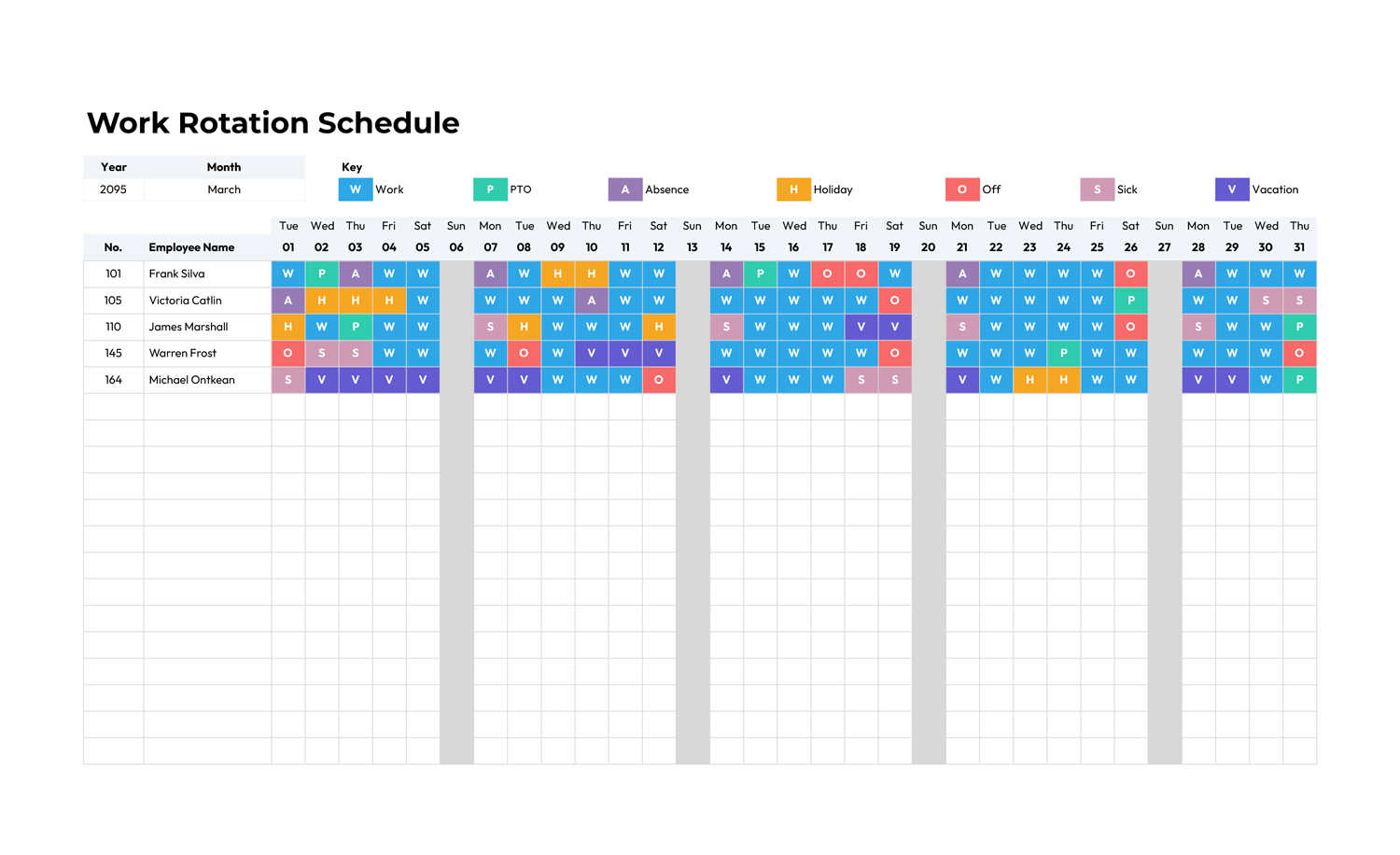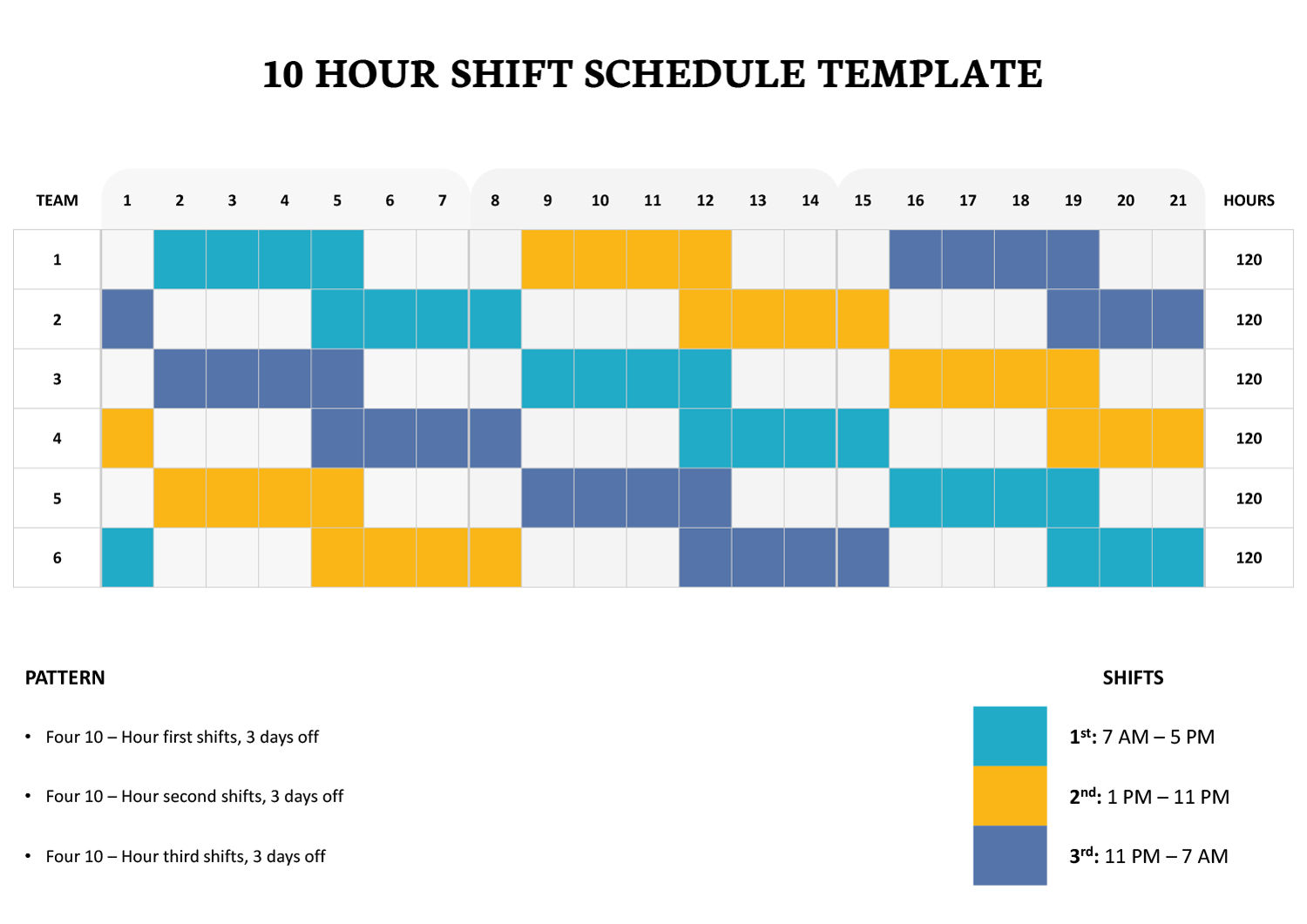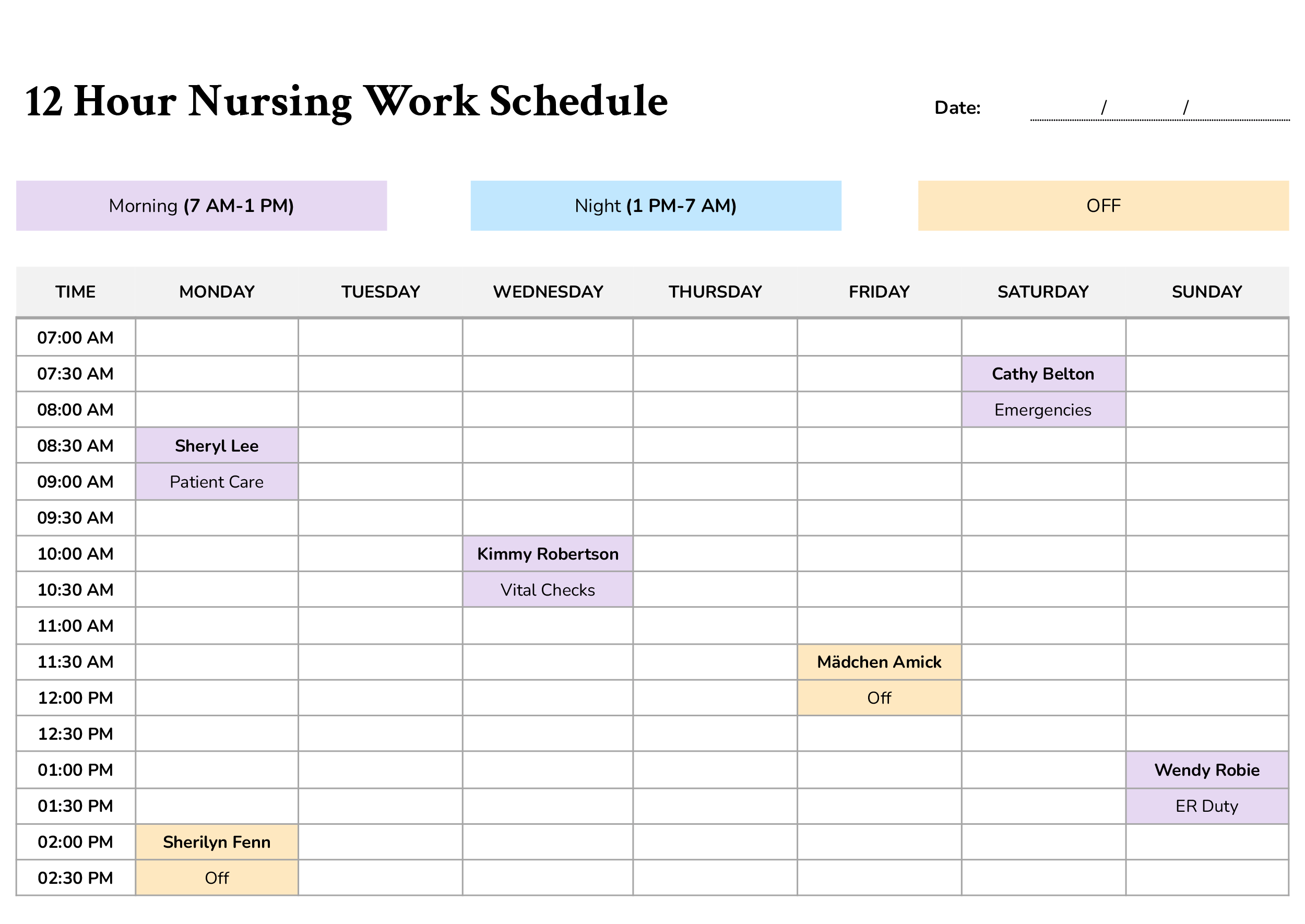
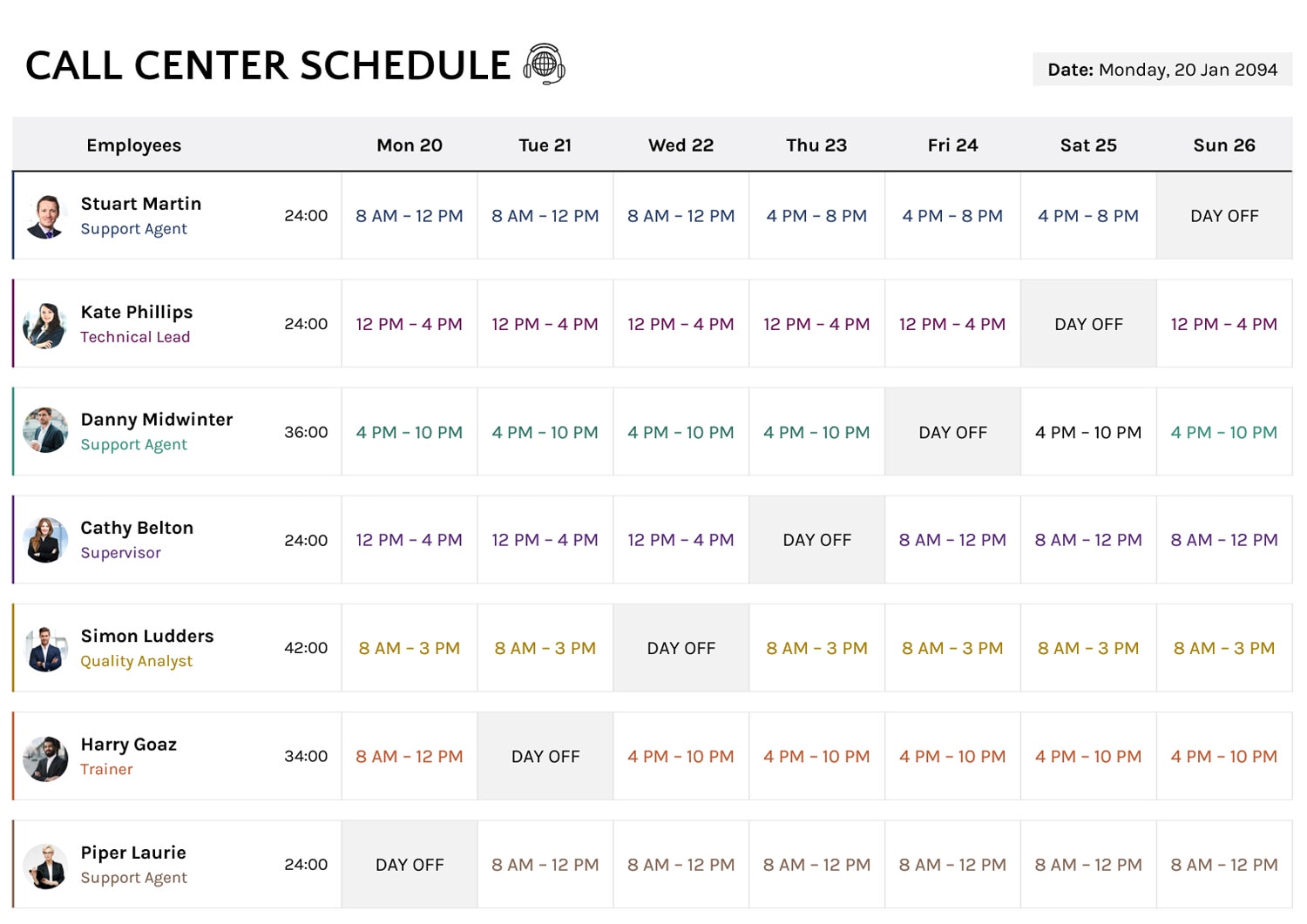




Building a call center schedule usually means balancing staffing coverage, skill levels, and workload across the week. You may need overlap for escalations, coaching time that still keeps phones covered, and day off planning that does not leave gaps during peak hours. This call center schedule template is designed for weekly scheduling when you want an easy-to-check view of daily shifts and a quick weekly hours total for each employee, so you can review the plan before it goes to agents, supervisors, or clients.
It is designed with one employee row per assignment, a role label under each name, daily shift entries across the week, and an hours total column beside the employee details. The employee area also includes a visual badge space, so the schedule stays easy to scan when multiple roles share similar hours. Here’s a breakdown of the template and how to customize it effectively.
Week and Date Area
At the top of the template, update the date label to match the week you are scheduling. Then review the day headers across the schedule and edit them if your planning window starts on a different day. This is worth doing early, since the day labels act as a reference point when supervisors check coverage, when agents request swaps, or when the schedule is printed for a board.
If your operation schedules by local time for multiple regions, add a short time zone note near the date label. Keep it short so the schedule remains easy to read.
Employee List and Role Labels
Each employee row includes a name line and a role line. Replace the sample names with your team members, then edit the role label to reflect what the person is assigned to cover that week. This is useful in call centers where the role changes by day, such as an agent who takes chat coverage on certain shifts or a lead who rotates between escalation coverage and floor support.
If you want quicker scanning, group employees by role order on the sheet. For example, keep leads and supervisors together, then agents, then quality or training roles. This makes it easier to check that critical roles appear on days where you expect higher volume.
Shift Entry Area
The day cells are where you enter each employee’s shift for that day. The sample schedule uses common shift blocks, such as morning, midday, and evening ranges. You can keep those blocks for predictable coverage, or type your own time ranges when the schedule changes week to week.
When a person is not scheduled, enter DAY OFF in that day cell. In the spreadsheet version, conditional formatting highlights any cell that matches DAY OFF, so time off stands out during coverage review and makes weekly patterns easier to spot.
If you use the hours total column, keep shift text written in a stable format. The calculation reads the time range inside the cell text, so large wording changes can keep a shift from being counted.
Weekly Hours Total Column
Next to the employee details, the template includes a weekly total hours column. In the spreadsheet version, this total is calculated using formulas that count the shift patterns typed in the day cells. The formula looks for specific time ranges using COUNTIF with wildcard matching, then multiplies each matched shift by its duration in hours. The sample formulas also recognize both a standard hyphen and an en dash in the time range, so the total still updates even if the dash style differs.
This hours column is useful when you are checking workload balance, watching overtime risk, or confirming that part-time staff remain within their target hours.
The hours column is currently formatted as a decimal hour total. If your team prefers the 24:00 style display, change the number format for the hours cells to an hours format such as bracketed hours. This keeps the total readable for supervisors who think in time totals.
Adding More Employees
The schedule uses repeating employee rows with spacing built in, so the layout stays readable as you extend the list. In Excel or Google Sheets, copy an existing employee row block and paste it below the last employee. This carries the formatting, borders, and hours calculation into the new row. The DAY OFF formatting is applied across a larger range than the sample list, so it can still apply as you add more staff.
If you schedule a large team, add employees in batches and do a quick scan after each paste. This keeps row spacing intact and reduces the chance of missing a border or a total formula.
Queue Coverage Notes And Special Assignments
Some call centers schedule by time, then refine coverage by queue assignment. You can handle this by adding short notes inside the shift cell, placed after the time range. Examples include Training, Shadow, Chat, Billing, or Escalations. This keeps the schedule readable while still giving supervisors the context they need.
If you need more detail than a short note can carry, keep this weekly schedule as the staffing baseline and maintain a separate daily plan for breaks, queue rotation, or call blending.
Using The Slide Version For Sharing
The PowerPoint and Google Slides versions are designed for sharing, printing, and presenting. They keep the same layout style, including the employee section, role labels, and day columns, so the schedule looks polished when posted in a team channel or displayed on a board. Since the slide versions do not use spreadsheet formulas, they are best for final distribution after the schedule is confirmed.
To expand the slide version for a larger team, duplicate an employee row group and update the name, role, and shifts. Keep spacing consistent between rows so the schedule remains easy to scan from a distance.
File Formats Included
This call center schedule template is available in Excel, Google Sheets, PowerPoint, and Google Slides. Use the spreadsheet version when you want the hours total calculations and DAY OFF highlighting. Use the slide version when you want a clean view for sharing or printing.
FAQs
In the spreadsheet version, the total hours formula counts specific time ranges. If your operation uses a shift that is not currently included, add another COUNTIF line for that time range and multiply it by the shift duration in hours. Do this once in a single employee row, confirm the weekly total updates correctly, then copy that updated hours cell down for other employees who use the same shift type.
Yes, you can enter an overnight range in the day cell, such as 10 PM – 6 AM. If you want the hours column to count it, add that shift pattern to the hours formula the same way you would add any new shift type. For overnight coverage planning, it also helps to agree on how you label the shift day, since some teams assign the shift to the start day while others assign it to the day the shift ends.
You can place two time ranges in the same day cell, separated by a line break. If you want the hours total to count both ranges, make sure each time range matches a pattern included in the formula. If your split shifts change often, another option is to keep the weekly hours as a manual check for that employee and rely on the schedule primarily for coverage and visibility.
Use the role line under the employee name for the primary assignment, then add a short note after the time range on the specific day where the special assignment applies. This keeps the weekly schedule readable while still giving supervisors quick context for who is covering key responsibilities.