
Gantt Chart Templates
A project plan only works when you can see what happens when, and what is waiting on what. These Gantt chart templates lay the task list against a dated timeline so every task becomes a bar you can see start, run, and finish, with the order between tasks already in view. Set your tasks and dates and the whole schedule comes into view.

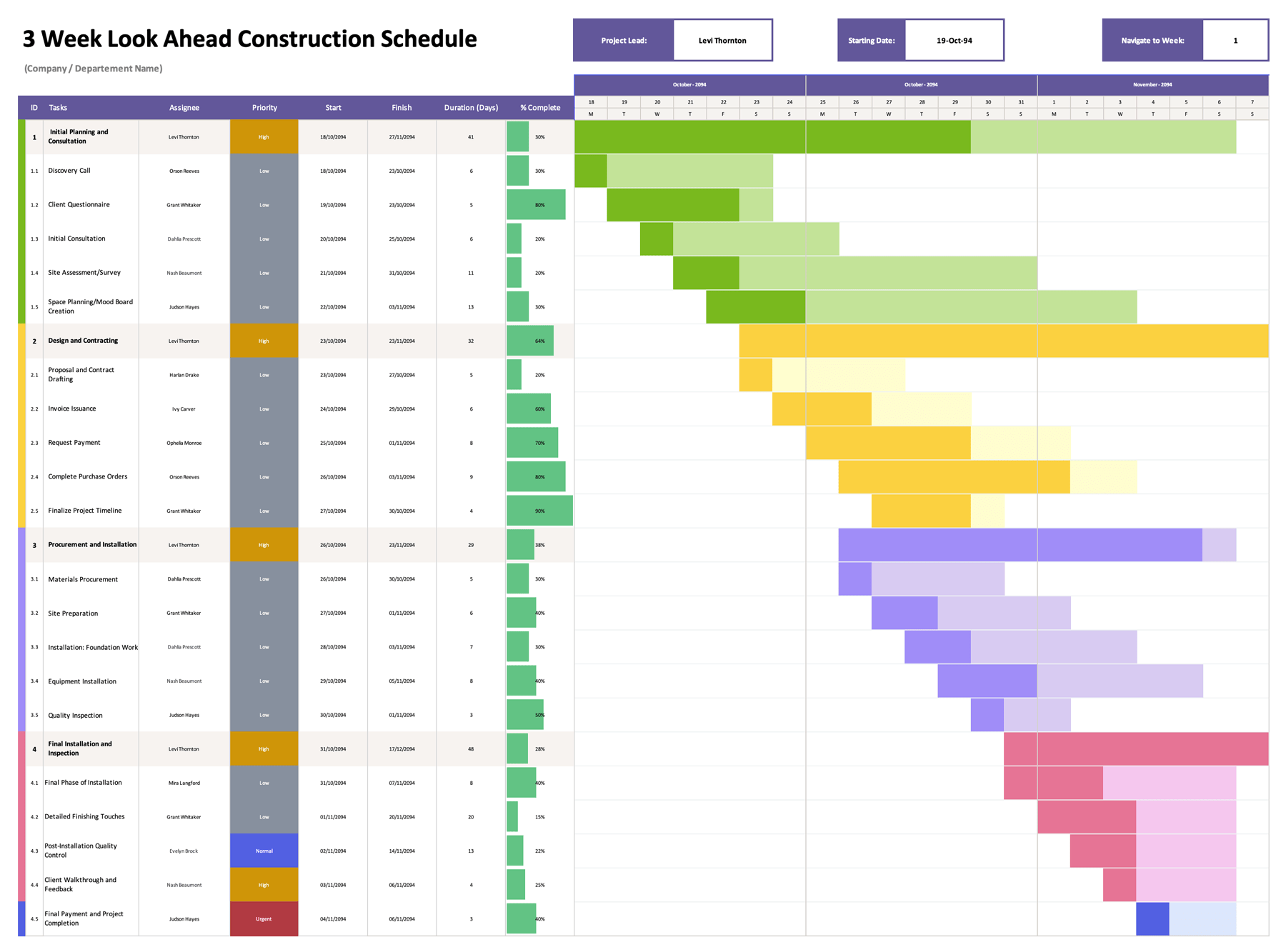




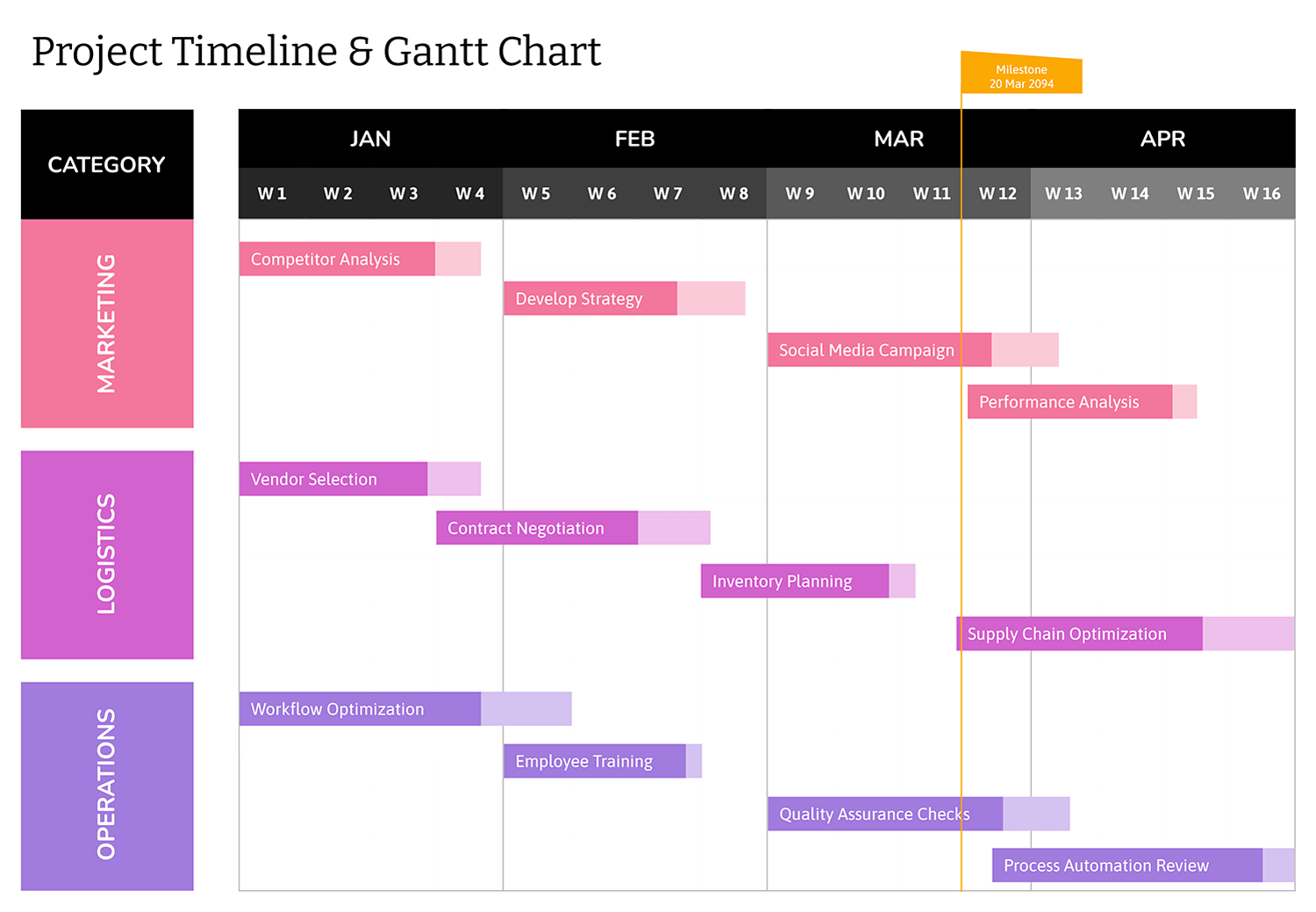


A Gantt chart is a bar chart of a project’s schedule. The task list runs down the left, a dated timeline runs across the top, and each task becomes a horizontal bar placed by its start and end dates, so the bar’s length is its duration and its position is when the work happens. Read top to bottom for the order of work and left to right for how the project moves through time. That single view is why the format has stayed in use for project planning for more than a century.
These Gantt chart templates give you that structure ready to populate, from a minimal four-phase plan to a detailed schedule with assignees, priorities, and percent-complete columns. The schedule becomes a working plan once you link the tasks that wait on one another, because a dated bar on its own says when you hope a task happens, while a linked one shows what a slip costs everything downstream. You enter the tasks, set the dates, and mark those links, and the chart keeps the timeline and the relationships between tasks legible as the plan grows.
The same structure serves a construction schedule, a product development plan, a marketing rollout, or several projects stacked in one view. Set it to the work in front of you and you have a schedule the whole team can read at a glance.
Worth knowing: Set durations against working days, not calendar days. A bar drawn straight across weekends and holidays reads as more time than the work actually has, and that gap is where schedules quietly slip.
Elements of a Gantt chart
The parts that turn a task list into a readable project schedule.
The column down the left naming every phase and task in the project. Grouping tasks under their phase is what keeps a long schedule readable.
The dated scale across the top, divided into days, weeks, or months to fit the project's length. It anchors every task bar to a real calendar.
The horizontal bars spanning each task from start to end date. Bar length shows duration, and position on the timeline shows when the task happens.
Fixed points that mark a deadline, approval, or phase completion, usually drawn as a diamond. They flag the dates a project is judged against.
Links between tasks showing which one waits on another, often drawn as connecting arrows. They turn separate bars into a sequence that has to hold.
Shading or a percent-complete value on each bar showing how far along a task is, so a glance separates done, in progress, and not started.
Columns beside the task list for owner, priority, and start and finish dates, so the who and the when sit next to each bar.
Planning a project with a Gantt chart
From a list of tasks to a dated schedule you can track against.
List the work as phases and the tasks under each one. A task should be small enough to give a single start and end date and assign to one owner.
Tip — A verb-noun naming pattern such as Draft proposal or Pour foundation keeps the task list scannable and tells a reader what each bar is at a glance.
Match the calendar across the top to the project's length. Days suit a few weeks of work, weeks suit a few months, and months suit a year or more.
Tip — Account for weekends and holidays as you set dates. A bar that runs across non-working days reads as longer than the actual effort it represents.
Give every task a start and end date so its bar lands in the right place and spans the right length. The bars together become the shape of the schedule.
Identify which tasks cannot start until another finishes, and link them. Most links are finish-to-start, where one task wraps before the next begins.
Tip — The chain of dependent tasks with no slack is the critical path. It sets the shortest possible finish date, so watch those tasks closest.
Drop a milestone marker on each deadline, sign-off, or phase boundary. These are the dates stakeholders track, separate from the day-to-day task bars.
Update the percent-complete or bar shading as tasks advance. A chart kept current shows where the project actually stands against the plan.
Tip — Color coding by phase, owner, or status lets a reader sort a dense schedule by eye without reading every task name.
The critical path
The critical path is the longest chain of dependent tasks in the schedule, the sequence that has no slack. Its total length sets the earliest the whole project can finish, so a delay on any task along it moves the end date directly, while a task off the path can slip within its slack without affecting the deadline. Marking it on a Gantt chart shows at a glance which tasks to protect and where adding people or time actually shortens the project rather than just keeping a non-critical task busy.
Several of these Gantt chart templates include a column or a color for flagging critical-path tasks alongside the standard bars, so the sequence that governs the finish date stays visible as the plan changes.
Common Gantt chart mistakes
The slips that turn a schedule into a picture nobody trusts.
Listing every sub-step at once makes the chart unreadable and buries the milestones that matter. Plan at the level you can track, and let finer detail live in a separate breakdown.
Leaving links out turns the chart into a list of dates with no warning when an early task slips. Over-linking every task to the one before it does the opposite, making the schedule too rigid to respond. Link only the tasks genuinely blocked by another.
Estimates pulled from optimism rather than past projects set deadlines the team cannot meet. Base each task's length on team input and how long similar work has actually taken.
Schedules built on calendar days rather than working days, with no allowance for holidays or people shared across tasks, look fine on the chart and fail in practice.
A Gantt chart guides a project only while it reflects it. Progress and dates updated as work moves keep it a plan rather than a record of intentions.
FAQs
What are the types of task dependencies in a Gantt chart?
There are four. Finish-to-start (FS) is the most common, where one task must finish before the next starts, like completing a foundation before framing begins. Start-to-start (SS) means a task cannot start until another starts, so the two run in parallel. Finish-to-finish (FF) means a task cannot finish until another finishes. Start-to-finish (SF) is the rarest, where a task cannot finish until another starts, as when an outgoing shift cannot end until the incoming shift begins.
Do these Gantt chart templates have built-in automation?
The spreadsheet versions do. The Excel and Google Sheets templates are built with formulas and conditional formatting that handle the moving parts for you. Task bars draw and resize from the start and end dates you type, progress shading fills to the percent complete you set, and a week or month selector shifts the visible timeline so you can scroll a long schedule without rebuilding it. The PowerPoint, Word, and Google Slides versions are arranged for a clean, presentation-ready schedule you adjust by hand. Choose the spreadsheet versions when you want the chart to recalculate as dates change, and the slide or document versions when you want a sharp schedule to drop into a report or deck.
What makes a Gantt chart effective rather than cluttered?
Show only the tasks that matter at the level you are planning, since finer detail can live in a separate breakdown. Use color to separate phases or statuses, name tasks consistently, and account for non-working days so durations stay honest. The goal is a schedule any team member can read without it being explained.
Can I plan more than one project in a single chart?
Yes. A multi-project layout stacks several projects in one view, each with its own grouped tasks and progress, so you can see how parallel efforts share a calendar. It suits a team or department tracking a few initiatives at once rather than a single deep plan.
How is a Gantt chart different from a regular bar chart?
Both use horizontal or vertical bars, but a regular bar chart compares values across categories, while a Gantt chart maps tasks against time. Each bar represents a task’s duration and position on a calendar rather than a measured quantity, which is what defines it as a scheduling chart rather than a comparison one.