Project scheduling becomes more demanding when tasks are connected to earlier approvals, deliveries, reviews, or technical steps. A date written beside a task does not tell the full story if that task cannot begin until another item is finished. This is why project plans often become difficult to manage once teams start tracking several activities at once. The schedule may show what needs to be done, but it may still leave gaps in task order, responsibility, and timing.
Dependencies are what turn a task list into a more useful project schedule. When the relationship between tasks is written clearly, it becomes easier to see what must happen first, which items can move forward together, and where delays are likely to affect the wider timeline. That is especially important in implementation projects, construction planning, product launches, internal rollouts, and similar work where one delay can affect later stages of the project.
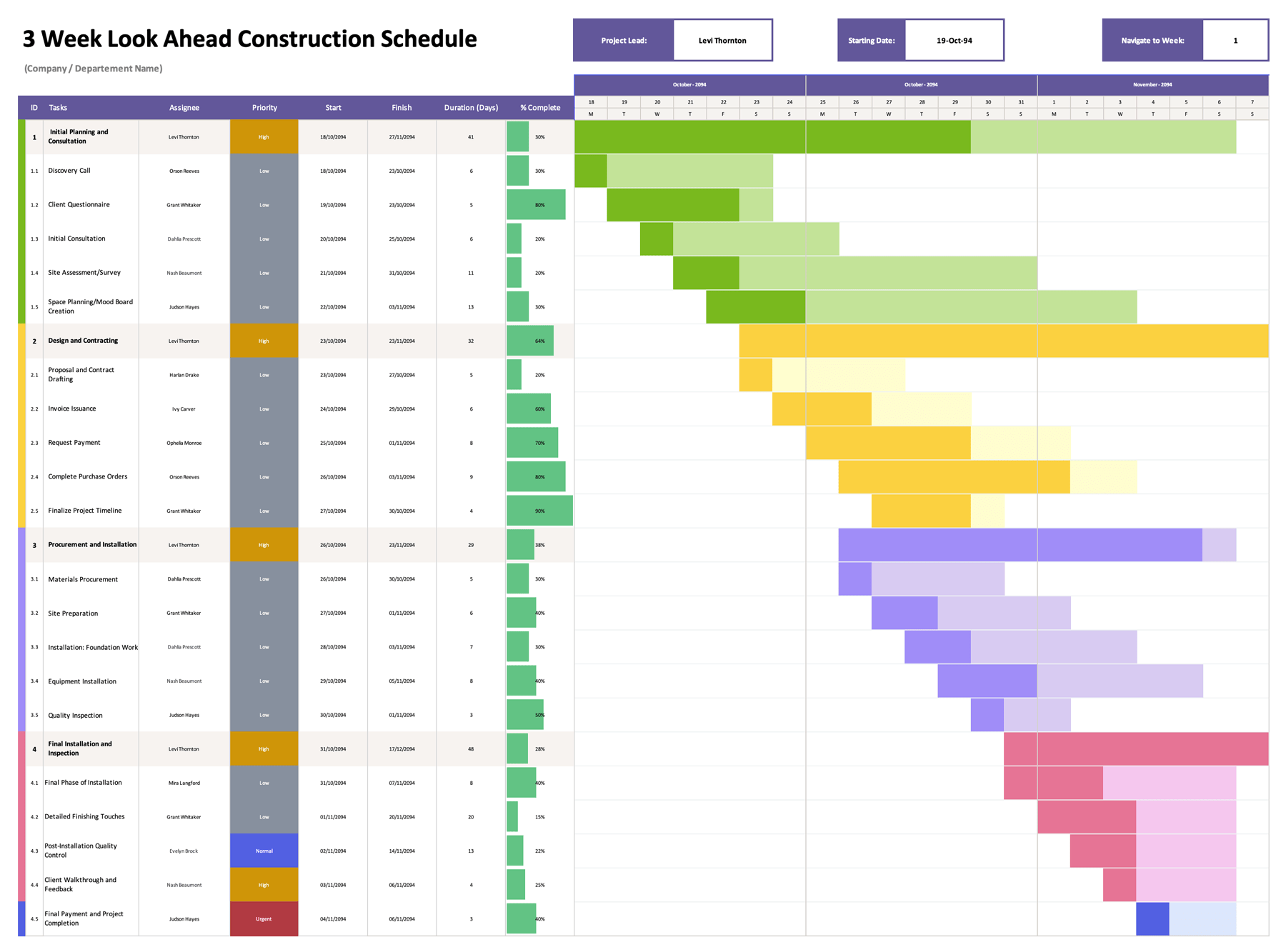
Excel Gantt chart template with dependencies is made for that kind of planning. It records task names, WBS numbers, predecessor links, assigned owners, progress, scheduled dates, actual dates, finish variance, and duration, then places the planned schedule into a weekly Gantt chart for review. This gives project teams a clearer way to track timing and task order in the same worksheet. Below is a closer breakdown of how the template can be filled and used.
How to Use This Excel Gantt Chart Template With Dependencies
Before entering tasks, start with the project details at the top of the sheet. Add the project title, the manager responsible for the work, the company name, and the project start date. The project start date does more than label the sheet. In this template, it also anchors the weekly timeline on the right, so the chart begins from the week tied to that date.
Enter the WBS and task titles
Begin by listing the major phases of the project in the WBS column, then place the related subtasks beneath each phase. In the sample worksheet, the schedule is grouped into larger phases such as project initiation, planning, system configuration, testing, and go-live/closure. That format makes the sheet easier to review during meetings because you can read the project at two levels. The main rows show the broader phase timing, and the detail rows show the work that sits under each phase.
The numbering in the WBS column matters because the Dependencies column points back to those task numbers. Keep that numbering steady once the schedule is in use. If you move tasks around later, revise the dependency entries too, so the task order stays readable.
Record dependencies in the task sequence
The Dependencies column is used to show which earlier task a new task depends on. In this template, dependency entries are written as predecessor WBS numbers such as 1.1, 2.1, or 4.2. This gives you a direct way to show task order inside the same worksheet. When you review the plan, you can quickly see which tasks should happen first and which tasks should wait until earlier work is finished.
The dependency entries in this worksheet are informational. They do not automatically recalculate start or finish dates. If one task moves, the scheduled dates for the related task still need to be revised manually. That is worth knowing before using the sheet for a project with frequent timeline changes.
Assign task owners and completion percentages
Each task row also records the person or team responsible for the work. This turns the worksheet into more than a timeline because you can also use it during progress reviews and check-ins. The percentage completed column gives each row a progress reading, so the schedule can show timing and current status together.
On main phase rows, the percentage can be used as a phase-level status entry. On detail rows, it can reflect the actual progress of the subtask. This is useful when managers want a quick summary of a phase, but the delivery team still needs row-level detail below it.
Enter scheduled dates first, then actual dates as work begins
The scheduled start and scheduled finish columns form the planned timeline. Those dates drive the Gantt bars on the right side of the sheet, so they should be reviewed carefully before the project is shared or finalized. Once work begins, the actual start and actual finish columns let you compare the plan against what happened in practice.
One strong part of this template is the way the main phase rows pull dates from the subtasks beneath them. In the sample sheet, the scheduled start for a main phase is taken from the earliest subtask start date, and the scheduled finish is taken from the latest subtask finish date. The same roll-up logic is used for actual dates. This cuts down repeat entry and keeps the phase rows tied to the work listed below them.
Review finish variance and duration
The finish variance column compares the scheduled finish date with the actual finish date. A zero means the task finished on time. A positive number means it finished later than planned. A negative number means it finished earlier. This gives you a direct way to spot delay patterns without doing date math outside the worksheet.
The duration column counts the scheduled span in days. This is useful during planning because it gives you a quick sense of how much calendar time has been assigned to each task. It can also draw attention to tasks that look too short or unusually long for the amount of work involved.
Read the weekly Gantt chart
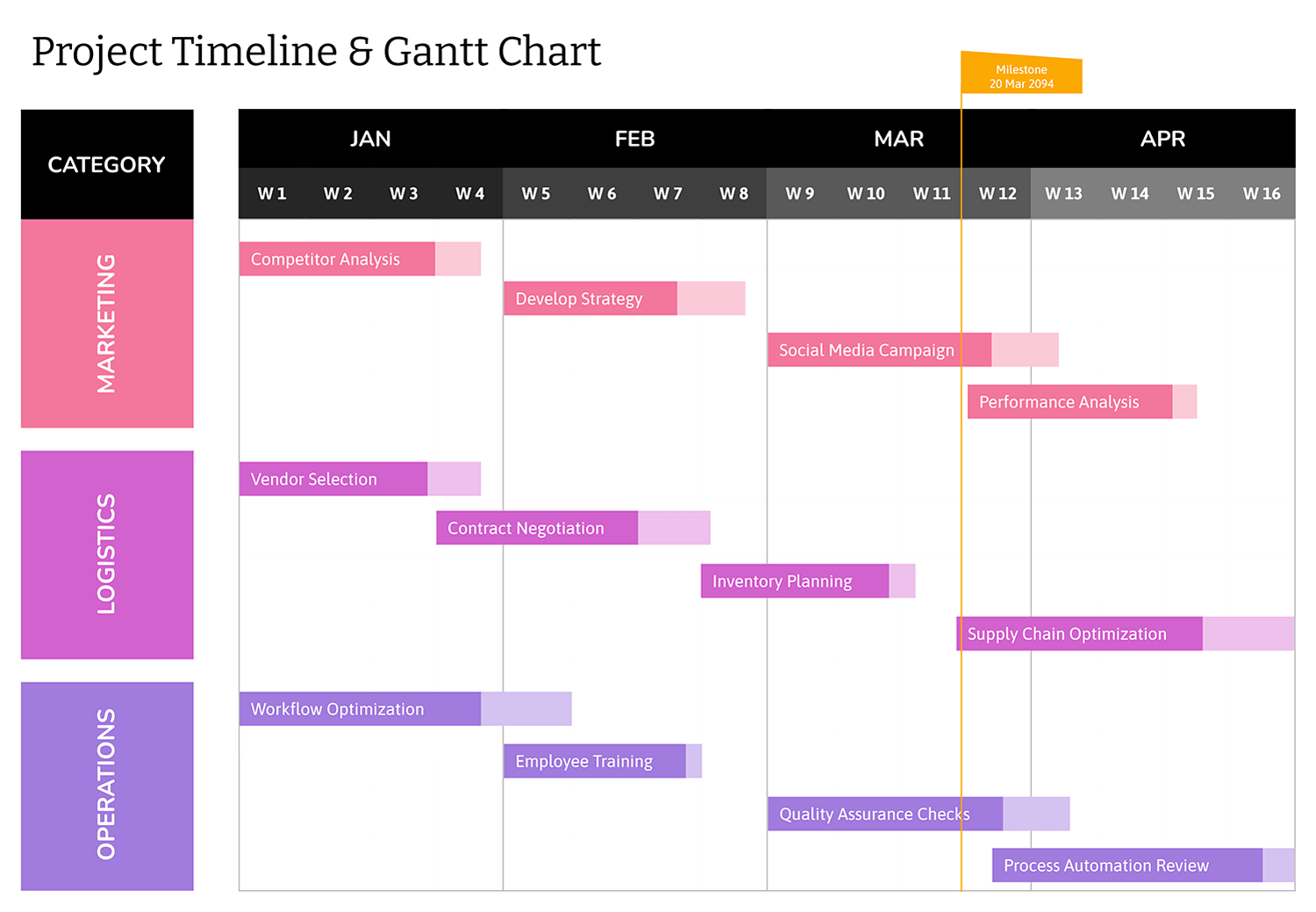
The chart area on the right side turns the scheduled date range for each row into shaded weekly bars. This makes it easier to review overlap between phases, see when several tasks are active at the same time, and spot long stretches of work across the project year. Since the weekly headings are tied to the project start date, the chart stays anchored to the calendar used for the project.
The bars reflect scheduled timing, not actual timing. That distinction matters. The left side of the worksheet is where you track actual progress and slippage. The right side continues to show the planned calendar, so you can compare the schedule against reality without moving to a second sheet.
Customizing the Gantt Chart Template
This template is available in Excel and Google Sheets. You can rename the phases, add more task rows, revise the weekly span, extend the timeline beyond 52 weeks, or adjust the styling to match your internal reporting format. For recurring project types, the sheet can also be duplicated and reused as a fresh planning copy for the next project.