


A year-level Gantt schedule works best when you want a timeline that shows timing and overlap, without turning into day-by-day tracking. This template keeps the focus on months, which suits annual roadmaps, campaign schedules, product releases, training rollouts, and client-facing updates. Add your tasks down the left side, then mark the months where each task is active so the plan stays readable during planning sessions, status meetings, and review calls.
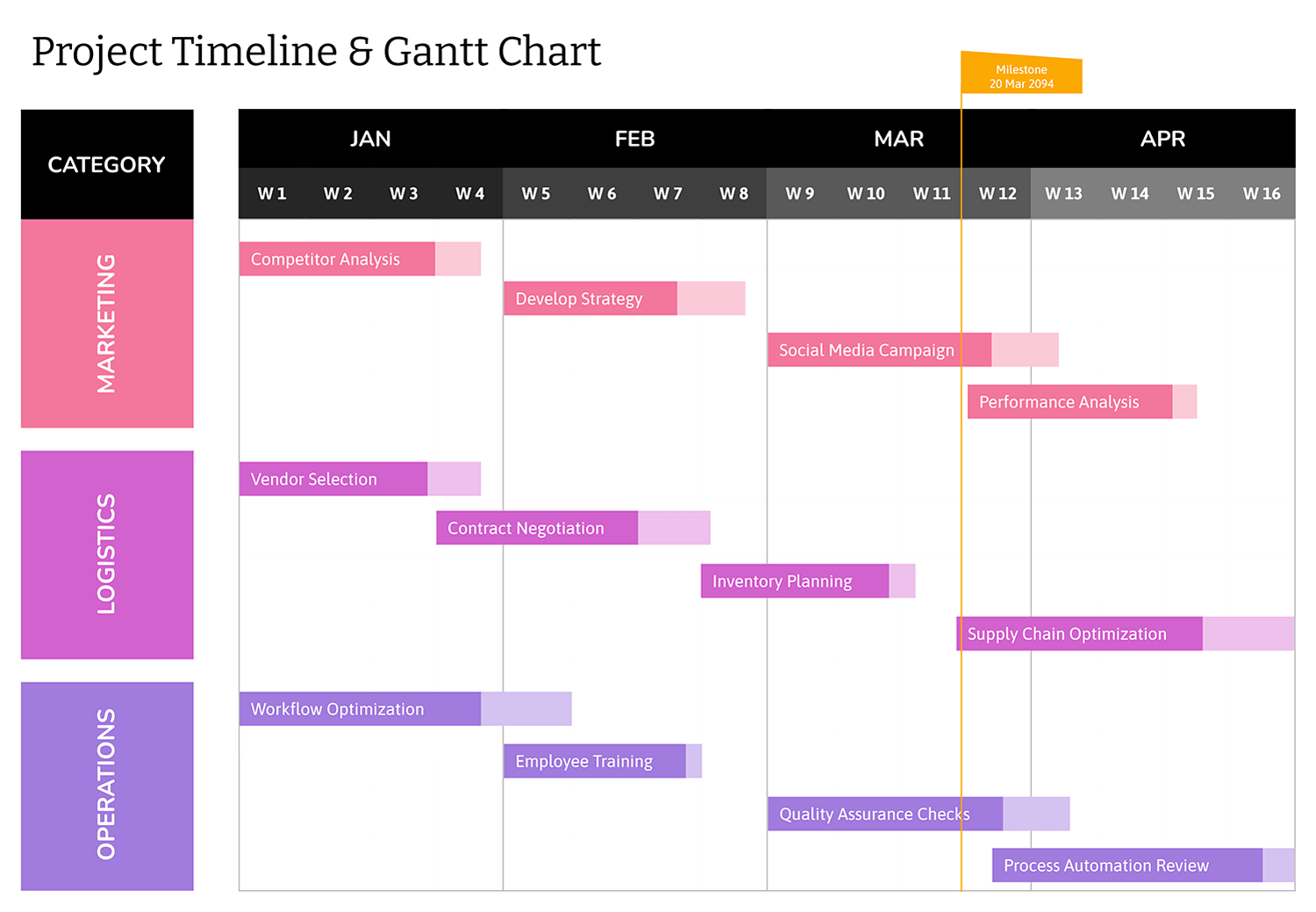
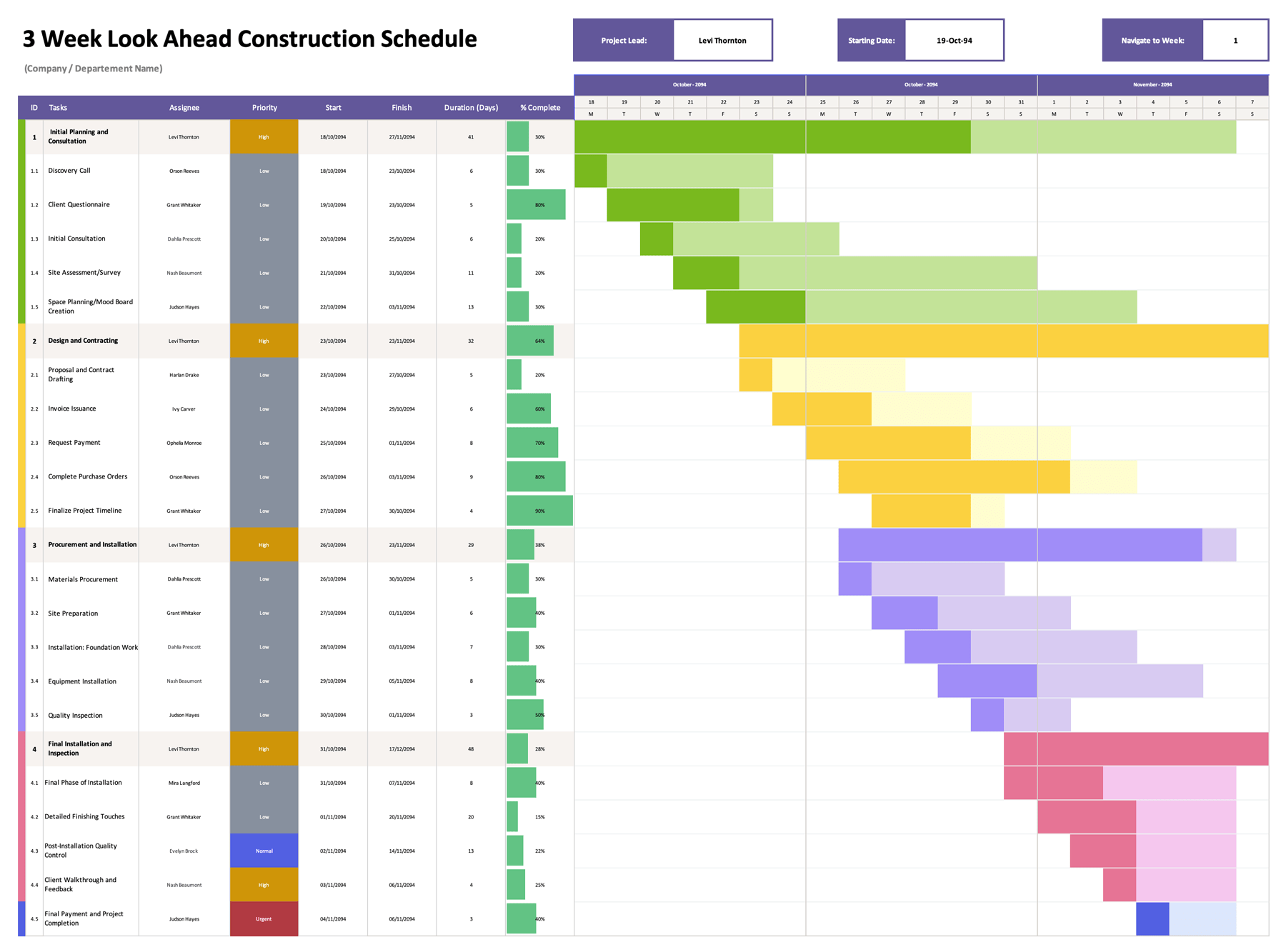
The layout is intentionally minimal so your timeline is the main visual. In the month-by-month Gantt chart area, you can color the cells in any style you prefer, such as one color for primary phases or multiple colors for categories like planning, build work, review, and launch. If you want cleaner scanning, you can keep one shade for the full task window and add a second shade for milestones, handoffs, or final review weeks. This Gantt chart schedule template is available in Word, Excel, Google Docs, and Google Sheets for customization.
Fill Out and Update the Schedule
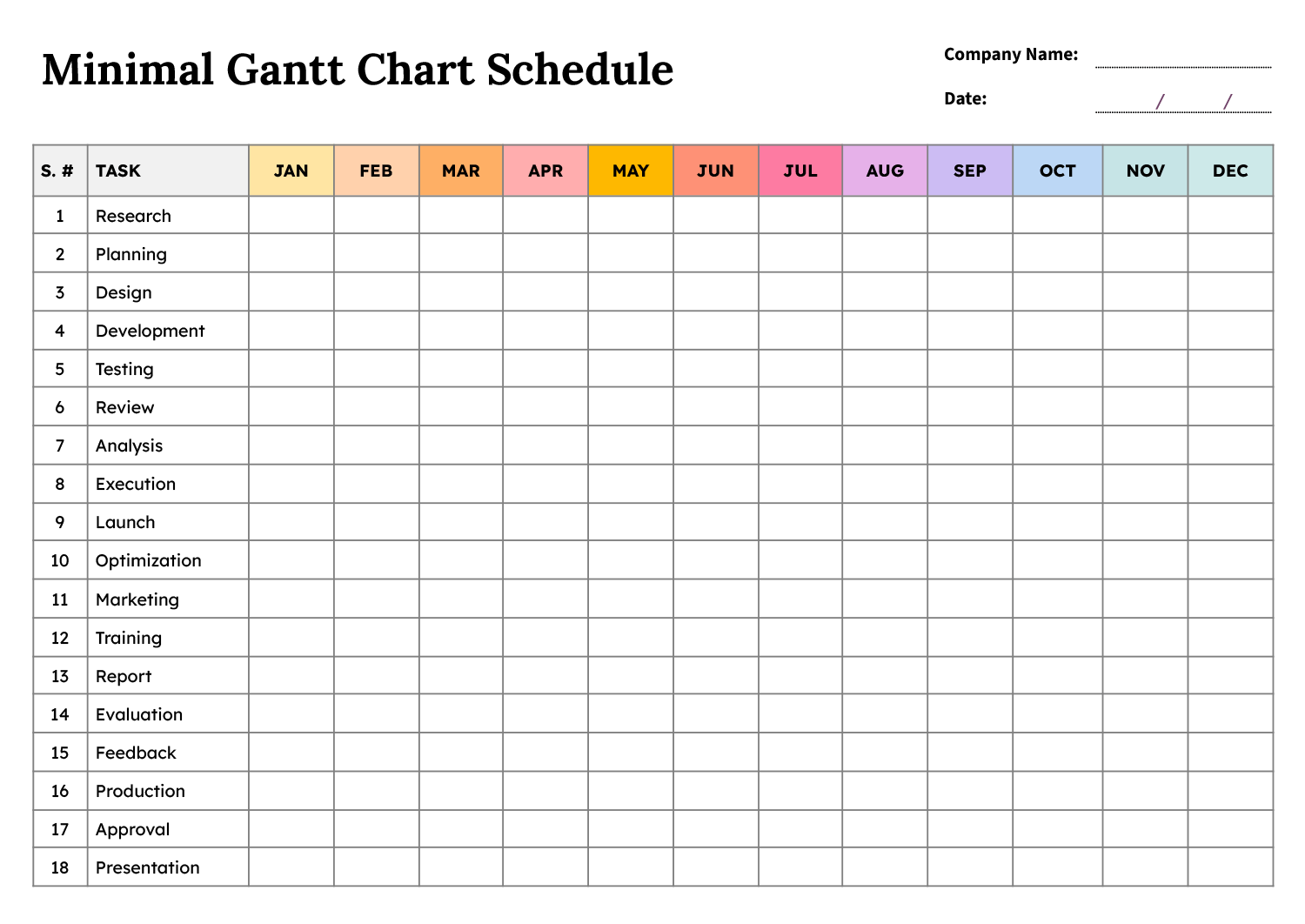
This template uses a month-by-month grid. Enter your task list on the left, then fill the timeline by coloring the cells for the months when each task is active. It is meant to stay readable at a glance so someone can scan the rows and understand timing, overlap, and rough sequence without extra notes or a separate tracker.
Add Company Name and Date
Start by entering your Company Name and Date in the header. This makes it easier to tell when the schedule was last reviewed, especially if it is shared in a meeting or saved in a shared folder. If you want revision tracking, include it inside the Date line in a short format such as “12/29/2095 v2,” or keep the revision in the filename.
Write Your Task List
Use the Task column to list your phases, deliverables, or workstreams. Keep each row focused on work that can reasonably take part of a month. If a row covers too much, split it into smaller rows so the month markings stay readable. If something is a milestone, mark only one month and add a short timing note in the task name, such as “Approval, early May.”
Mark Active Months With Color
After your task list is ready, mark the months by coloring the month cells in the same row. Click the first month cell, drag across to the last month cell for that task, then apply a fill color.
- In Word or Google Docs, use table cell shading to fill the month cells.
- In Excel or Google Sheets, use the fill color option to shade the month cells.
If you want the timeline to communicate more than timing, use color with a simple meaning. For example, you can keep one shade for planning work, another for execution work, and another for reviews or approvals. That way, overlaps are still easy to understand without adding extra text.
Keep Color Meaning Easy to Follow
Pick a small set of colors and stick to the same meaning across the full grid. If you need a reminder for readers, add a short legend near the top margin or add a Legend row above the task list. Keep the legend short so it does not compete with the timeline.
If the schedule may be printed in black and white, add a short label in the task name such as “Planning” or “Review,” since colors may not show clearly on paper.
Review and Update
When dates shift, only recolor the month range for the affected task, then scan the grid across the year to see what else may need attention. Look for dependent work that now starts too early, months where many tasks overlap, and gaps where an approval or review window may be missing. This quick scan keeps the schedule reliable as a planning reference.
FAQs
Color only the month where the milestone happens, then add a short timing note in the task name, such as “Kickoff, early May” or “Approval, mid Sep.” This keeps the schedule aligned with month-level planning while still communicating timing.
Color both months. At this level, the goal is to show that work is active during those months. If the late start matters, add a short note beside the task name, such as “late start” or “handoff.”
Use color intentionally and group related tasks together in adjacent rows. If several tasks overlap in the same months, giving them the same category color can make that overlap look planned instead of confusing. If two tasks have similar names, add a short qualifier in parentheses, such as “Review (Legal)” and “Review (QA).”