



Restaurant scheduling usually comes down to two priorities that compete with each other. You need dependable coverage for every shift, and you also need a weekly plan that stays accurate enough for payroll, breaks, and overtime review. This restaurant staff schedule template is designed in Excel and Google Sheets for restaurants, cafés, bars, catering teams, and other food-service operations that assign employees to weekly shifts and want a simple way to document who is working, when they start, when they finish, and how many hours they are scheduled for the week.
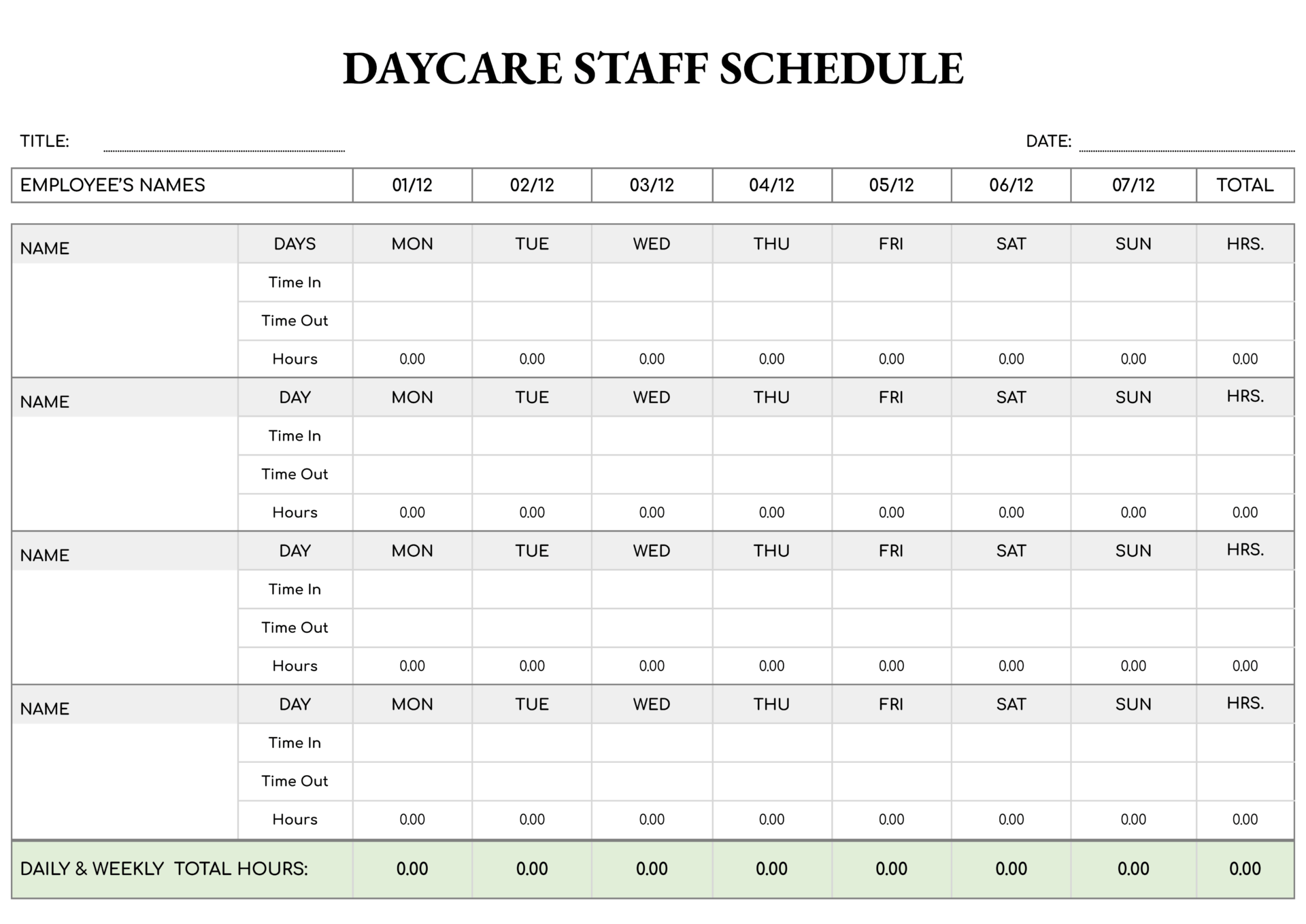
The main schedule sheet is designed as a weekly grid. You can enter each team member’s position and name, then fill in their shift for each day from Sunday through Saturday. Each daily cell is meant for a time range written in a standard format or the word OFF when someone is not scheduled. This approach keeps the schedule readable for managers and staff while still keeping the data organized enough to calculate weekly hours. Once your roles and names are in place, the next step is entering shifts and weekly adjustments, and the guide below covers each part.
Filling Out the Weekly Restaurant Staff Schedule
Start by listing roles in the Position column and the staff member names beside them. From there, enter shift times across the week. The shift entry format in the sample schedule uses a start time, a space, a hyphen, another space, then an end time, with am or pm included. Using the same format across the sheet matters because the Total Hours calculation reads the text in each day cell, pulls out the start and end time, and then converts that into scheduled hours.
If a shift crosses midnight, you still enter it as start time to end time in the same pattern. For example, a night shift might begin late evening and end the next morning. The Total Hours calculation accounts for that by treating an end time that is earlier than the start time as an overnight shift.
If a staff member is not scheduled on a day, enter OFF. OFF is treated as zero hours for that day, which keeps the weekly total accurate without leaving the schedule ambiguous.
Lunch Time, Overtime, and Total Hours
The right side of the schedule adds three weekly tracking fields that tie scheduling to payroll review.
Lunch Time is a weekly deduction field. You enter the total unpaid break time for that employee for the week, using a duration format such as 0:30 for thirty minutes or 1:00 for one hour. This number is subtracted from the employee’s weekly shift hours.
Overtime is a weekly addition field. You enter extra time that should be added to the weekly total using the same duration style, such as 2:00 for two hours. This is useful when overtime is known in advance or when you want the schedule to reflect planned extended coverage.
Total Hours is calculated automatically. It adds up the hours from each daily shift entry across the week, subtracts the Lunch Time value, and then adds the Overtime value. This gives you a final weekly number you can compare against staffing targets, labor budgets, or payroll expectations.
Break rules and overtime rules vary by state and by employer policy in the United States. Use the lunch and overtime fields in the way that matches how your workplace records paid and unpaid time.
Using the Shifts Tab
The template also includes a Shifts tab that acts as a built-in shift library. It lists common shift types and groups them into categories such as standard shifts, longer shifts, and flexible shifts. For each shift, you can enter a start time and end time, and the sheet generates the formatted time-range text that matches the schedule’s entry pattern. It also calculates the shift length, including overnight shifts.
This tab is useful when you want your schedule entries to stay uniform across managers or locations. If your restaurant uses a known set of shift blocks, you can adjust the shift list to match your operating hours, then copy the generated time-range text into the weekly schedule. This reduces the chance of small formatting differences that can cause the Total Hours calculation to return a blank value.
Pointers to Prevent Total-Calculation Issues
- Use the same time pattern each time. Enter shifts using the same spacing and the same “am or pm” style shown in the template so the Total Hours field can read the start and end time correctly.
- Enter break time as a duration. Lunch Time is meant for hours and minutes, not a clock time. A thirty-minute break should be entered as 0:30.
- Avoid combining two shifts in one day cell. Split shifts written as two ranges in a single cell usually will not calculate correctly. If you schedule split shifts, place the employee on two separate rows for the week or adjust your approach so each row holds one time range per day.
- Use OFF for non-working days. OFF is recognized by the formula and keeps totals accurate.
FAQs
Enter the shift as start time to end time in the same pattern you use for daytime shifts, even when the shift ends the next day. For example, you can write an evening start time and a morning end time. The calculation treats an end time that is earlier than the start time as an overnight shift and counts the hours across midnight.
A blank total usually means the shift entries are not in the expected pattern. Common causes include missing “am or pm,” missing spaces around the hyphen, using a different separator, or typing extra text in the same cell as the time range. Another cause is entering a split shift as two ranges in one cell, since the calculation expects a single start time and a single end time per day cell. If you correct the formatting, the total should populate.
In this template, Lunch Time and Overtime are weekly adjustments for each employee row. You enter the total break time you want subtracted for the week and the total additional time you want added for the week. This design keeps the daily grid focused on shift coverage while still giving you a single place to adjust weekly totals for payroll review.
If an employee works two separate blocks in the same day, placing both time ranges in one day cell can prevent accurate calculation. A practical approach is to list the same employee on a second row for that week and enter the second shift block there. This keeps each day cell limited to one time range, which keeps weekly totals reliable.
Yes. The Shifts tab is editable, so you can adjust existing shift start and end times or add new shift lines that match your opening hours, service periods, or kitchen coverage blocks. Once updated, the generated time-range text can be copied into the weekly schedule so the schedule entries stay uniform and predictable.