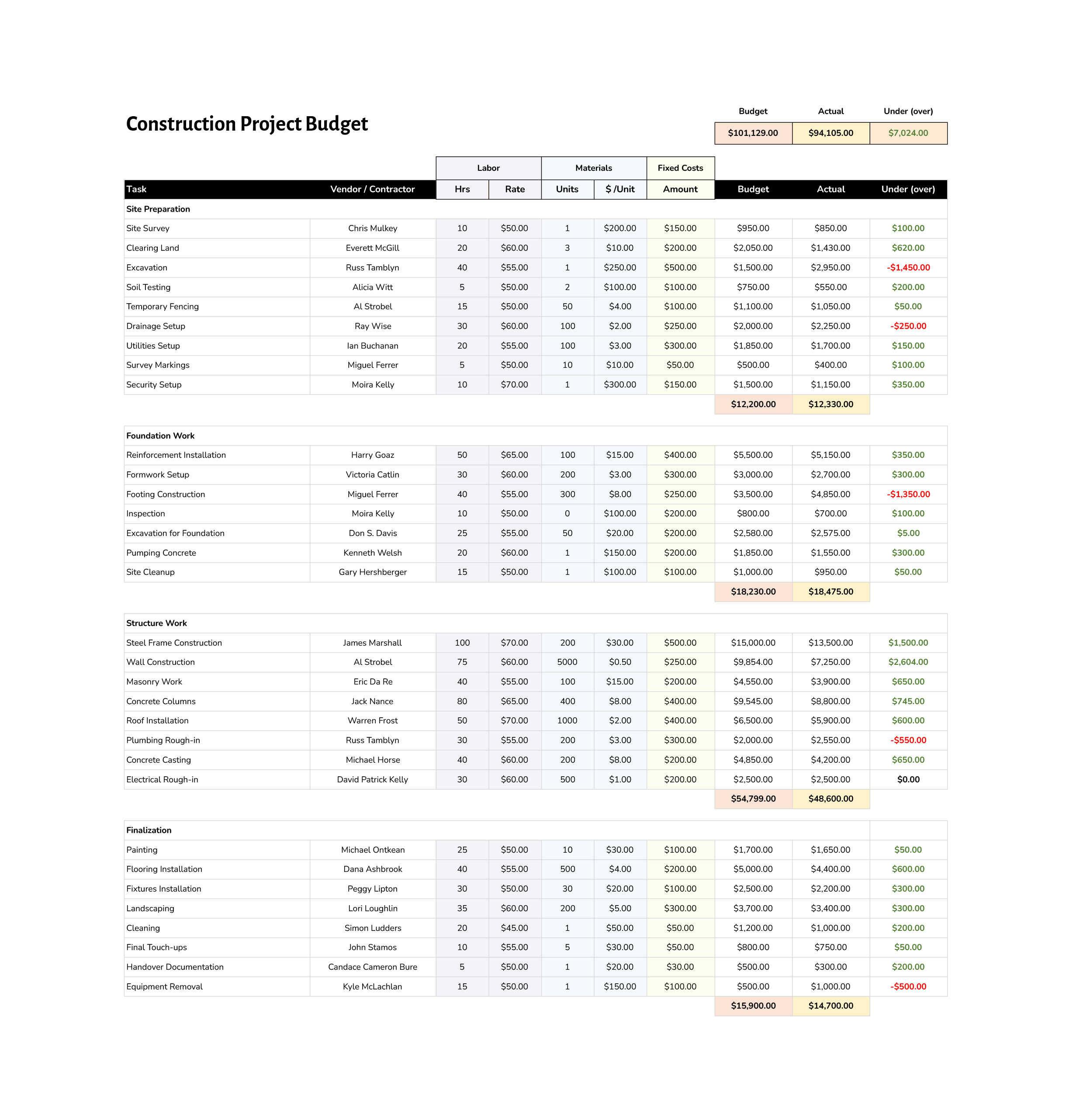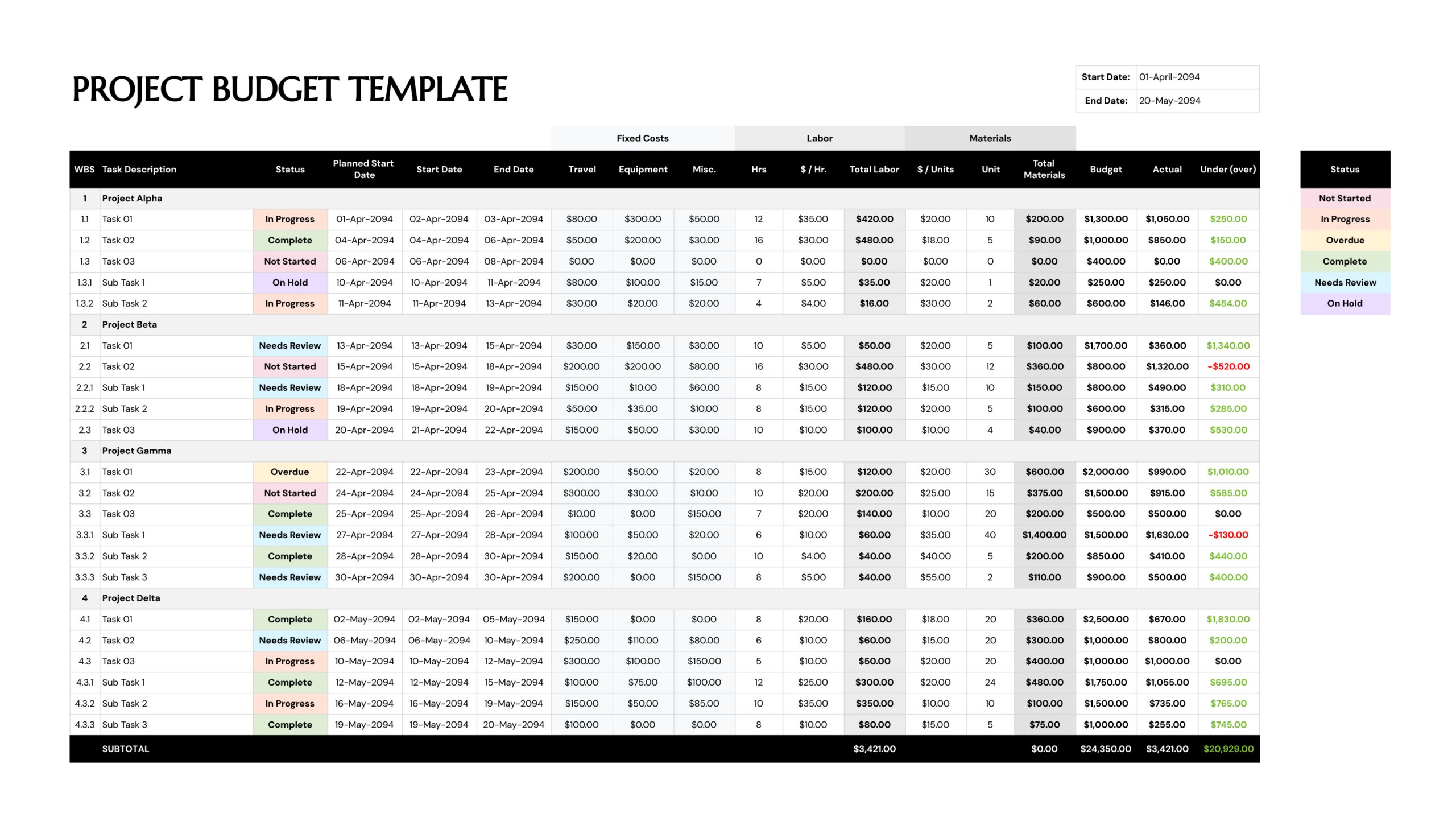



The simple project budget template is designed for situations where you want a single place to see what work is planned, how much it is expected to cost, and how actual spending compares with that plan. It can be used for several project phases within one initiative or for different projects running side by side, so you can see the financial picture for each stream of work as well as the overall total.
Each line in the budget represents a task or subtask with its own work breakdown structure (WBS) code, status, and key dates. You can attach different types of costs to that task such as fixed expenses, labour, and materials, then compare the planned amount with the real cost once invoices arrive. The variance column highlights where spending is under or over budget, while section totals and a final subtotal row bring everything together for quick review in progress meetings.
This makes the worksheet useful both at the planning stage, when you are building up a cost estimate from individual activities, and during delivery, when you want a clear record of how the budget is being used. The next section explains how to set up your projects, tasks, and cost details in this template step by step.
How to Use This Project Budget Template
Everything is organised in a single table. The left side focuses on what work is being done and when, the centre holds the cost details, and the right side tracks the budget, actual spend, and variance. As you fill in the table, the totals and subtotals update so you always have an up-to-date view of the budget for each project section and for the work as a whole.
Step 1. Set Up Projects and WBS Codes
Begin by editing the project headings (for example Project Alpha, Beta, Gamma, Delta) to match your own initiatives or major phases. Under each heading, keep or adjust the task and subtask rows. The WBS column uses codes such as 1, 1.1, 1.2, 1.3.1 to show how subtasks relate to a parent task. You can keep this pattern or adapt it to your existing WBS scheme so it matches other project documents.
Update the Task Description column with the actual activities in your project. These might be discovery tasks, design work, implementation steps, testing activities, or launch tasks. Using WBS codes together with clear descriptions makes it easier to talk through the budget line by line in status meetings.
Step 2. Record Status and Key Dates
Next, focus on the status and date columns. The Status field uses a drop-down or text entry that matches the colour legend on the right, such as In Progress, Complete, Overdue, or Needs Review. Use these labels consistently so anyone scanning the sheet can see which items are moving and which need attention.
The Planned Start Date column holds your original baseline. Start Date and End Date show when work actually begins and finishes. At the beginning of the project, fill in Planned Start Date and expected End Date for each line. As the project runs, adjust Start Date and End Date to reflect what really happened, while leaving Planned Start Date unchanged. This gives you a simple way to see where work started late or finished earlier than planned.
Once a schedule is agreed, avoid editing the Planned Start Date column unless the scope itself changes. This keeps a permanent baseline that you can compare against actual dates when reviewing delays or early finishes.
Step 3. Capture Fixed Costs
Under the Fixed Costs heading, you have columns for Travel, Equipment, and Miscellaneous. Use these fields for any one-off or per-task expenses that are not directly tied to labour hours or material quantities. Examples include travel to a client site, renting specialised equipment, venue hire, licence fees, or small purchases that do not warrant a separate line.
Enter the expected amount for each cost when you first build the budget. If the same cost applies to several tasks, you can either repeat it on each relevant line or group those costs into a single shared task with a clear description (for example “Shared travel for discovery workshops”).
Step 4. Enter Labour and Materials
Move to the Labour section, where you can enter the number of hours (Hrs) a task will take and the hourly rate ($/Hr). The sheet calculates the total labour cost for each row. This gives you a consistent way to cost tasks handled by internal staff or contractors.
In the Materials section, record the quantity (Units) of each material and the cost per unit ($/Units). The template calculates the Total Materials value based on those two numbers. Materials can be anything that is consumed or purchased specifically for that task, such as printing, merchandise, supplies, or digital assets.
If a task has no labour or no materials, you can leave the unused fields blank. The total budget for that line will simply reflect whichever cost types you have entered.
Step 5. Track Budget, Actual, and Variance
The Budget column pulls together the fixed, labour, and material figures for each task to show the planned cost. As work progresses and invoices come in, begin filling in the Actual column with what you really spend. The Under (over) column shows the difference between the two amounts. Positive values (often formatted in green) indicate remaining budget, while negative values (often formatted in red) indicate overspend.
There is a subtotal row at the bottom of the table that adds up the Budget, Actual, and Under (over) figures. This line gives you a quick snapshot of how the whole project is performing financially. Because tasks are grouped by project heading, you can also read the variance per project by scanning the relevant section.
Update the Actual column on a regular rhythm, such as weekly or whenever you approve a batch of invoices. Frequent updates keep the Under (over) values meaningful and help you respond early if a task or project segment begins to drift off budget.
FAQs
The WBS column identifies where each task sits in the overall work breakdown. Codes such as 2, 2.1, and 2.1.1 show the relationship between a project, its tasks, and any subtasks. This makes it easier to refer to specific items in meetings or reports and keeps the budget aligned with other project documentation that uses the same numbering.
Yes. The template is set up with several project headings so you can track multiple projects or major phases on one sheet. If you prefer to keep projects separate, you can duplicate the sheet and use one tab per project while preserving the same layout.
The status colours are there to make budget reviews faster, not to replace a full task management tool. Use them to flag where attention is needed when you scan the sheet. Mark a line as Not Started while you are still planning the work and no spend is expected yet. Switch to In Progress once the task has begun and you expect costs to start appearing in the Actual column. Use Complete when the work is finished and all invoices for that task have been received and recorded.
Use Overdue when the End Date has passed but the task is still not complete or you are still waiting on final costs. Needs Review works well for items where the work is done but the invoice, quality of the deliverable, or budget impact still needs sign off. On Hold should be reserved for tasks that are paused or de-scoped so you know not to expect further spend until a decision is made. When you update these statuses consistently, the colour band down the Status column gives you a quick visual snapshot of where the project is moving smoothly and where you may need to look more closely at dates or spending.
Continue entering the total actual spend for that task by updating the same Actual cell rather than adding new rows for each invoice. You can keep a brief note elsewhere (for example in a comments column or a separate log) if you need a breakdown. The budget then stays focused on the final cost of the task rather than the number of invoices.