


A 2-2, 3-2, 2-3 rotating schedule is a repeating shift rotation where teams work in blocks of two shifts on, two days off, three shifts on, two days off, two shifts on, then three days off. Many workplaces pair this pattern with 12-hour day and night shifts so coverage stays continuous while teams still get regular recovery time built into the cycle.
This 2-2, 3-2, 2-3 Rotating Schedule Template is designed for six teams working 12-hour coverage with a clear week-by-week view of Day Shift, Night Shift, and Days Off. A shift key at the top defines each shift type using the same visual labels used throughout the schedule, so the rotation is easy to interpret when shared or printed.
This template is intended for supervisors, schedulers, operations leads, and small business owners who plan round-the-clock staffing for crew-based teams. It fits settings such as manufacturing, security, facilities, dispatch, warehouses, and certain healthcare or support teams that schedule by longer shifts and rotating crews.
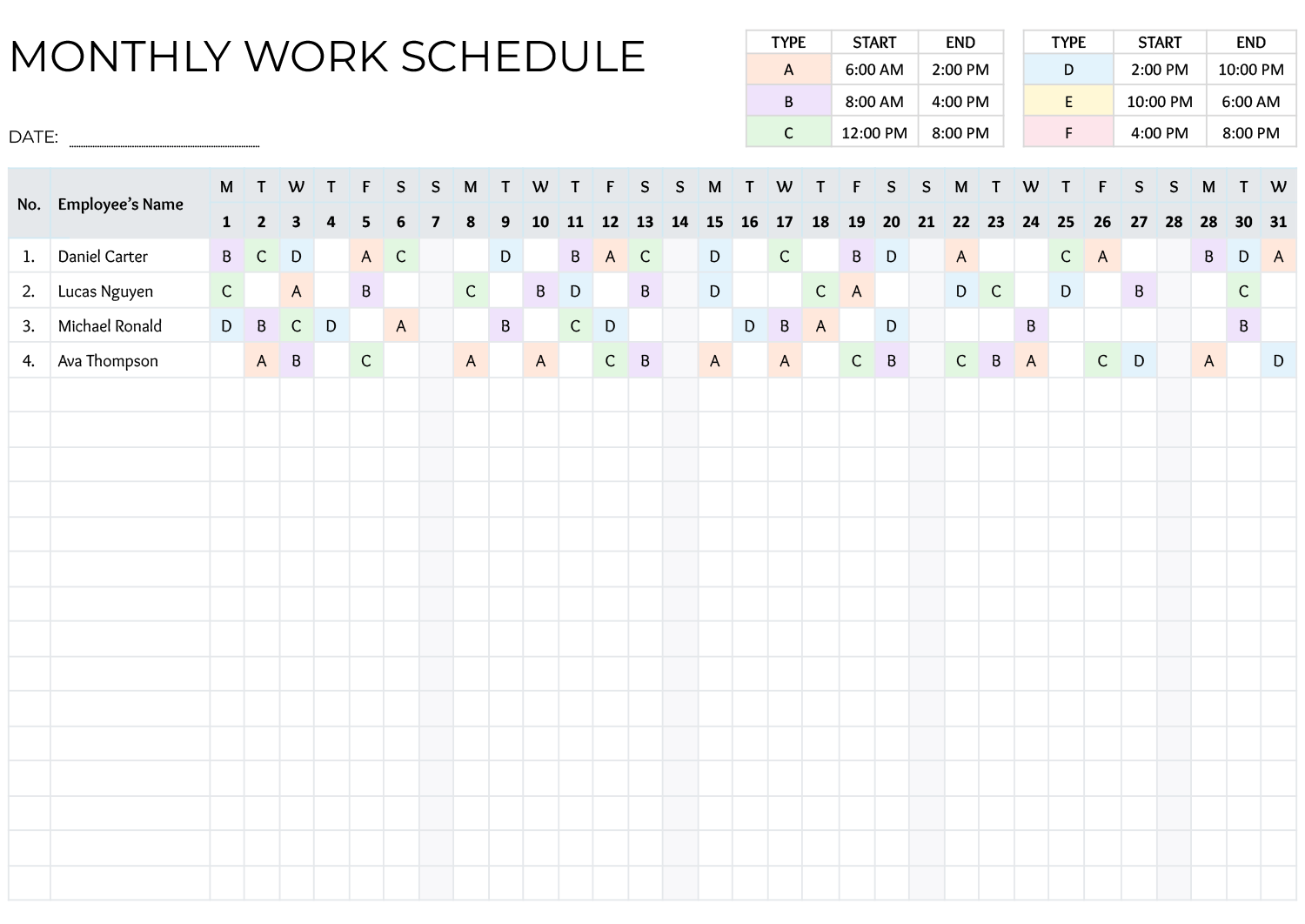
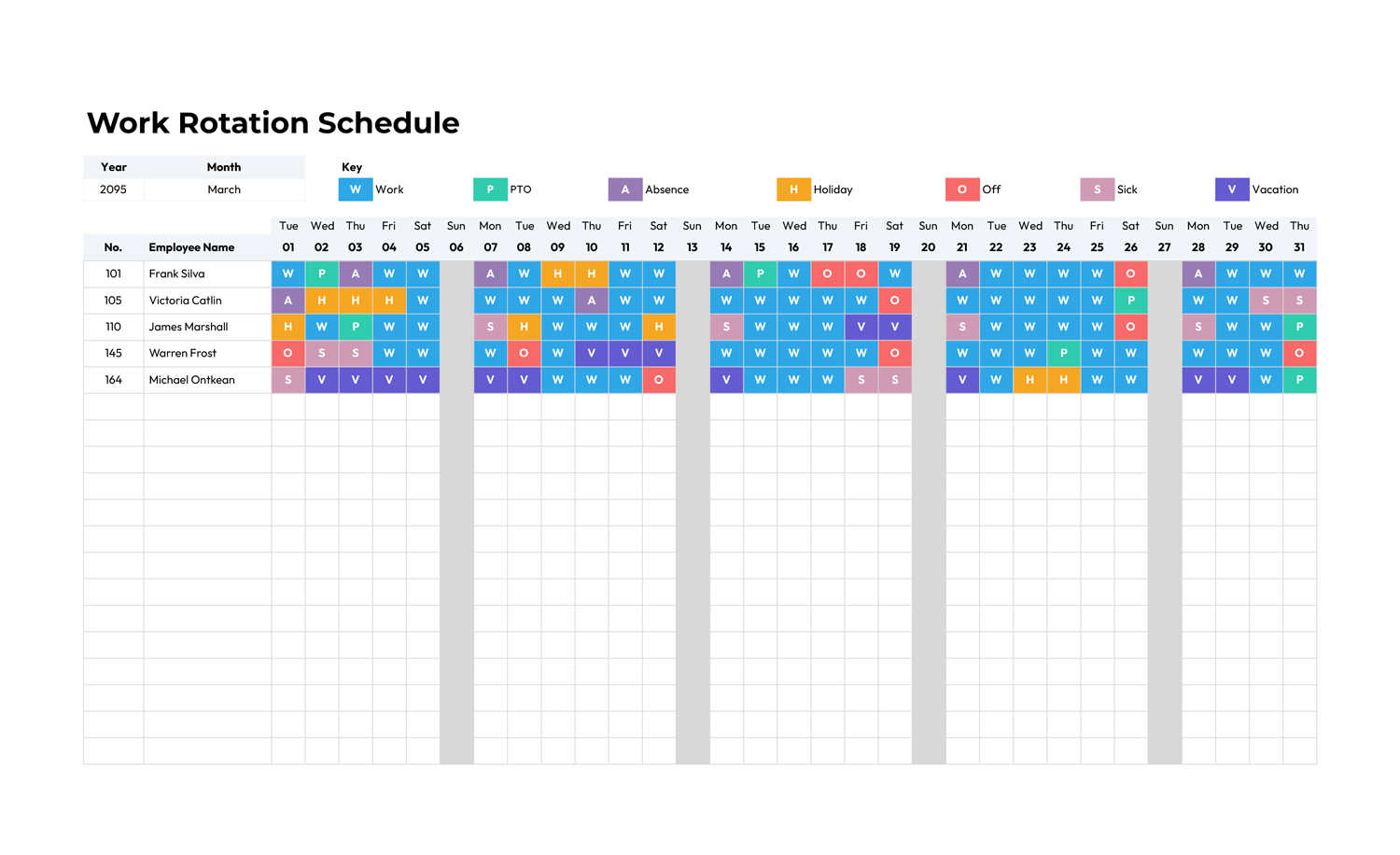
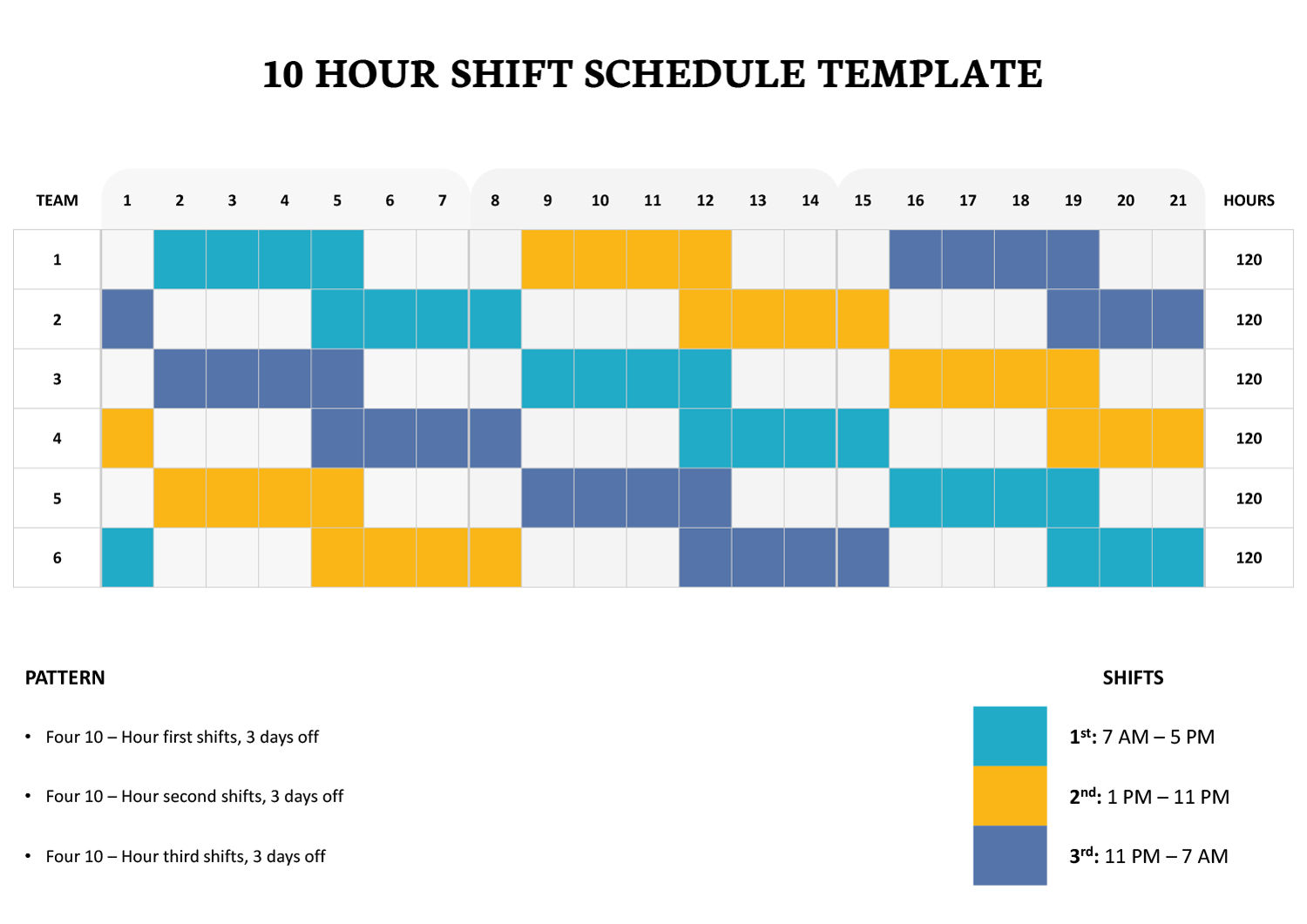
The main grid presents the rotation across a 28-day view, grouped into week blocks. Teams are listed down the left side, and each row shows how that team moves through day coverage, night coverage, and off days during the cycle. This layout is useful when you want to confirm coverage across multiple weeks, coordinate handoffs, and communicate the rotation pattern without confusion.
In the Excel and Google Sheets versions, the schedule cells display shift letters based on each team’s pattern settings. Day and night cells also use conditional formatting, so entering “D” or “N” applies the matching shift color automatically, while off days stay blank. If you need to adjust the rotation, update the pattern entries for a team and the grid updates to reflect the revised sequence.
In the Word and Google Docs versions, you can edit the grid manually. This is a practical option when you want a printable rotation reference, need to mark changes for a specific posting period, or prefer to type shift codes directly into the schedule cells. You can also edit team names and headings so the schedule matches how your workplace labels crews and posting dates.
If your operation uses fewer than six teams, remove extra team rows and keep the same 28-day layout. If you need more teams, add rows and assign patterns that keep day and night coverage balanced across the weeks you post. For PTO, training, or swaps, keep the base rotation visible and mark only the affected days so the underlying pattern stays easy to follow.
FAQs
Start with your staffing requirement for days and nights in Week 1. Assign enough teams to Day Shift and Night Shift to meet that requirement, then offset the remaining teams across off blocks so you avoid stacking too many crews on the same shift on the same day. After setting Week 1, scan Weeks 2 through 4 to confirm the handoffs still match your coverage plan.
Yes. Treat Day 1 as your anchor, then move the pattern forward or backward until it aligns with the start date you use internally. In spreadsheet versions, adjust the pattern start for each team. In document versions, shift the filled cells to match your chosen start day.
Yes. The on and off sequence still applies even if shift length is different. The grid is mainly a rotation view, showing which days are worked and which shift type applies. If you track paid hours, keep that calculation in a separate payroll sheet or add an hours column that reflects your paid shift length and break policy.
Yes. You can label the week blocks using real dates if that is how your team reads schedules. Many workplaces keep the rotation in day numbers for clarity, then publish a dated schedule separately for the posting period.