Appointment scheduling gets difficult when the day is booked in short intervals and small changes start piling up. A broad planner may show that you have something at 10 AM, but it does not always show if that booking starts at 10:15, takes 45 minutes, or leaves enough room before the next client. This daily hourly appointment schedule template is designed for weekly appointment planning with quarter-hour booking rows, separate columns for each day, and status markers that can be used after bookings change.
Here’s a closer look at how this template can be used through the week and what each part is meant to do.
Decide What Each Sheet Represents
Before entering appointments, decide what the schedule is meant to track. One sheet may be used for a single provider, one treatment room, one chair, one service category, or one full office calendar. That decision affects how much detail you write in each time slot and how much space each day will need.
This template is especially suited to settings where bookings are reviewed day by day but still need to stay connected to the full week. If you manage several providers or service areas, you may want one sheet for each person or location so the weekly flow remains readable.
Enter Appointments by Time Slot
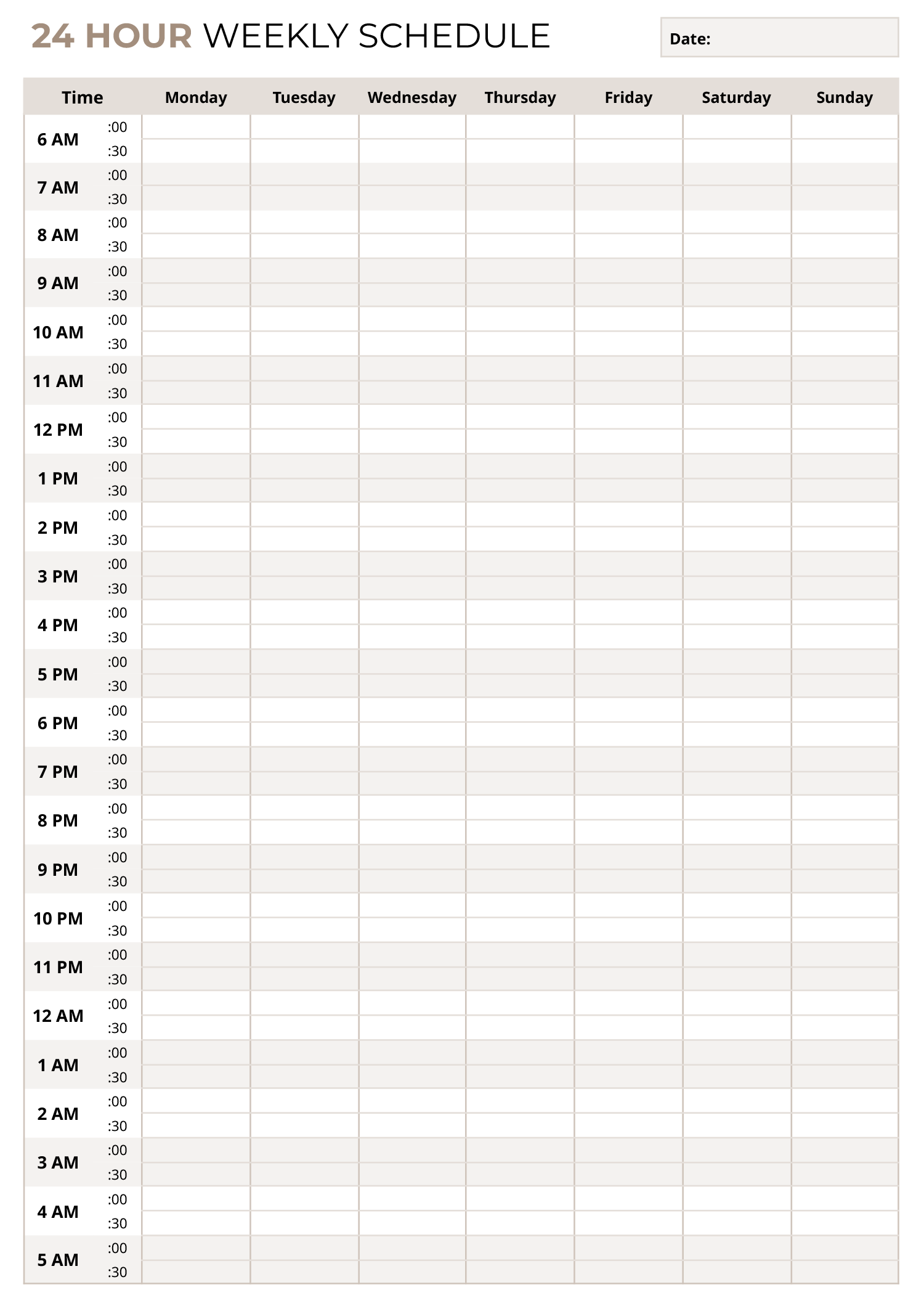
The left side of the template breaks each hour into 00, 15, 30, and 45-minute rows. That means each entry can reflect the actual booked length of the appointment. A short follow-up may take one row, a half-hour visit may take two, and a one-hour session may span four rows.
When you fill the schedule, enter the appointment in the rows that match the full reserved time. That includes any time that regularly goes with the booking, such as prep, turnover, paperwork, or follow-up. A weekly schedule reads better when it reflects the actual time being held, not just the visible appointment itself.
Use Each Day Column as a Full Daily Schedule
Each day column is meant to carry the sequence of appointments for that day. You can write a client name, patient name, appointment type, service label, or another short reference that is easy to recognize during the week. Since the grid is narrow and repeated across many rows, shorter text usually reads better than long notes.
This day-by-day layout is also useful during weekly review. You can compare how Monday fills against Thursday, see where lighter periods remain, and decide where a moved appointment can be placed. That is especially relevant in busy schedules where one postponed booking affects another part of the week.
Keep Administrative Time on the Schedule
This template does not have to be limited to client-facing appointments. It can also hold preparation time, charting, internal calls, breaks, room cleaning, travel, setup, or lunch periods. Writing those periods directly into the schedule gives a more accurate picture of the day.
That matters in services where the appointment is only one part of the workload. A therapist may need note-writing time after each session. A salon may need time between clients for cleaning and reset. A consultant may need preparation time before a booked call. Including those periods in the grid keeps the weekly schedule grounded in how the day actually moves.
If certain appointment types regularly take longer than expected, reserve a small buffer after them when planning the week. This is especially useful near lunch, late afternoon, or before closing.
Track Appointment Status Through the Week
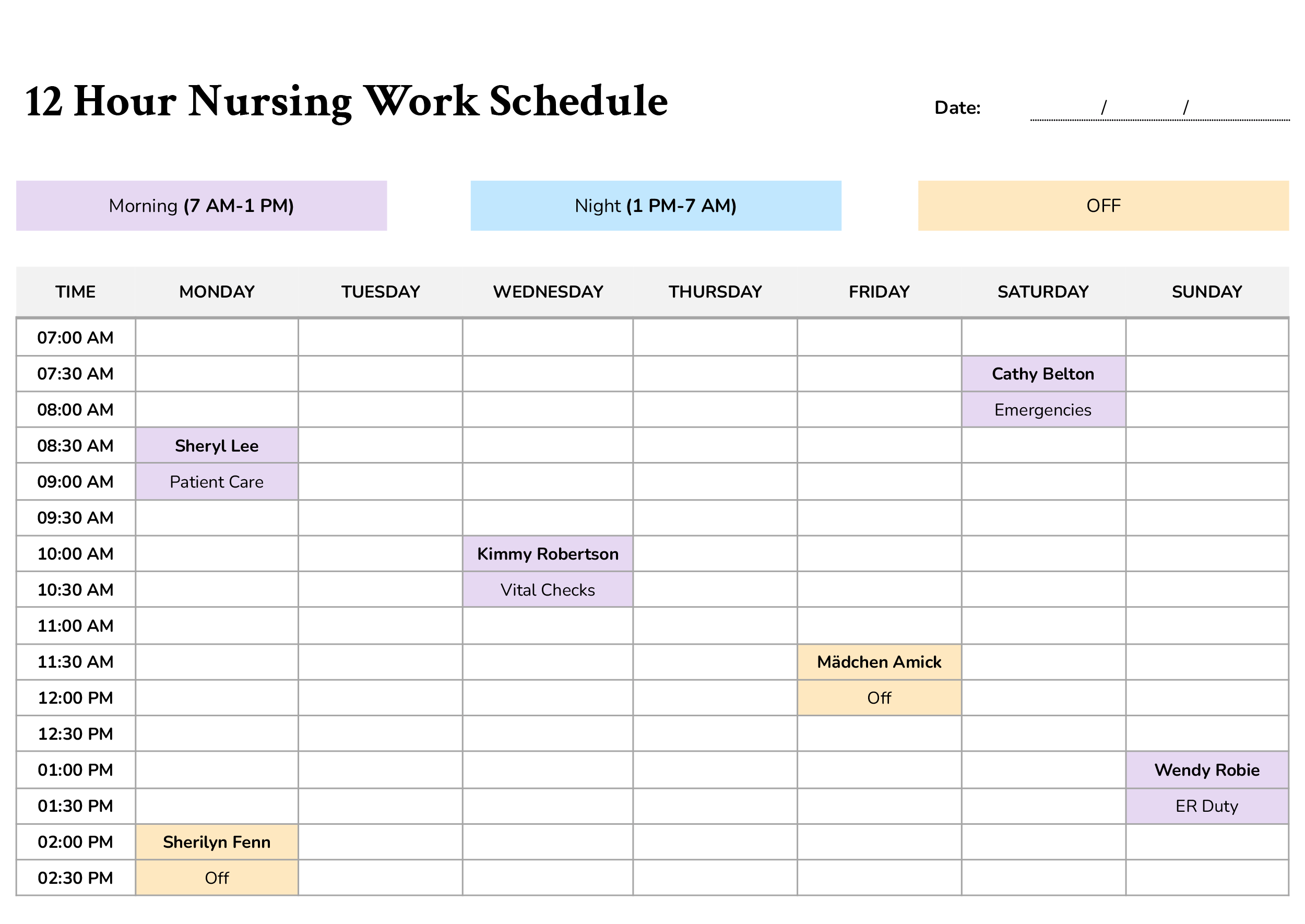
The small legend at the top marks cancelled, postponed, and completed appointments. That means the template can continue to be used after the first round of booking. When something changes, you can mark the status and keep the appointment visible in its original time slot.
This makes the schedule more informative during weekly review. A cancelled slot shows unused time. A postponed appointment shows demand that shifted to another day or period. A completed mark shows time that was actually used. Over time, that can make recurring scheduling patterns easier to notice, especially if certain days or hours tend to change more often than others.
Review the Week Before Finalizing It
Once the bookings are entered, read across the full week before treating the schedule as finished. Look for heavily packed periods, open spaces that could take moved appointments, and sections of the week where the booking load feels uneven. Since all seven days appear in one layout, that review can be done before the schedule is shared with a front desk, staff member, or team.
This stage is also where patterns start to show. You may notice that certain hours fill first, that Saturday bookings need more room, or that one day tends to carry too much administrative time. That kind of review can shape the next week’s schedule and make future booking decisions easier to manage.
Wrap-Up
This template is available in Excel and Google Sheets, so you can update appointments through the week, duplicate the schedule for future use, and keep separate sheets for different providers, rooms, or service categories. Its weekly layout and 15-minute booking rows are suited to schedules that need closer time control, frequent updates, and a record of cancelled, postponed, and completed appointments.