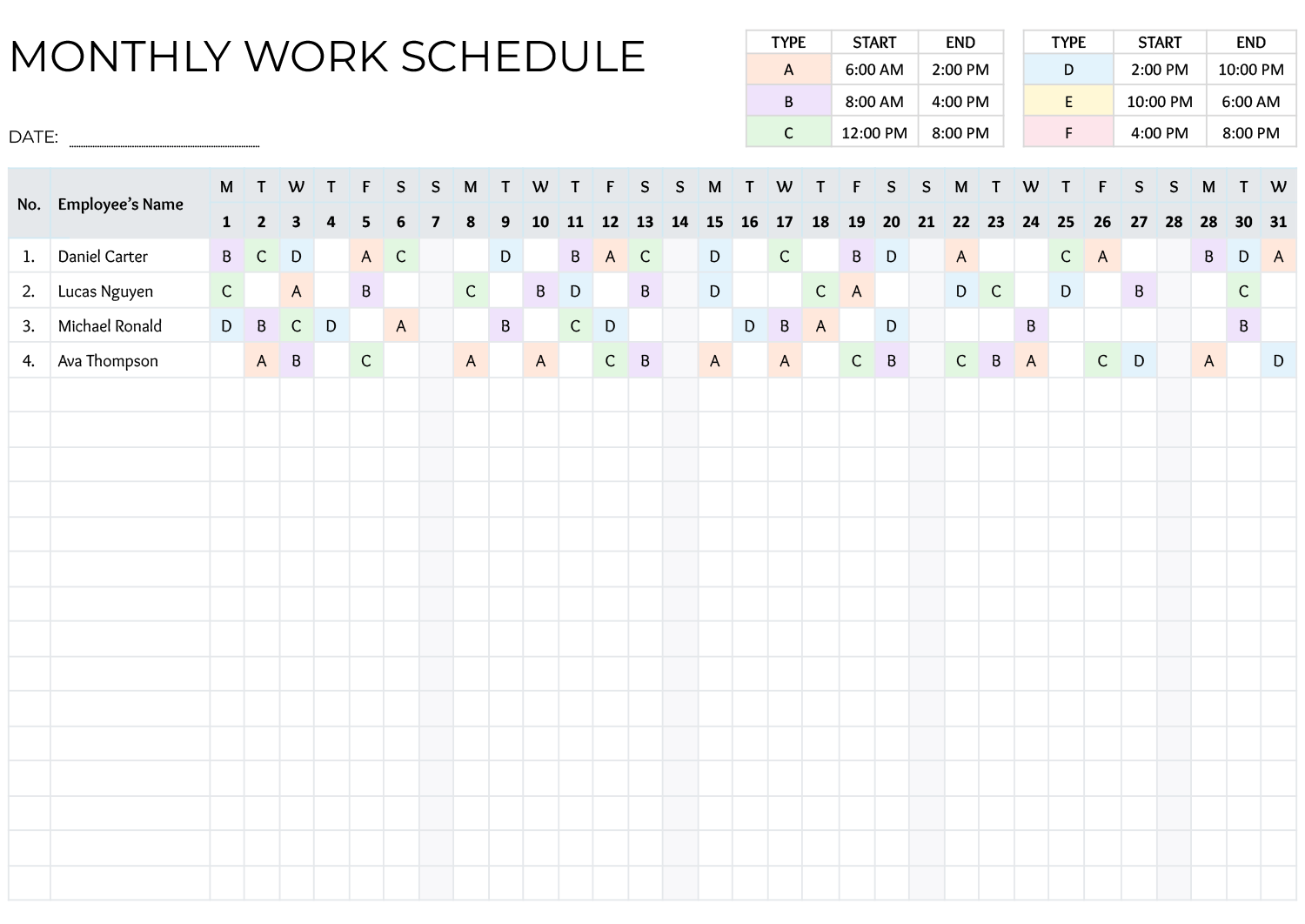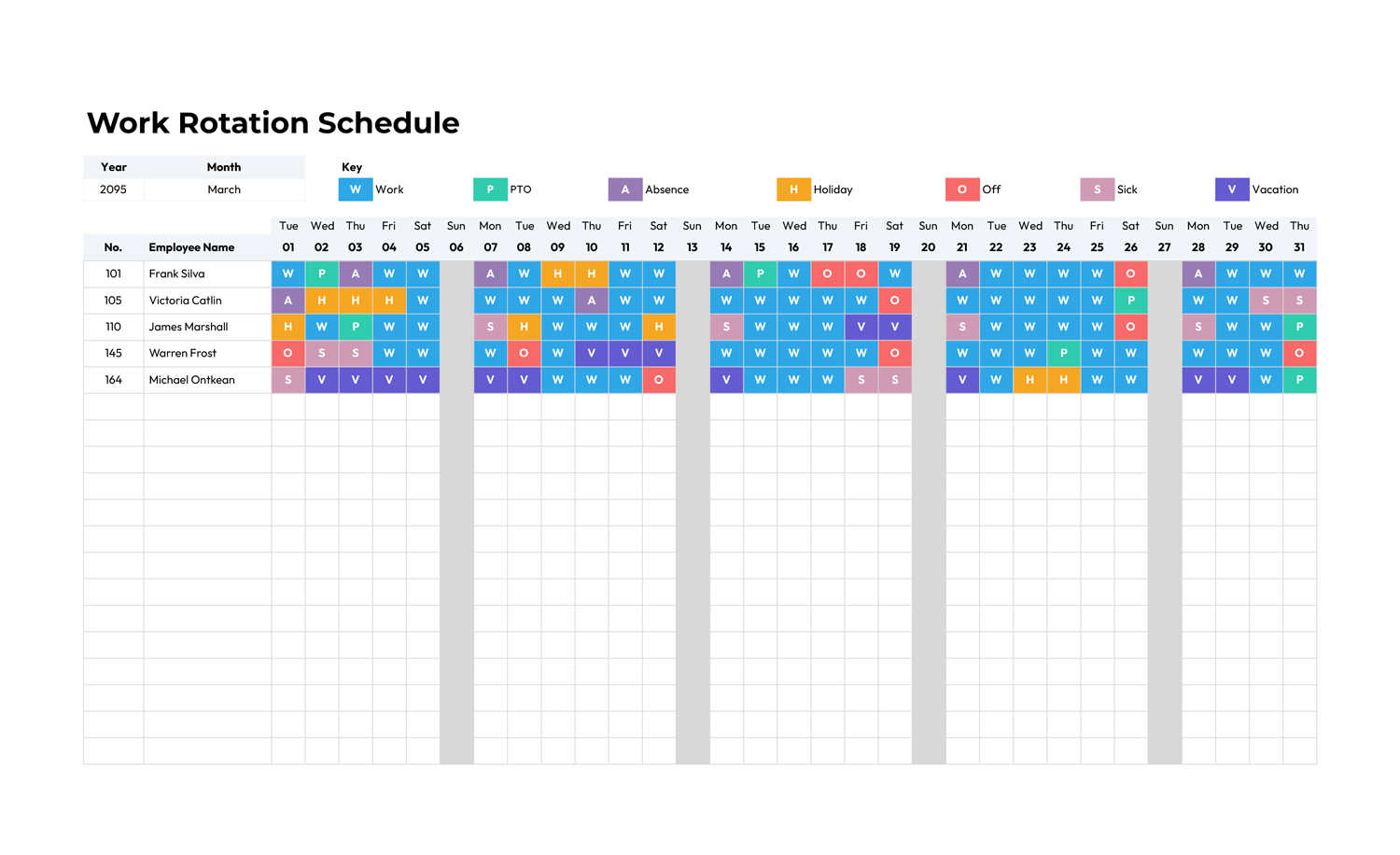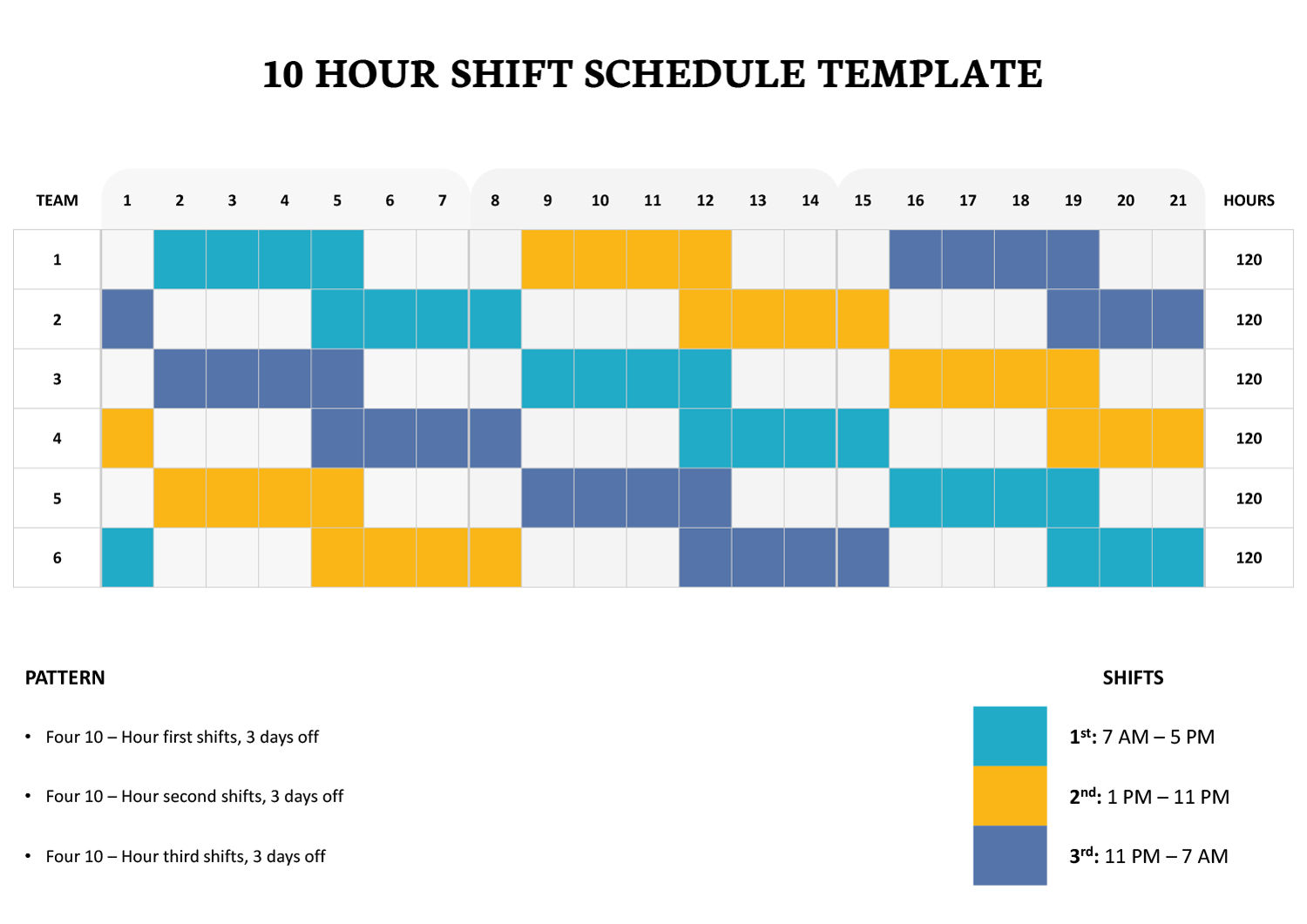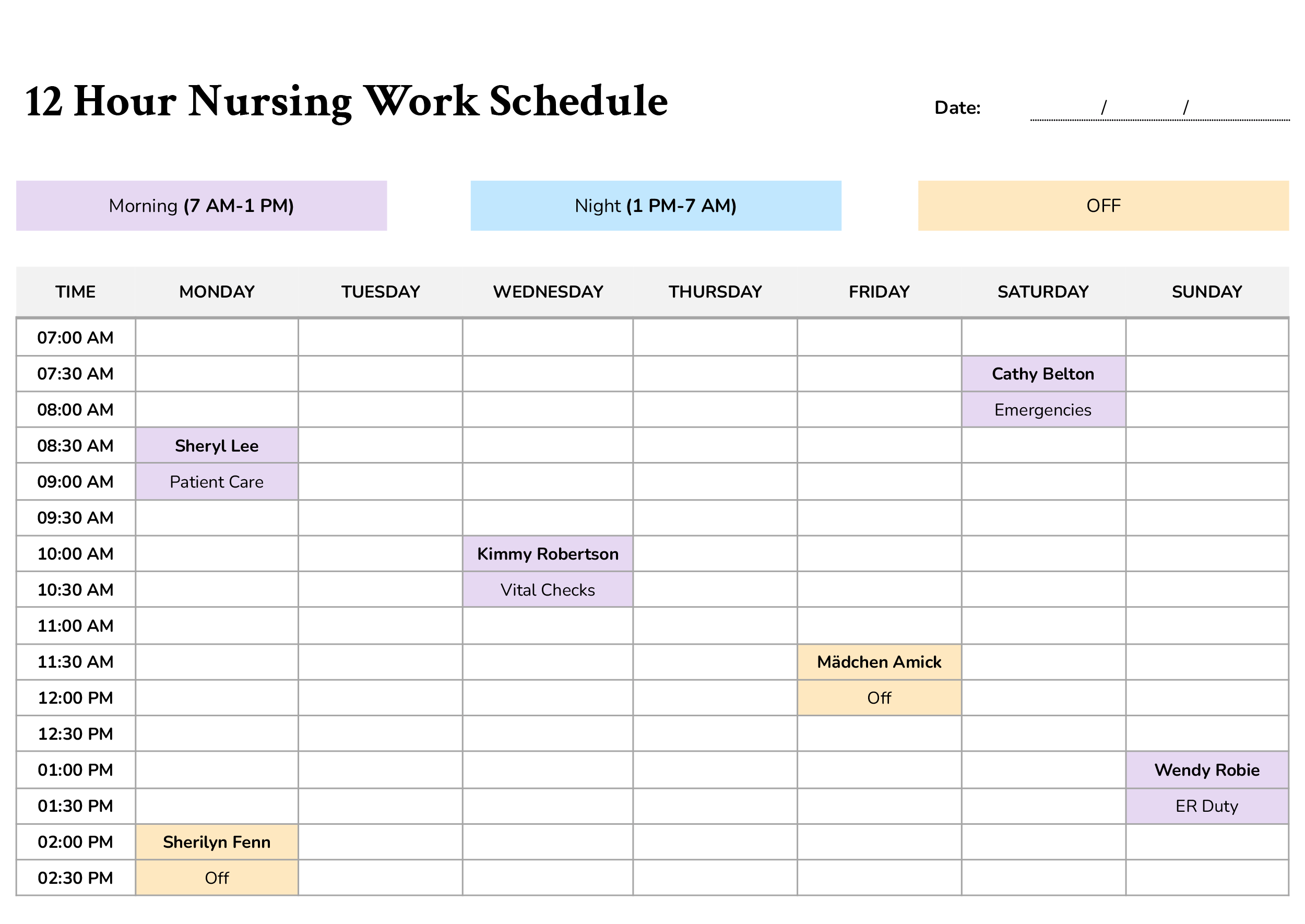



A rotating 12-hour work schedule is a shift rotation where teams move through day shifts, night shifts, and days off in a repeating pattern. This template follows a 2 days on, 2 days off, 3 days on, 2 days off, 2 days on, 3 days off sequence and shows the full cycle across 28 days so you can review coverage over four weeks in one view.
This Rotating 12 Hour Work Schedule Template is designed for schedulers, supervisors, and team leads who plan crew coverage for 12-hour operations. It uses a six-team layout and a simple shift key for Day Shift, Night Shift, and Day Off. The schedule is presented in four weekly blocks labeled Days 1–7, 8–14, 15–21, and 22–28, with each team listed in its own row so you can see how coverage offsets between teams across the month-long cycle.
In the Excel and Google Sheets versions, the main schedule grid contains formulas, so you typically do not type shifts directly into the day cells. The shift assignments come from the pattern code cells placed to the far right of the sheet. Each team has one pattern cell for each week block, and the grid reads that pattern to display the correct shift letter and color for each day.
Those pattern codes are short text strings where each character represents one day in that week. A “D” marks a Day Shift, an “N” marks a Night Shift, and an underscore character “” marks a day off. For example, a weekly pattern like “DD__DDD” means two day shifts, two days off, then three day shifts. A weekly pattern like “NN” means two days off, two night shifts, then three days off. This approach makes it easy to adjust a team’s rotation without rewriting the grid.
To set a team’s schedule, edit the four pattern strings for that team’s row, one for each week block. If you want the same on and off rhythm but a different shift type, replace D with N for that block, or replace N with D. If your posting period starts on a different day than the template’s Day 1, you can shift the start point by rotating the pattern string. You do that by moving the first character to the end until the first day shown matches your real start day. Keeping each weekly pattern at seven characters makes the week blocks easier to manage and keeps the grid aligned with the 7-day layout.
The spreadsheet versions also apply conditional formatting to the shift letters, so day and night assignments appear as clear color blocks while off days remain blank. After you adjust patterns, scan each week block and confirm you still have the number of teams you want on days and nights for your coverage plan.
The Word and Google Docs versions follow the same four-week layout and shift key, but they are intended for manual edits. You can type shift labels directly in the cells, update team names, and adjust headings for the posting period you are sharing or printing.
FAQs
You can keep the same on and off rhythm and assign fewer teams to night blocks by switching some teams from N patterns to D patterns in the same week. After you make the change, review each week block and confirm your night staffing level matches the days you need it most.
Keep the off-day placement the same and repeat the same shift type for more week blocks. For example, a team can stay on day patterns for multiple weeks before switching to night patterns later in the cycle. The key is to keep the on and off sequence intact so time off stays predictable.
Yes. In spreadsheets, keep the underlying pattern codes as your base rotation, then add a short note on the affected day cell if your sheet has space for it. If you must change the shift letter on a specific day, update only that day and keep the rest of the week aligned with the original pattern.
The full rotation is a 14-day rhythm, so you will usually see it split across two different week patterns. One week typically shows the “work 2, off 2, work 3” block, and the other week shows the “off 2, work 2, off 3” block. When the two weeks repeat in order, the full 2-2, 3-2, 2-3 cycle is preserved.