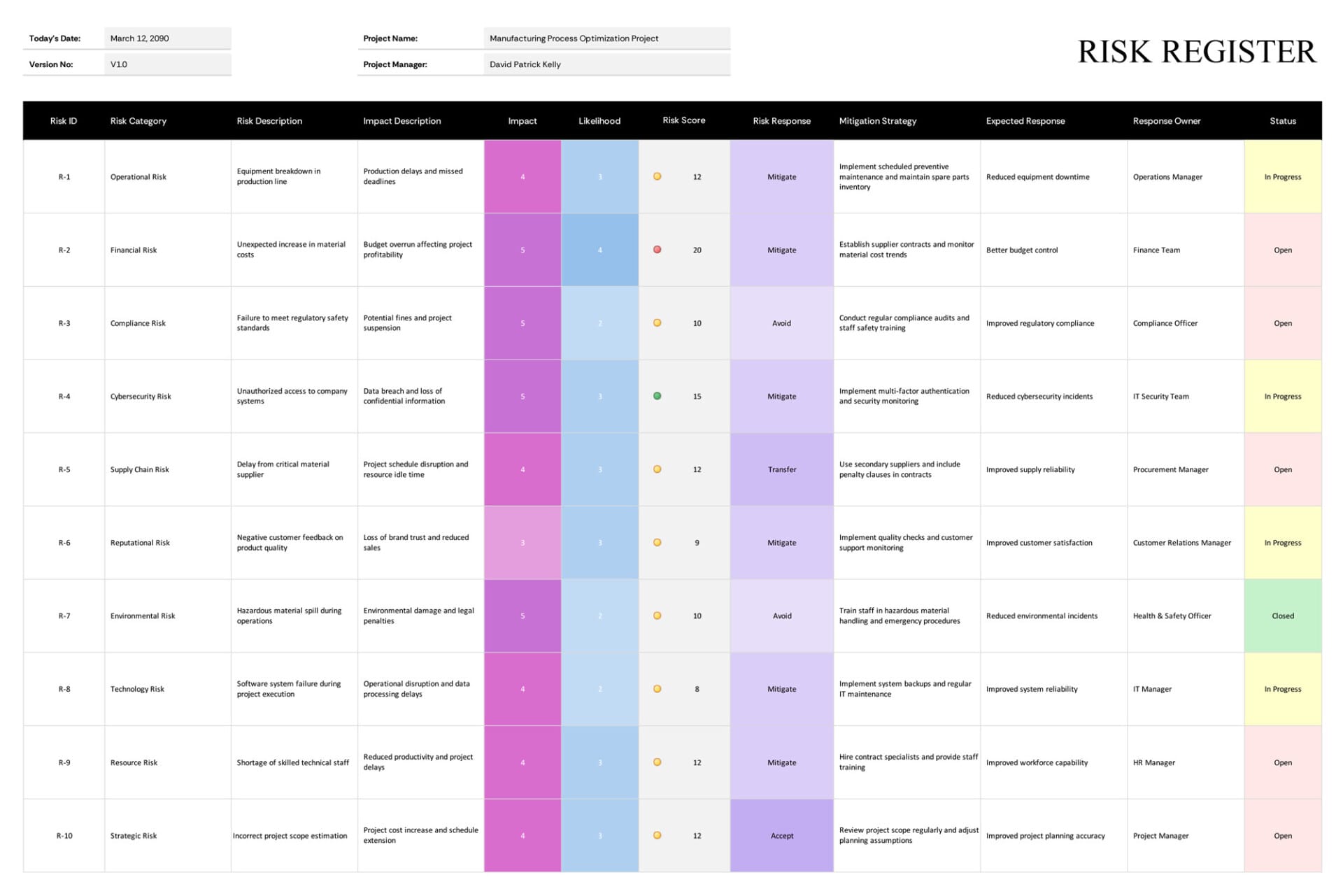
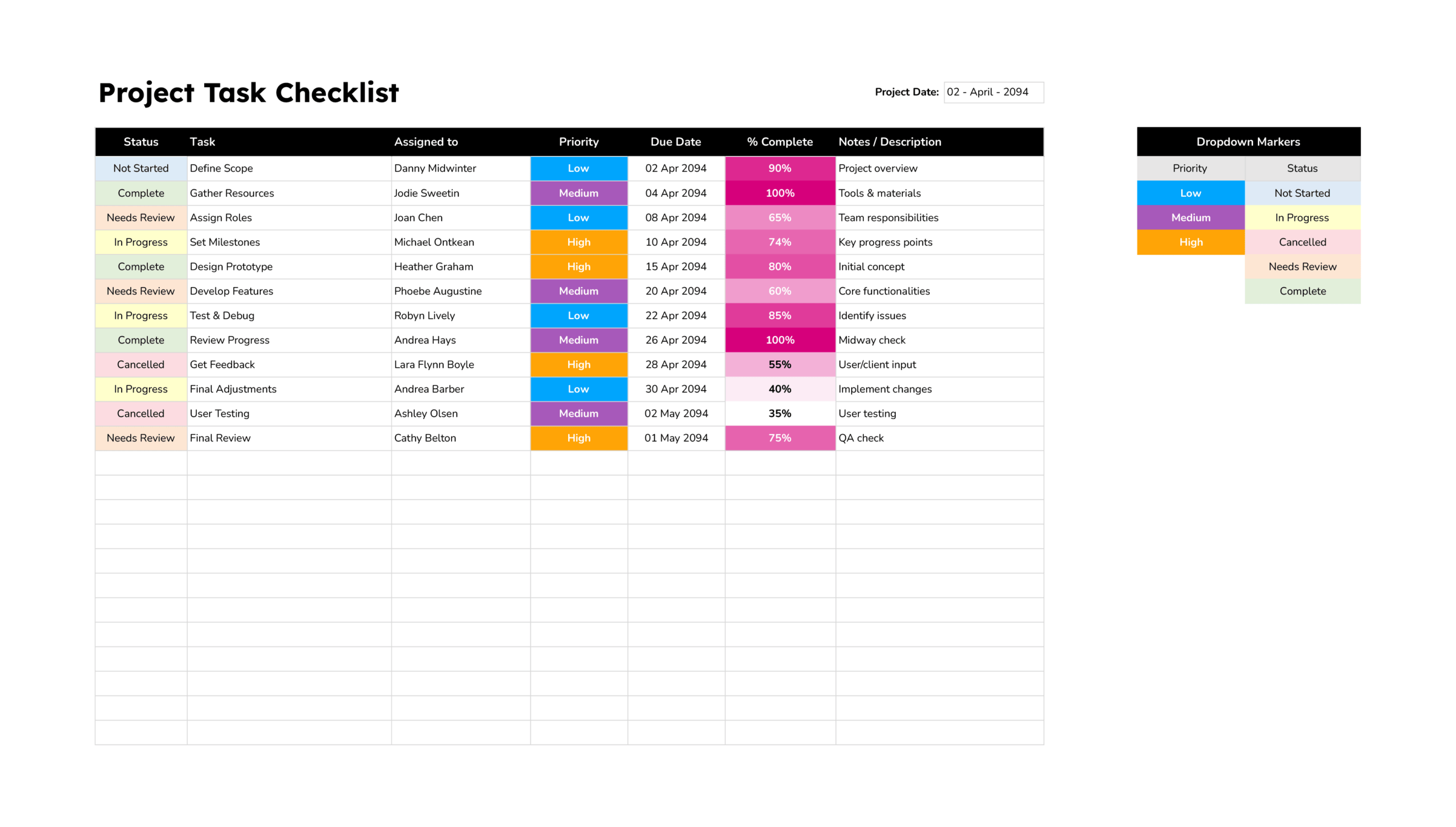
This action items tracker template is a spreadsheet tracker for documenting action items during a project and tracking them through to completion. It is available in Excel and Google Sheets and fits project managers, operations teams, client delivery teams, department leads, and small groups that review tasks in recurring meetings.
Using this action item tracker template, you can keep every action item in one list while still keeping meeting notes, ownership, and due dates easy to review. The top section holds project identifiers and meeting timing so the tracker can be shared, printed, or reviewed on screen without extra context.
Project Details at the Top
The header area is meant for details that remain the same across the task list. You fill in the project name, project ID, project manager, and team name. You can also enter a last updated timestamp and a next meeting date so anyone opening the file can tell if the tracker is current and when the next review will happen.
Entering Action Items
The main table is where you log tasks and day to day follow-up. Each row includes fields that match common meeting questions.
- Action ID A reference number for linking tasks to emails, meeting notes, tickets, or chat threads.
- Action Items A short task statement written as an action, such as update a document, review a draft, or schedule a call.
- Department A label for the functional group connected to the work. This can be used for filtering when multiple teams share the tracker.
- Assigned To The person accountable for the next update. If the task has multiple contributors, list the owner here and mention other names in the next steps field.
- Priority High, Medium, or Low so you can sort tasks when time is limited.
- Date Assigned and Due Date A start point and a deadline so you can spot items that are late or near the due date.
- Progress A percentage that represents completion. The cell uses a visual bar so progress is readable during quick reviews.
- Status A stage label that feeds the dashboard counts.
- Next Steps The next action to take, written in one line so follow-ups remain specific.
When you write the action item line, keep it outcome focused. Aim for a task that can be marked Completed without extra interpretation.
Tracking Status and Progress
Status is designed to act as the meeting language for where work stands. The default list includes Not Started, In Progress, Waiting, Blocked, Completed, and Cancelled. If your team uses different wording, you can replace these terms in the Config sheet.
If you use Waiting and Blocked, it can be useful to define them once for the group.
- Waiting Work paused while you wait for input, approval, a response, or a dependency outside the owner’s control.
- Blocked Work cannot move because a barrier must be removed, such as access, a decision, a missing resource, or a technical issue.
Dashboard and Completion Summary
The top right section summarizes task completion status. A small table counts items by status, and a donut chart displays the distribution across the included categories. This section reads directly from the Status column so it updates when you change a task’s status.
Cancelled is available in the status list, but the default dashboard summary focuses on Completed, In Progress, Not Started, Waiting, and Blocked. If you want cancelled items reflected in the counts and chart, add a Cancelled row to the summary list and expand the chart range.
Custom Lists in the Config Sheet
The Config sheet stores the lists for Department, Priority, and Status, along with short instruction blocks. Edit these lists to match your organization. If you add new departments or status labels, check that the drop-down ranges and the dashboard summary include them.
Working in Meetings
This tracker fits several meeting formats. Some teams review by due date, others review by owner, and others review only High priority items first. Before a meeting, update progress and next steps for any item you own. During the meeting, update status changes in real time and adjust due dates when a deadline shifts.
This template is designed in Excel and Google Sheets. If you use it in a shared Google Sheets file, consider protecting the header area and the dashboard cells so formatting and formulas are less likely to be edited by mistake.
FAQs
Select the last filled row in the table, copy it, and paste it into the next row below. This carries forward formatting, the priority helper formula, and any progress visuals. After pasting, overwrite the placeholder text with your own entries.
Enter a percentage that matches the task’s completion level. You can type values like 0%, 25%, 50%, 75%, and 100%. If you prefer decimals, enter 0.25 for 25% and keep using the same format across the list.
Open the Config sheet and edit the lists under Department, Priority, and Status. Add, remove, or rename items to match your internal naming. After you edit the lists, check a few cells in the main table to confirm the drop-down options reflect the updated list.
The default dashboard summary counts Completed, In Progress, Not Started, Waiting, and Blocked. Cancelled is tracked in the task table, but it is not part of the default summary range. If you want it included, add a Cancelled row in the summary list and expand the chart data range.
Use Action ID as a stable reference so tasks can be discussed without retyping the full description. Many teams also paste the Action ID into meeting notes, email subjects, or ticket comments so updates remain linked to the correct row.
Turn on filters for the header row, then sort by Priority and Due Date. You can also filter to show only Blocked items before a meeting, or only tasks assigned to a specific person for a focused review.
Update your Progress, Status, and Next Steps fields whenever something changes. If a due date moves, change it when the decision is made so the table remains aligned with current expectations. Before the meeting, scan for items that are overdue or blocked so you can raise them early.