

A risk register is a record used to document risks that could affect a project, process, department, or operational activity. It gives you a place to write down the risk itself, describe its possible impact, rate how serious it may be, decide how it should be handled, assign responsibility, and review its status over time. In practice, it becomes part of ongoing decision-making because risks rarely stay fixed. Some grow, some reduce after action is taken, and some can be closed once the issue is under control.
This risk register remplate is designed for that kind of tracking in Excel and Google Sheets. It is intended for project managers, operations teams, compliance staff, procurement teams, IT departments, manufacturing teams, and business leads who want to keep risk information organized and reviewable. You can use it during project planning, active delivery, governance reviews, operational monitoring, vendor oversight, or internal reporting. Instead of keeping risk notes spread across meeting records, emails, or separate worksheets, this template keeps the scoring, response planning, ownership, and status of each risk together in one working register.
The template also does more than store written notes. It includes automated scoring, visual cues tied to score changes, editable response and status selections, and a separate Config sheet that controls the rating scale and list-based entries used in the main register. That means the register can be reviewed quickly during meetings, updated as conditions change, and adjusted to fit the terminology used by your team.
What You Can Track in This Risk Register
This template is designed to record, score, and monitor risk throughout a project or review period. It covers the main fields needed to assess each risk, assign responsibility, document the planned response, and track progress as conditions change.
- Project details including the date, version number, project name, and project manager
- Risk log fields for the risk ID, category, risk description, and impact description
- Automated scoring that recalculates the risk score when the Impact or Likelihood value is updated
- Color-based indicators that adjust with score and status changes for faster review
- Response planning fields for the selected response, mitigation strategy, and expected response
- Ownership and status fields for the response owner and current stage of the risk
- Config sheet values that control the response list, scoring scales, and status options used in the register
The sections below explain how each part of the template functions and how you can use it during review and follow-up.
Project Information Area
At the top of the register, the template includes fields for today’s date, version number, project name, and project manager. These fields give context to the register and make it easier to track which project or review cycle the sheet belongs to. The version number is especially useful if the register is revised over time and shared across meetings, since it gives you a reference point for the latest reviewed copy.
This part also makes the template suitable for formal reporting. If your team keeps separate registers for multiple projects or departments, the project information area gives each one a distinct identity without requiring extra notes elsewhere in the workbook.
Main Risk Register Table
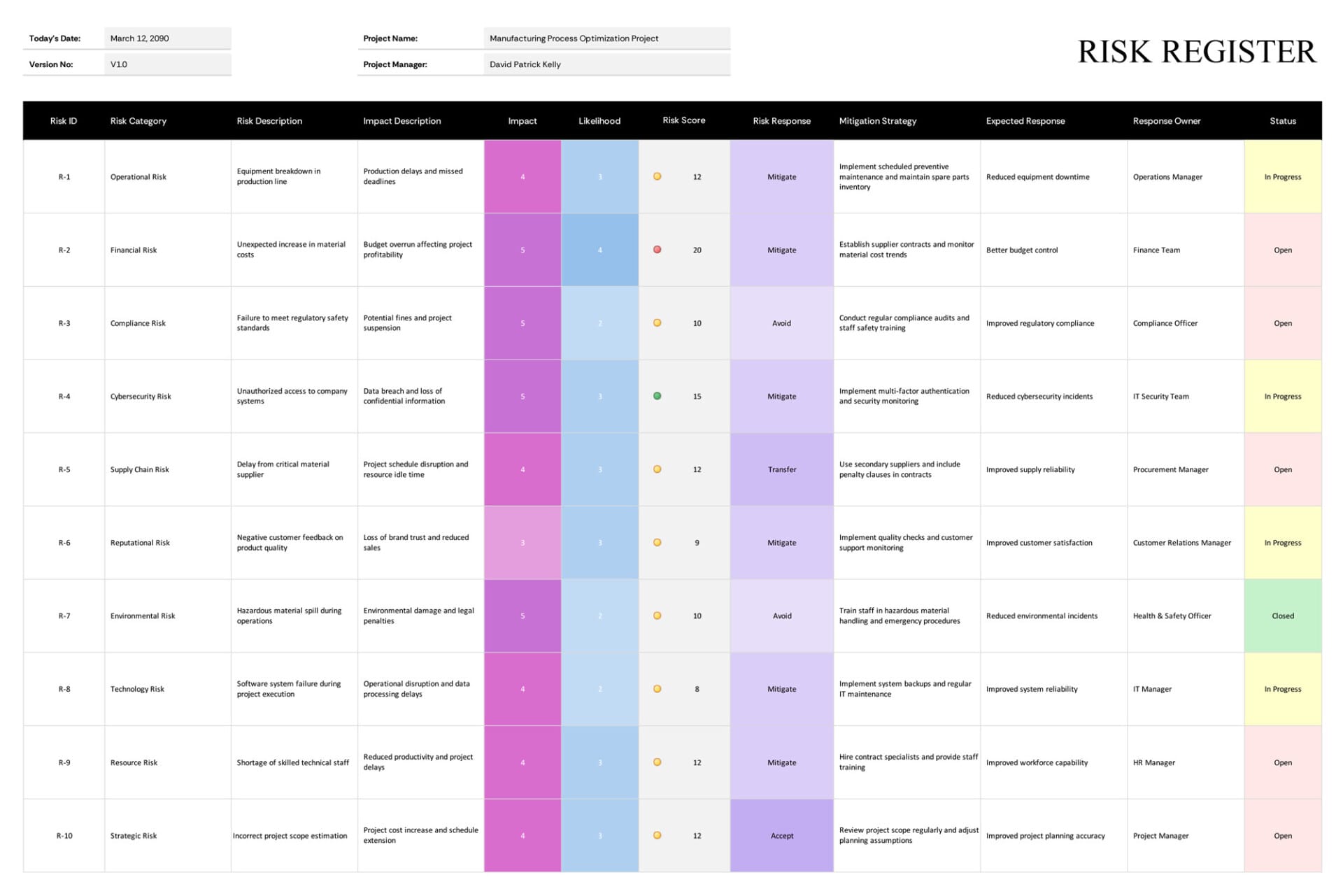
The main worksheet is built around a risk log where each row records one risk item. The table includes Risk ID, Risk Category, Risk Description, Impact Description, Impact, Likelihood, Risk Score, Risk Response, Mitigation Strategy, Expected Response, Response Owner, and Status. That set of fields turns a general concern into a tracked record with scoring and follow-up attached to it.
The Risk Description field is used for the actual event or issue that may occur, while the Impact Description explains the likely result if that event happens. Keeping those two fields separate is important because it gives more context during review. A supplier delay, for example, is not the same thing as schedule disruption, even though one may lead to the other. Writing both makes the entry more useful during team discussion and later reporting.
The sample rows already include risk IDs such as R-1 through R-10. In the sheet, those IDs are formula-driven in the prepared rows, so the numbering is already in place for the sample register area. This saves time during initial setup and keeps the entries organized while you replace the examples with your own content.
Automated Scoring and Visual Cues
One of the most important parts of this template is the scoring logic. The Impact and Likelihood columns use a numeric scale from 1 to 5. Once those values are selected, the Risk Score updates automatically based on the two ratings. That means you do not have to calculate each score manually while reviewing risks. If a risk becomes more severe or more likely, changing the rating updates the score immediately.
The automation goes further than the number itself. The Impact column uses color-based formatting that changes with the score you choose, and the Likelihood column does the same with its own color scale. As the ratings move higher, the visual intensity changes too, which makes it easier to scan the register and spot stronger exposures during a meeting or review session.
The Risk Score area also includes a visual indicator beside the numeric score. As Impact or Likelihood is changed, that score indicator changes with it, giving you a quicker read of lower, moderate, and higher risk levels. In a longer register, this makes a noticeable difference because you can identify items that may require escalation without checking each row line by line.
Risk Response and Mitigation Planning
After a risk is rated, the template gives you space to document how that item will be handled. The Risk Response column includes prepared response types drawn from the Config sheet, including Avoid, Mitigate, Transfer, Accept, Exploit, and Enhance. This keeps the register tied to recognized risk treatment terms rather than informal comments.
The Mitigation Strategy column is where you record the action being taken to reduce or manage the exposure. That might include preventive maintenance, secondary suppliers, staff training, security controls, compliance reviews, scheduling changes, or other corrective steps. The Expected Response column sits beside it so you can also state the intended result of that action. This distinction is useful because it separates what your team is doing from what your team expects that action to achieve.
For example, installing multi-factor authentication is the mitigation strategy. Reducing unauthorized access incidents is the expected response. Writing both gives more value during follow-up because you can review not only what was done, but also whether the action moved the risk in the intended direction.
Ownership and Status Tracking
The Response Owner field gives responsibility for each risk to a named person, role, or department. This is an important part of the register because unassigned risks often remain open longer than they should. By attaching ownership to every row, the template gives project leads and managers a better view of who is expected to review, act on, or report back on each item.
The Status column then shows where that item stands. In the prepared workbook, the status values are Open, In Progress, and Closed, and each status uses its own fill color so the progress of each risk can be reviewed faster. This gives the register ongoing value after the first round of identification. It becomes something you revisit and update during weekly reviews, project check-ins, departmental reviews, or audit preparation.
Config Sheet and Editable Selections
The second worksheet, labeled Config, controls the prepared lists and reference scales used in the main register. It includes the available Risk Response values, the Impact score scale, the Likelihood score scale, and the Status list. In the current workbook, the Impact scale runs from 1 to 5 with labels ranging from Very Low to Critical, while the Likelihood scale runs from 1 to 5 with labels ranging from Rare to Almost Certain.
These values are tied to the main sheet through list-based selections. That means the Impact, Likelihood, Risk Response, and Status cells in the register are not just free-typed entries in the prepared rows. They pull from the Config sheet ranges used by the workbook. This keeps the input more standardized and reduces variation in terminology across entries.
That said, there is one important consideration when customizing the Config sheet. If you change the wording of response types or status labels, you should also review the color rules in the main register. The formatting in those columns is tied to the current text values, so changing terms without adjusting the matching rules may affect the color behavior.
How the Template Can Be Used
Using this template, you can track risk during project planning, monitor exposure during delivery, and maintain a current record for leadership or internal review. A project team might use it to record budget, schedule, staffing, scope, and vendor concerns. An operations team might use it for equipment, process, supply, or production-related issues. An IT or cybersecurity team might use it to track system failure, access control, data exposure, or service interruption. A compliance or safety team might use it to document regulatory or workplace risks along with the action being taken against them.
The sample content in the workbook already reflects that broader use. It includes operational, financial, compliance, cybersecurity, supply chain, reputational, environmental, technology, resource, and strategic risks. You can keep those examples as reference while replacing the rows with items tied to your own project, department, or review cycle.
Using the Template in Practice
A good way to start is by replacing the project information at the top, then reviewing each sample row one by one. You can either overwrite the examples with your own risks or duplicate the workbook and keep the examples as a reference copy. Once the risk entries are updated, choose the Impact and Likelihood values from the prepared lists, review the auto-calculated score, select the response type, and complete the mitigation, expected response, ownership, and status fields.
As the project or review period continues, the register should be updated during recurring check-ins rather than filled once and left unchanged. Risk exposure can change after vendor delays, scope changes, staffing issues, security events, compliance findings, or operational incidents. When the register is revised as those conditions change, the scoring and visual cues remain current and the sheet becomes much more useful during decision-making.
If your register will contain more than the prepared sample rows, duplicate one of the completed formula-based rows before entering the next risk. Doing that carries the existing formula pattern, list-based selections, and color behavior into the new row. If you type into a completely blank row outside the prepared range, the automated score, ID logic, and conditional formatting may not carry over by default.
It is also worth deciding early how your team will interpret the scoring scale. If one person treats a score of 4 as moderate and another treats it as severe, the register may become less reliable during review. Using the Config sheet definitions during team discussion keeps the rating more consistent across entries and makes later comparison easier.
Wrapping-Up
This risk register template is designed in Excel and Google Sheets, which makes it suitable for teams that want a local workbook, a shared online register, or both. It can be used by one person managing a project or by several reviewers updating risk records over time, depending on how your team handles ownership and review.