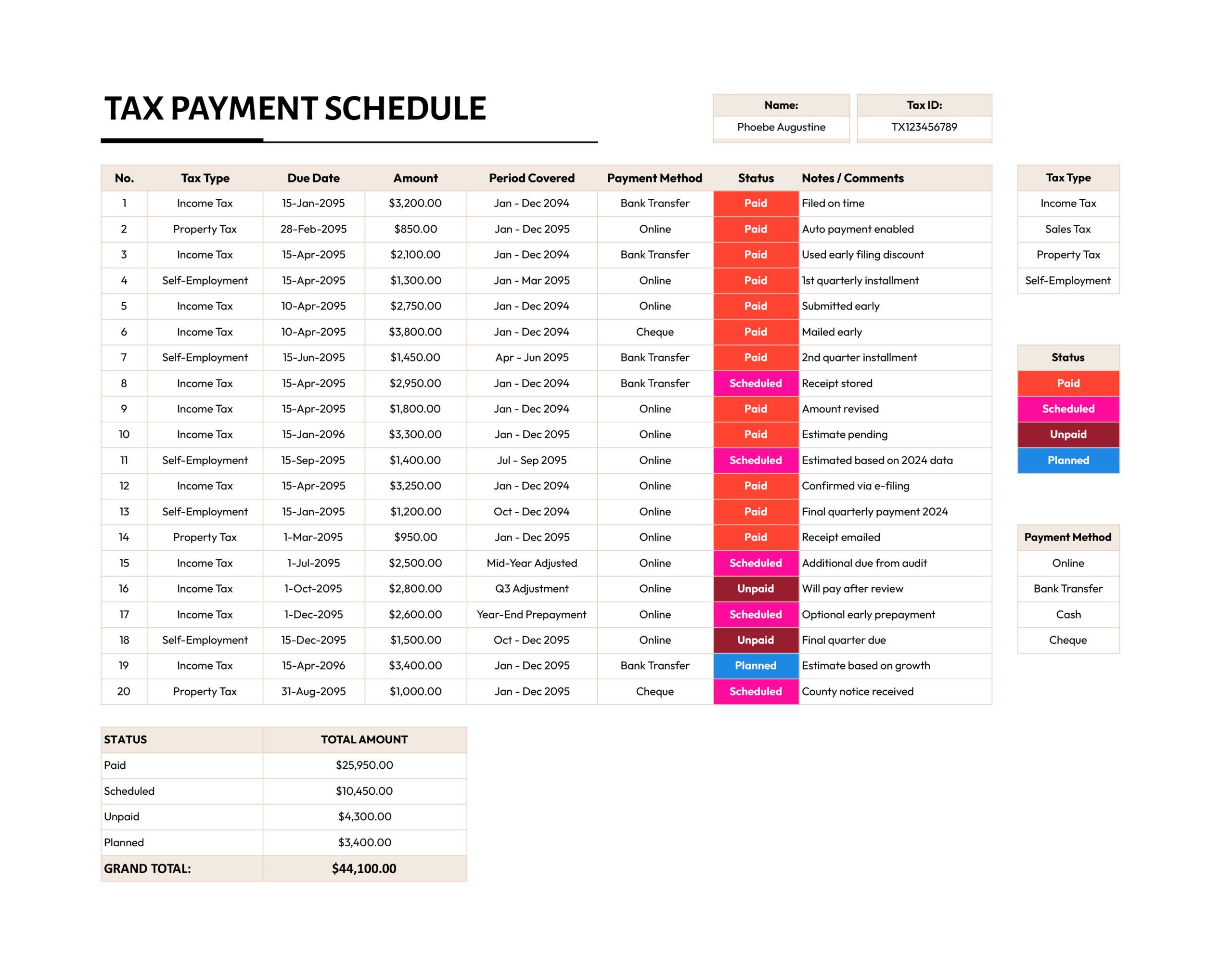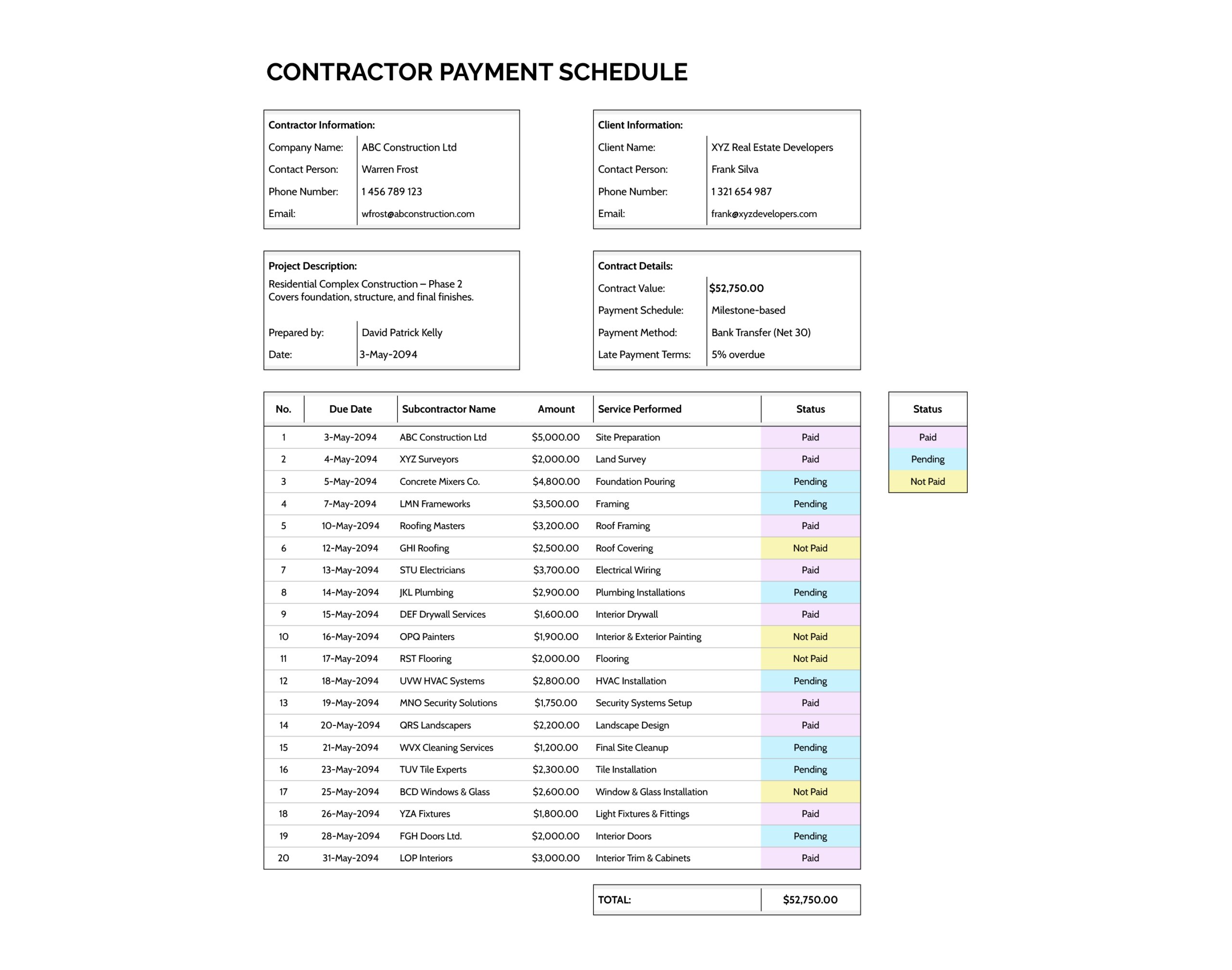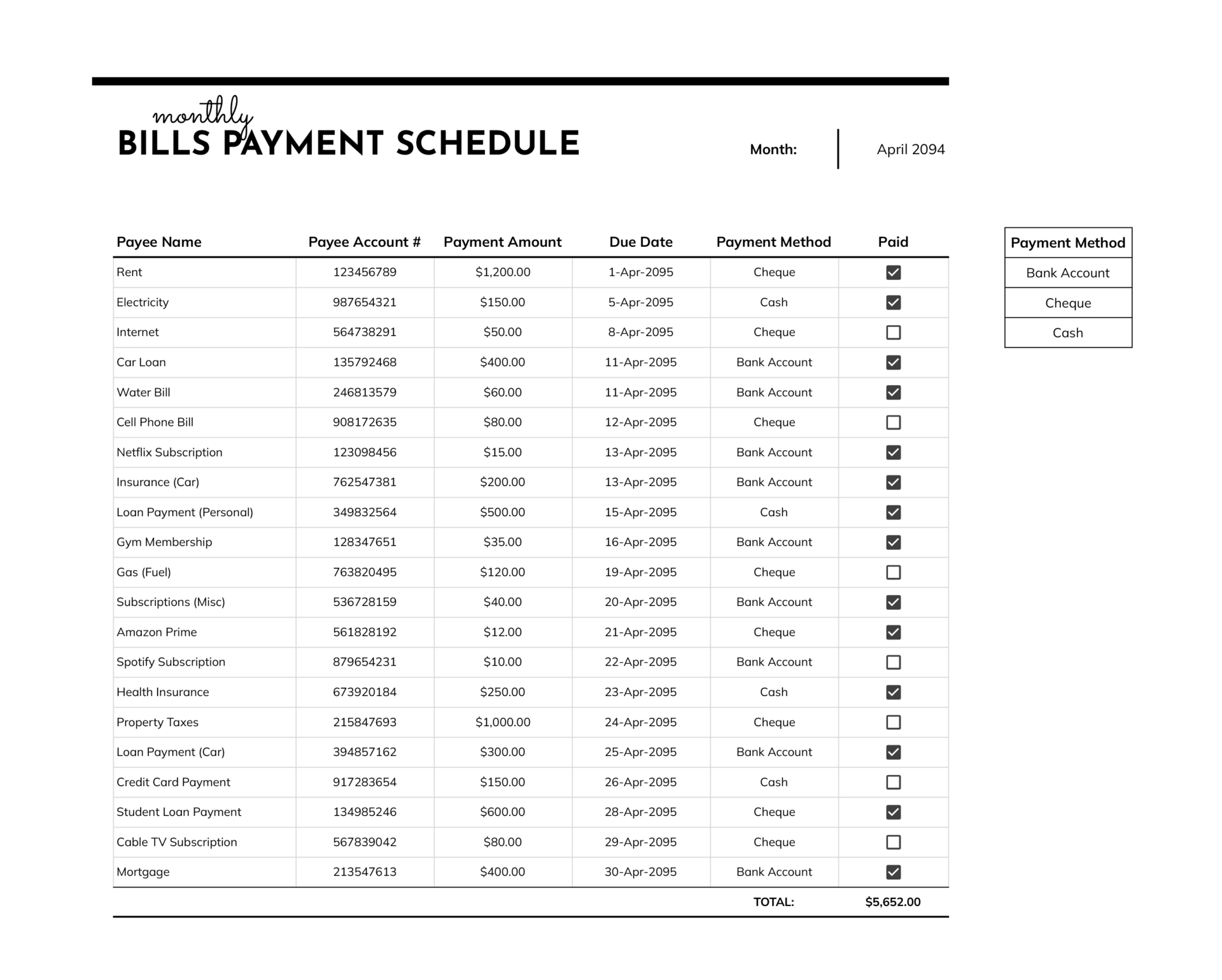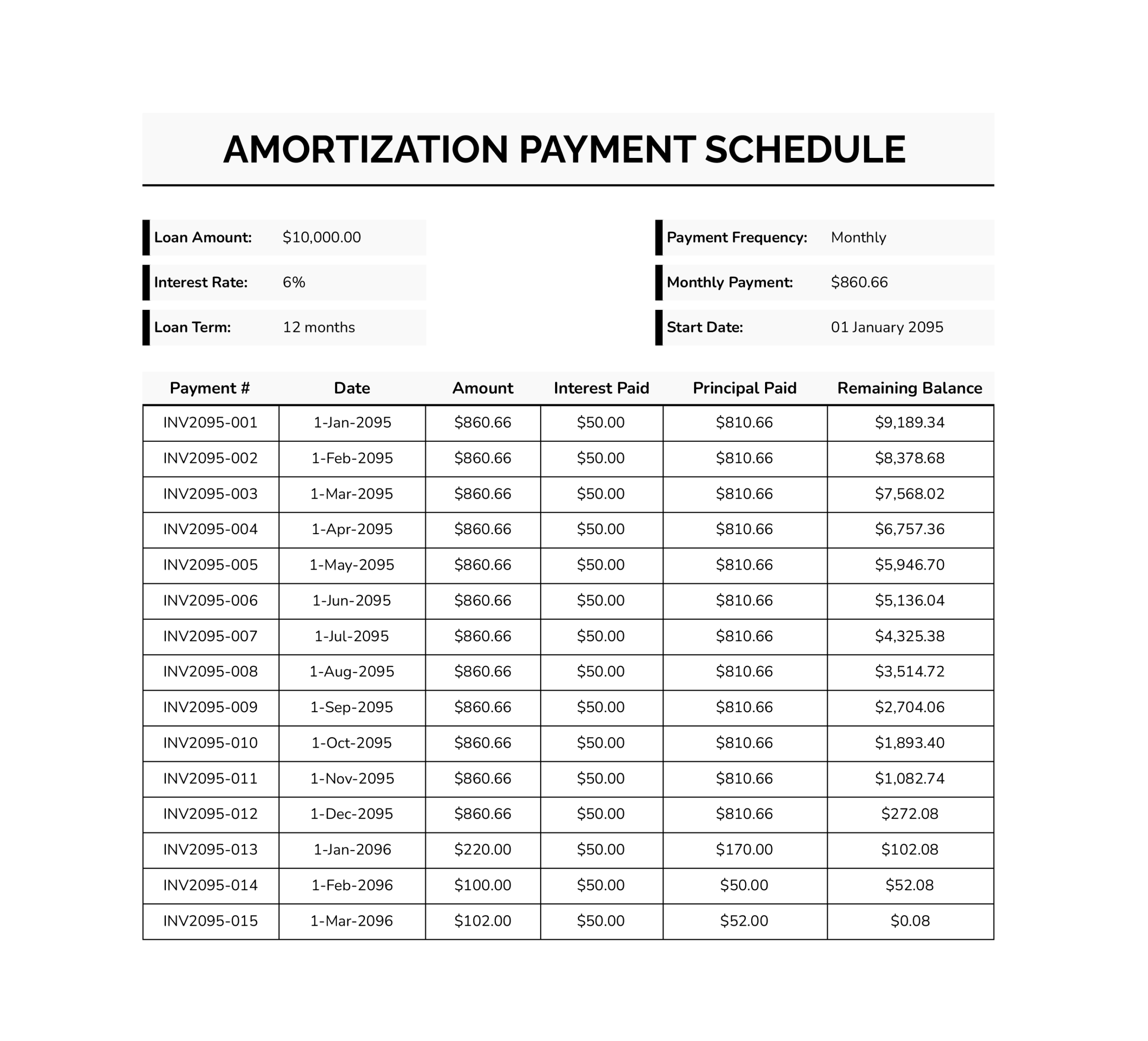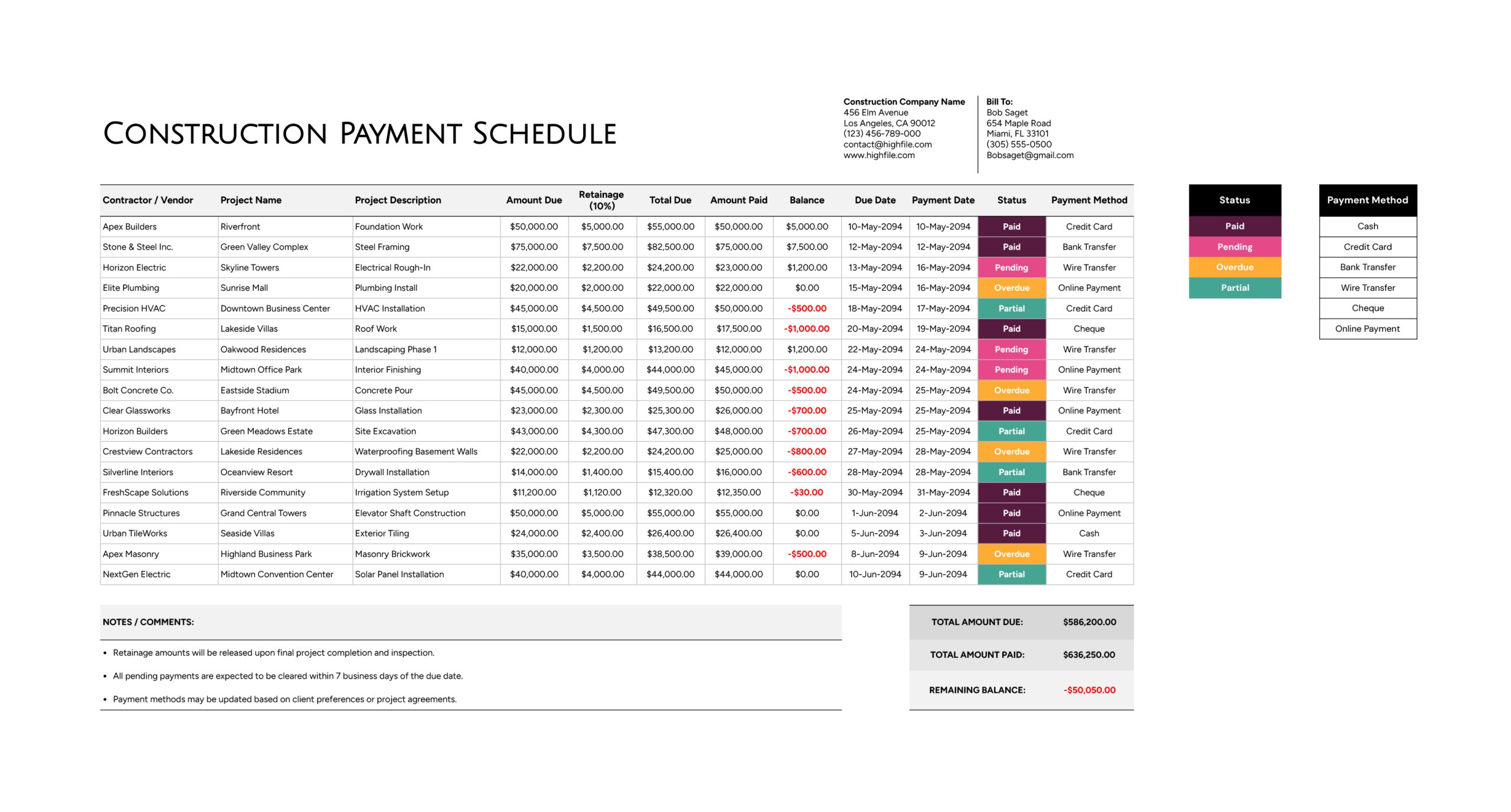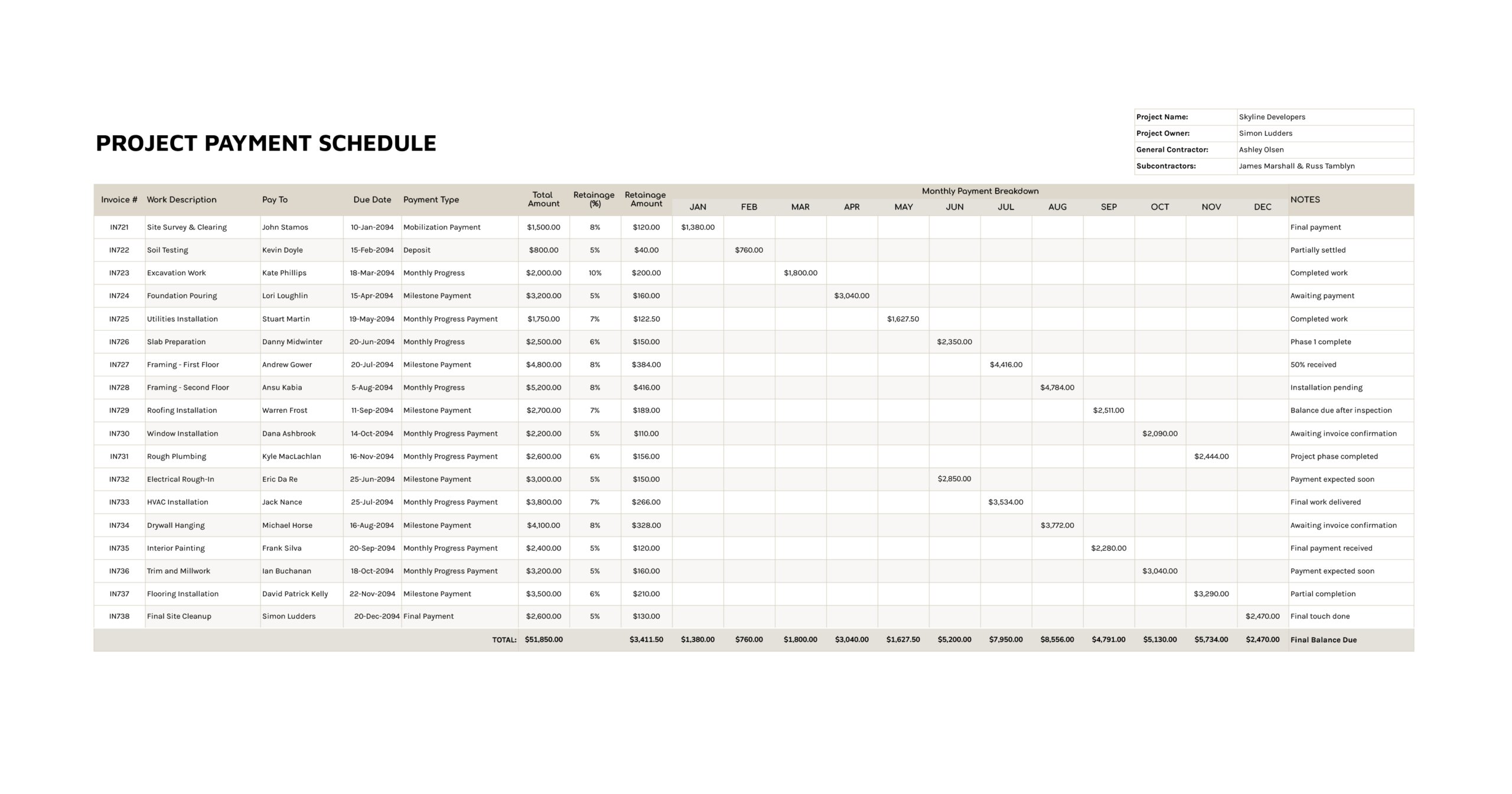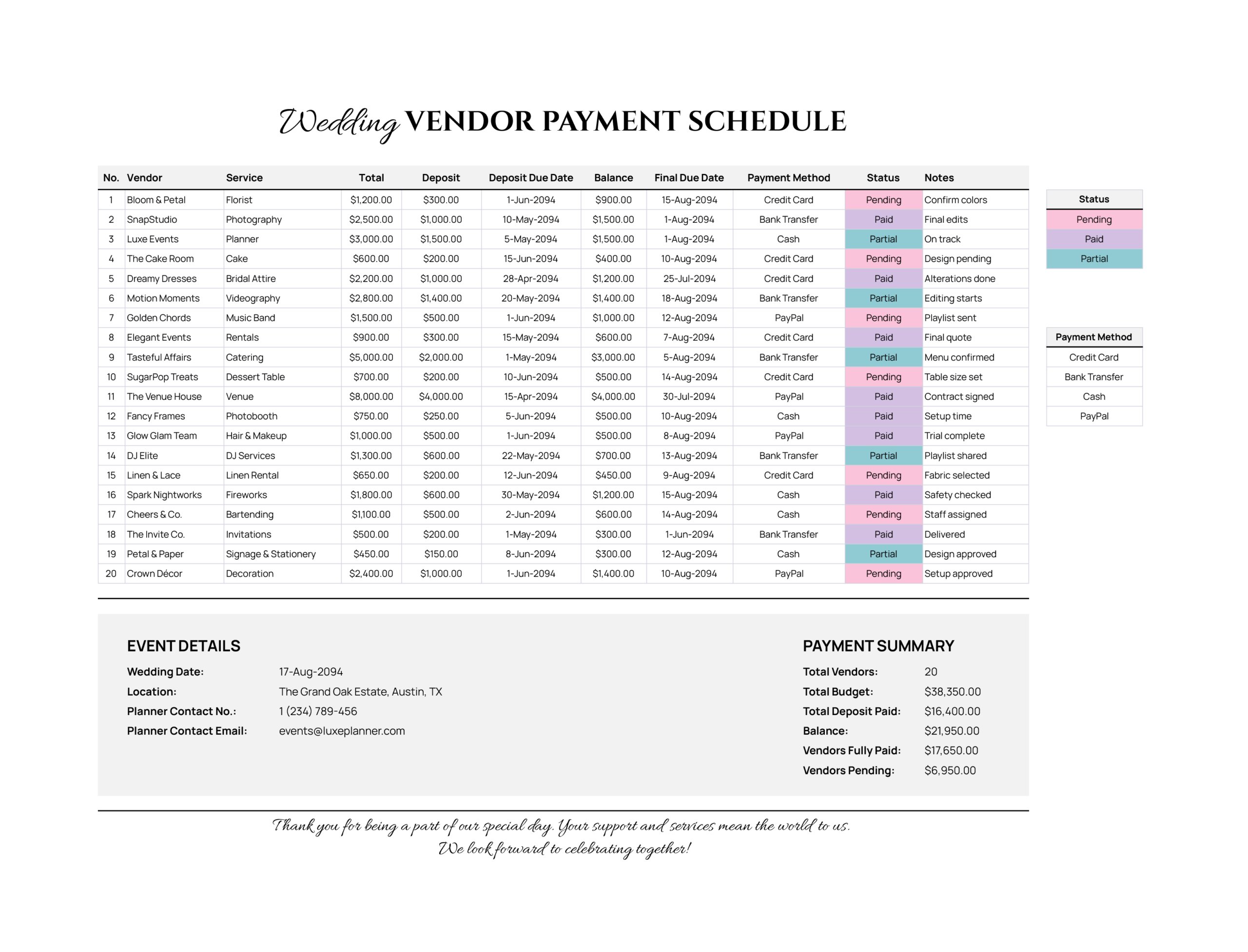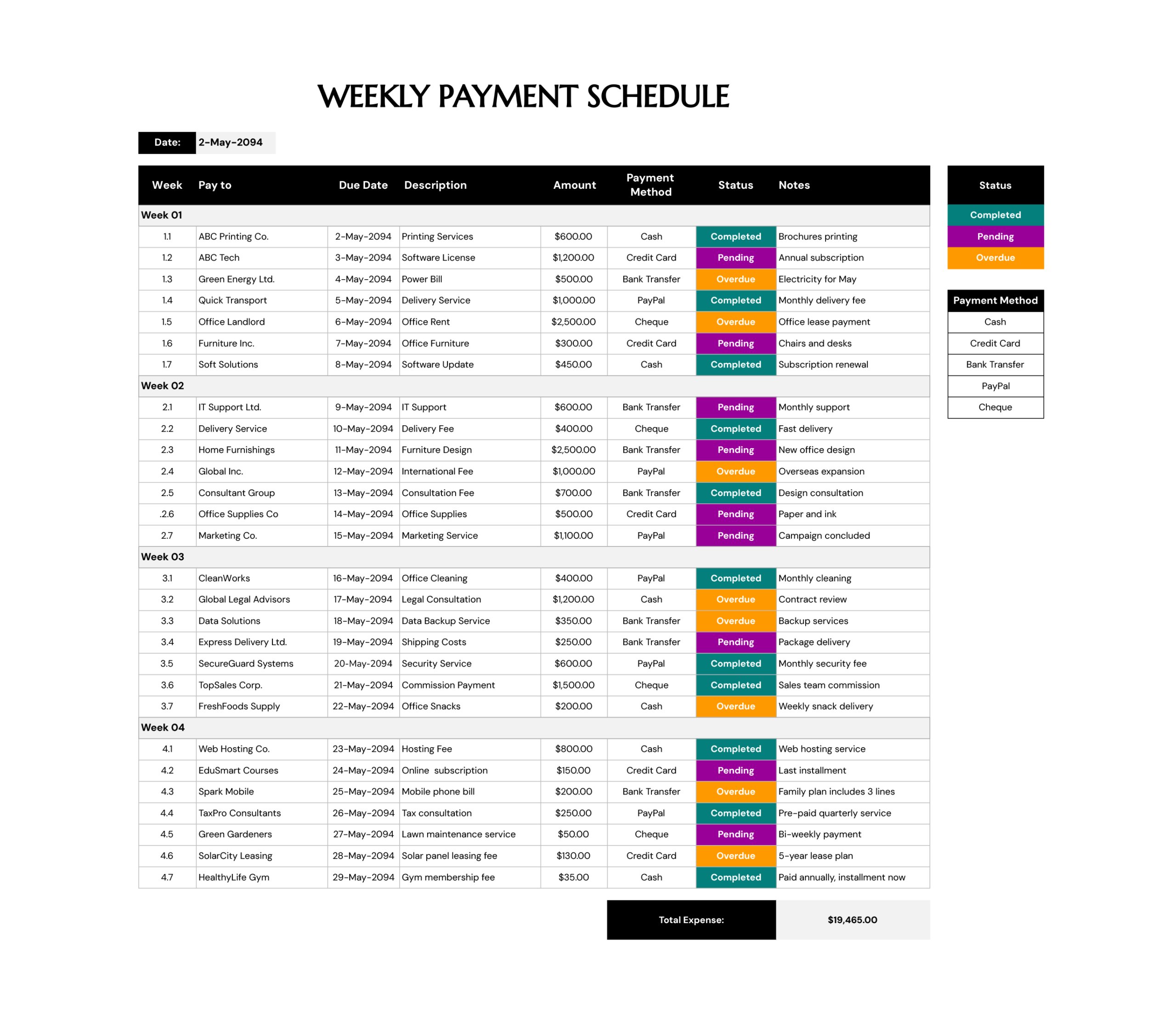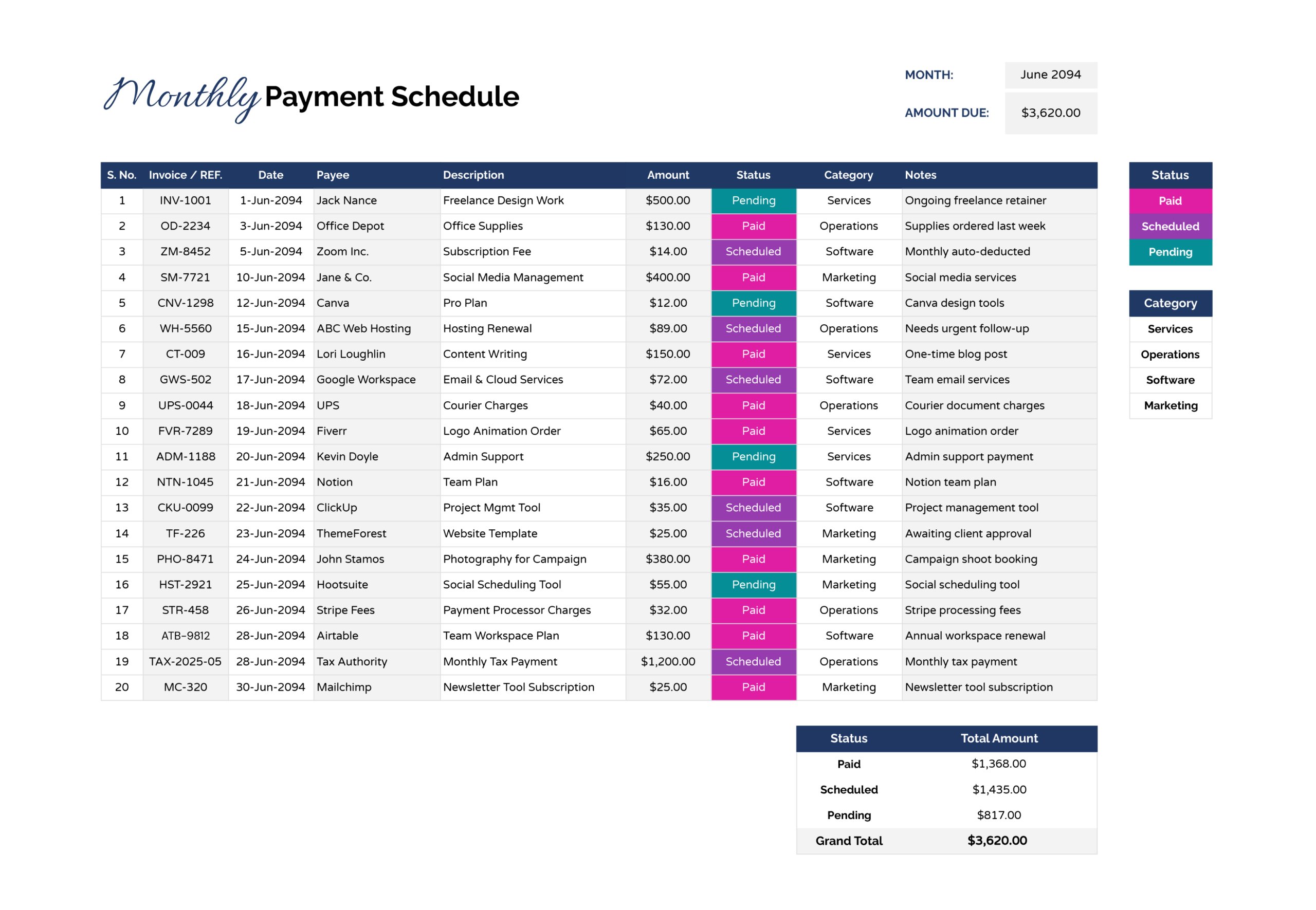



Payments tend to pile up quietly until you have to sort them out all at once. A few invoices, renewals, and contractor payments can make it unclear what is due first, what is already arranged, and what still needs approval. This monthly payment schedule template keeps the month’s payment list organized with a clear reference, date, payee, amount, and status for each entry.
Using this payment schedule template, you can categorize payments by spending type and use status selections to separate paid items from scheduled and pending items. The totals area summarizes amounts by status and shows a grand total, which supports quick monthly check-ins without manual adding.
What This Monthly Payment Schedule Records
The main table starts with a simple S. No. column for numbering, followed by an Invoice or REF. column. That reference field is useful for invoice numbers, order IDs, subscription IDs, internal approval codes, or anything you may need when you confirm a payment later. The Date, Payee, and Description columns keep the entry readable even months later, especially when the same vendor appears more than once.
Amount is where the sheet becomes practical for month planning. Once amounts are listed, the top section shows the month and a total amount due for the sheet. At the bottom, a summary section totals the Amount column by status and also shows a grand total, so you can check progress without manually filtering rows.
How To Use This Monthly Payment Schedule Template
Start by labeling the month at the top of the sheet so the schedule stays tied to a specific period. If you use the same file every month, duplicate the sheet first and rename it for the new month so your previous month stays intact.
Next, add payments into the table using one row per payment. Enter an invoice or reference when one exists, then add the payment date, payee name, and a description that identifies what the payment covers. Short descriptions are fine, but they should still be specific enough to recognize later, such as “hosting renewal” or “June design retainer” instead of a generic label.
After the basic entry is in place, enter the amount and select a status. Paid is for items already settled, scheduled is for items that have a planned payment date or are queued for processing, and pending is for items still waiting on approval, confirmation, or action. Category is used to group payments by spending type, such as services, operations, software, or marketing. If you review spending using different headings, adjust the category list to match your own budget names so the sheet stays consistent across months.
Use Notes only when the row needs extra context. Notes are typed manually, so they work best for short references such as a confirmation number, a billing period, a partial payment note, or a reminder tied to processing, like “waiting on approval.”
To Sum Up
This payment schedule template gives you a practical way to list the month’s payments with invoice or reference details, payees, dates, amounts, categories, and a status that can be updated as payments move from pending to scheduled to paid. The totals and status breakdown update based on what you enter, so month-end review does not require separate calculations.
The template is available in Microsoft Excel and Google Sheets. Status cells use conditional formatting so each status is easy to scan, and the Status and Category columns use dropdowns through data validation to keep entries consistent. You can rename labels, revise the category and status lists to match your own wording, extend the table by copying rows, and expand the total ranges if you add more payment lines.
FAQs
Scheduled fits payments that are already planned for processing, such as approved invoices or payments queued for a specific date. Pending fits items that still need action, such as missing details, approval, or a bill that has not been scheduled yet.
To change the Category options, you need to edit the dropdown list that powers the Category column. In Google Sheets, click any Category cell that already shows a dropdown, open Data, then Data validation, and you will see the rule used for that column. If the dropdown is written as a list, you can edit the items directly in that panel. If the dropdown is pulling from a cell range, you edit the values in that source range and the dropdown updates automatically. After updating, make sure the rule is applied to the full Category column range you plan to use, not just a few rows.
In Microsoft Excel, click a Category cell, then open Data, then Data Validation, and check the Source field. If the Source contains typed values separated by commas, edit that list in the Source box. If the Source points to a cell range, go to those cells and edit the category names there. After saving, confirm the validation rule applies to all Category rows you will use, and copy the validated cell downward if only part of the column had the dropdown set up.
If you add more rows beneath the existing table, copy the formulas and dropdown cells into the new lines so the layout stays consistent. After that, update the total and status summary ranges so the added rows are included in the amount due and the paid, scheduled, and pending totals. A quick check is to enter a small test amount in a new row and confirm that both the grand total and the status totals change.