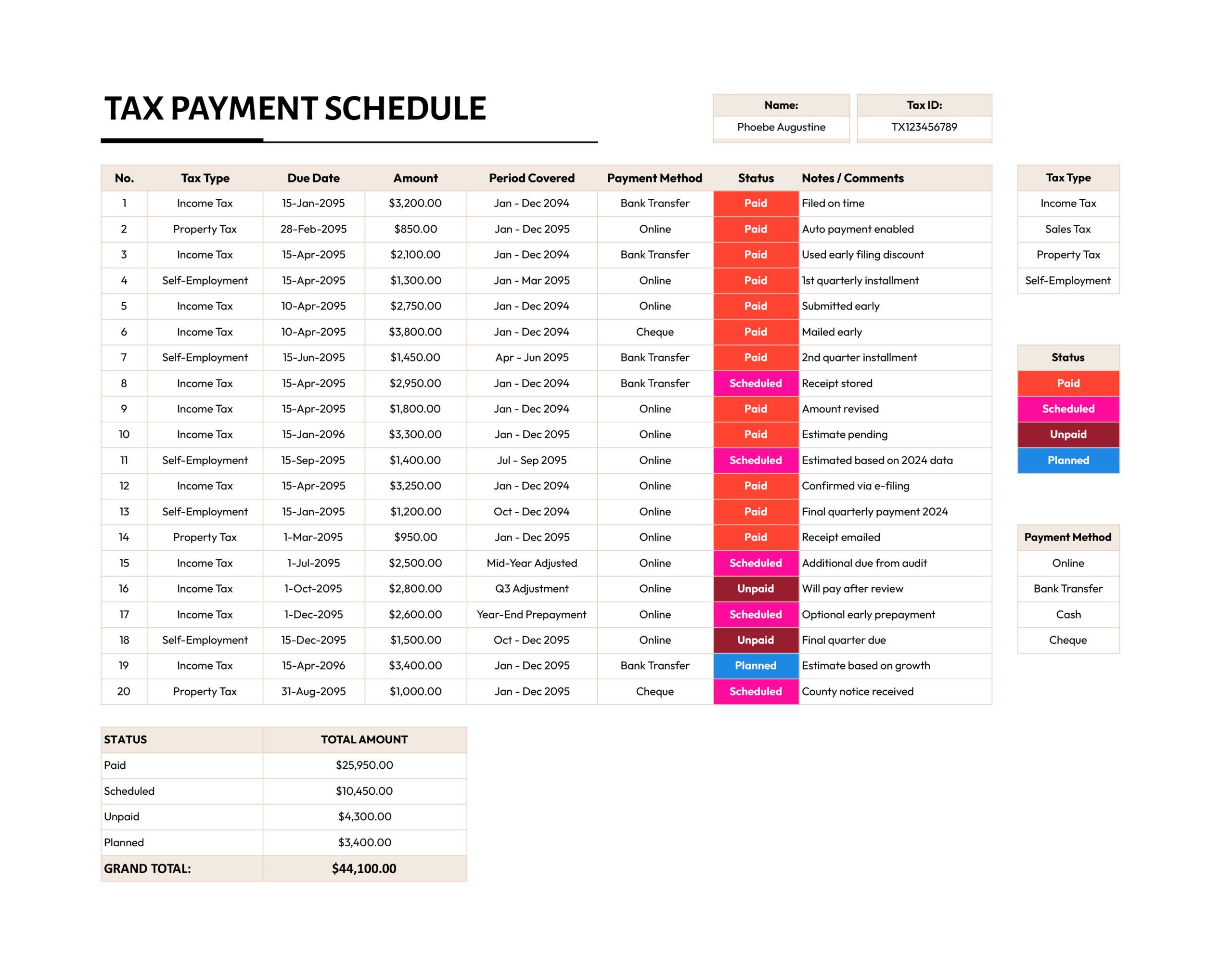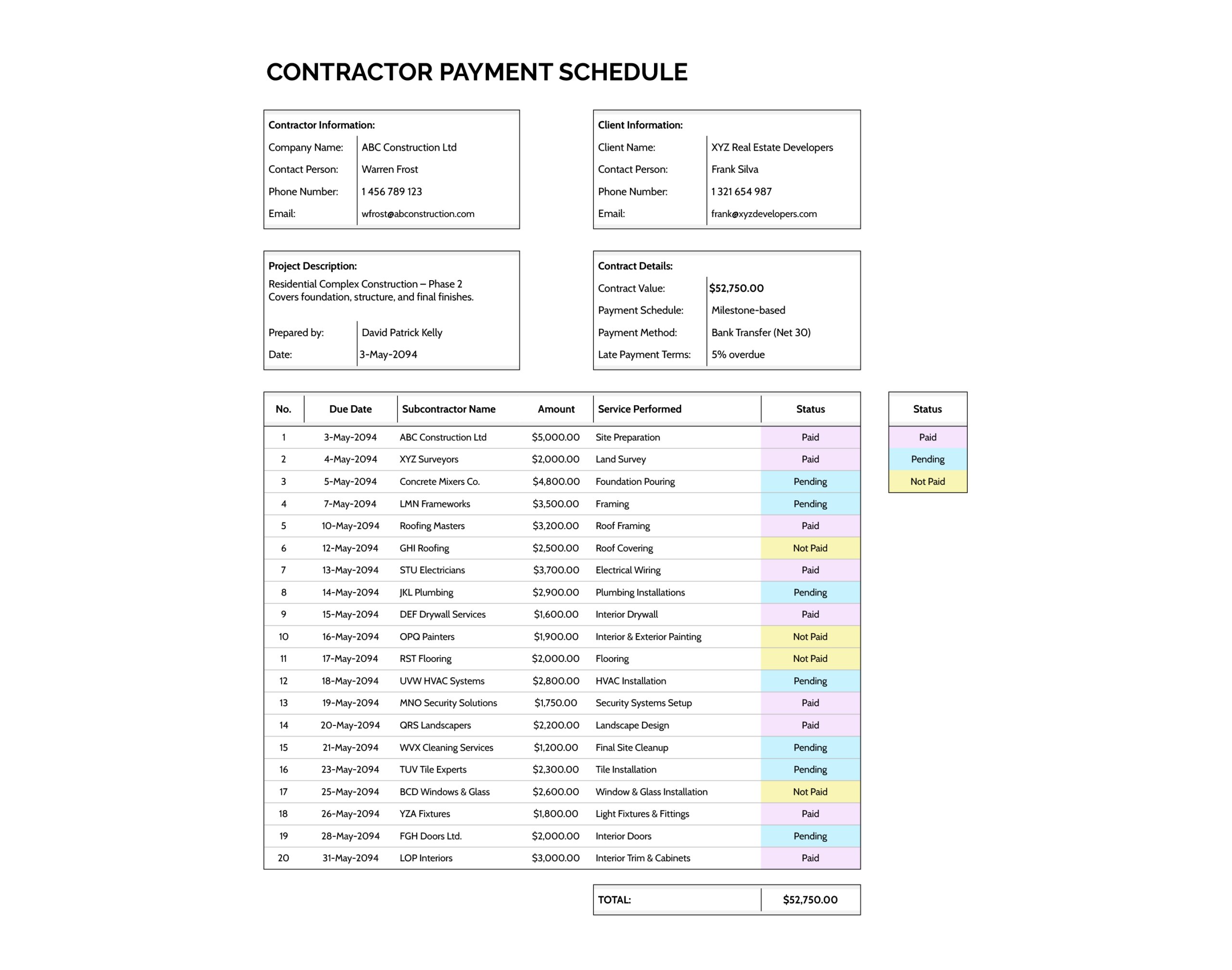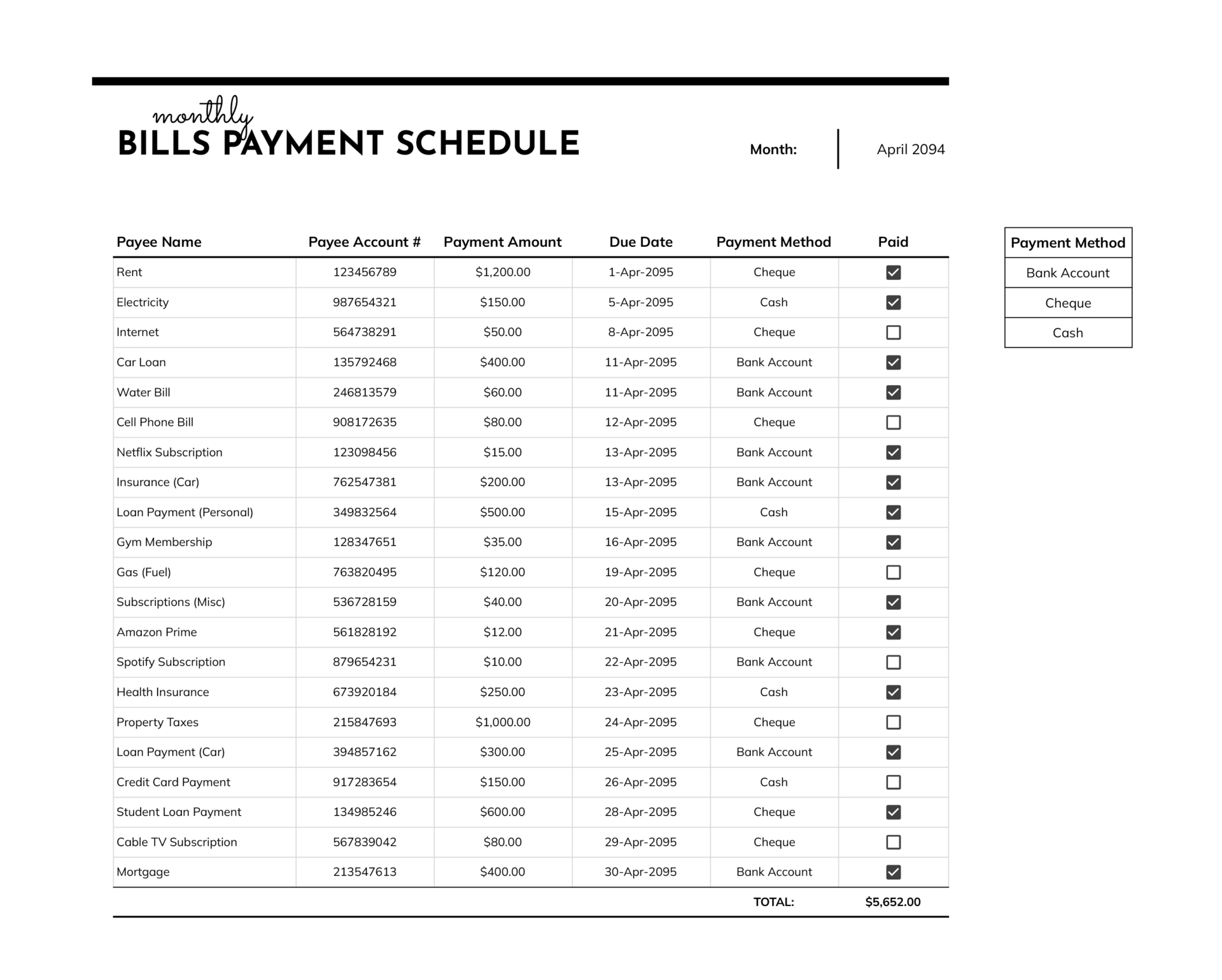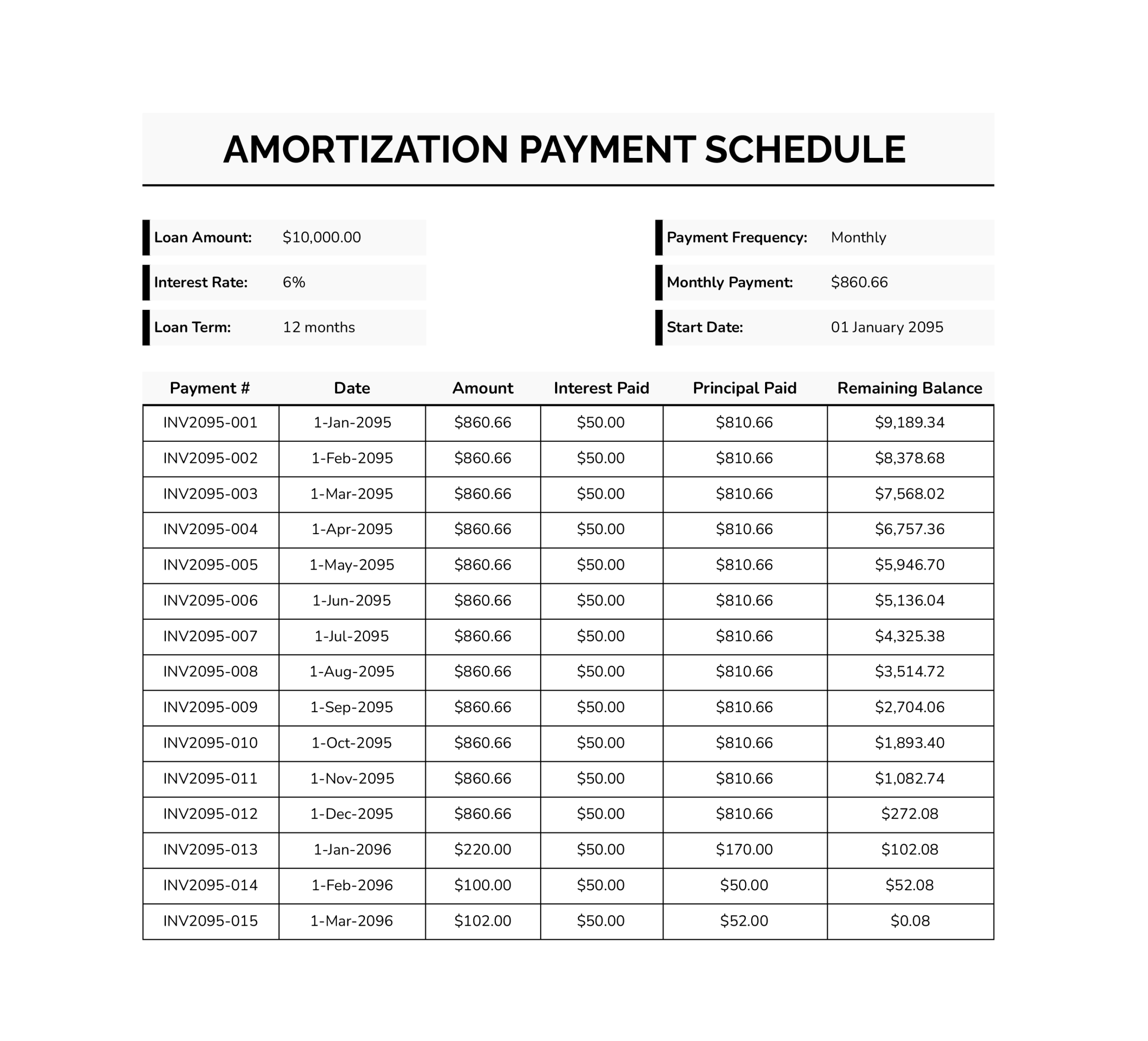




A loan balance changes in small steps, not all at once. Each time you make a payment, part of it covers interest for that period and the rest reduces the principal. If you only look at the payment amount, it is hard to tell why the balance is dropping slowly, why it drops faster after an extra payment, or why it can even rise when the payment is too small.
This loan payment schedule template records payments one line at a time and shows the balance movement after every entry. You enter your starting balance and interest rate at the top, then log payment dates and amounts in the table. The sheet calculates the interest portion first, then shows the principal portion and the new remaining balance. You control the payment amounts, so the schedule reflects what you actually paid instead of forcing a calculated payment. It’s available in Microsoft Excel and Google Sheets.
What This Schedule Tracks
This workbook is meant for tracking a loan as it is paid down over time. It suits personal loans, family loans, private lending, and other situations where you want a consistent record of payments and a running view of the remaining balance. It is also useful when payments vary, such as when you occasionally add extra principal or when you want to record the exact amounts that were paid rather than a planned payment.
The workbook includes a sample sheet that shows a completed schedule and a blank sheet intended for your own entries. The sample is there to show how the table should look once filled in. The blank sheet is where you enter your loan details and record your payment history.
What You Enter at the Top
Start by completing the loan detail fields at the top of the blank sheet. The most important entries are the starting balance and the annual interest rate, since the first interest calculation is based on those values. The monthly payment field is useful as a reference when your payment is usually consistent, but it is not required for the table to work, since payment amounts can be entered row by row.
Other fields such as a due date note, goal payoff date, payment frequency, and purpose work as reference notes. They keep the schedule readable when you return to it later, but the calculations are driven by the balance, interest rate, and the payment rows you enter.
One small detail prevents most errors. Enter the interest rate in a format Excel reads as a percentage, such as 6.5% or 0.065. If you enter 6.5 without a percent sign, Excel may interpret it as 650%, which will make the interest amounts look unrealistic.
Recording Payments In The Schedule Table
After the top section is complete, move to the schedule table and begin entering payments in date order. Each row represents one payment event. You record the payment date and the amount paid, and you can add a short note if the entry needs context, such as an extra principal payment, a partial payment, or a month where the amount changed.
As soon as you enter the payment amount for a row, the calculated columns update automatically. The sheet calculates interest for the period using the balance carried into that row, then subtracts that interest from the payment to show the principal portion. The new balance is then carried forward to the next row so the schedule stays connected from top to bottom.
If your payment is usually the same, you can repeat the same value down the payment column and overwrite only the months that change. If your payments are irregular, you can simply type the actual amount paid in each row. In both cases, the table remains accurate because it always calculates from the current balance.
How The Calculations Work
This schedule template uses a monthly interest approach based on your annual rate. Interest for a row is calculated first, using the balance at the start of that row and the annual rate converted into a monthly rate. Principal is calculated as the payment minus the interest for that row. The remaining balance is calculated by subtracting principal from the prior balance, then carrying the result into the next row.
If the payment entered for a row is smaller than the interest amount, the principal becomes negative and the balance increases. That outcome is expected when a payment does not cover the interest charged for that period.
Common Situations and How to Record Them
If you make an extra payment, enter the full amount on that payment row and add a short note so the reason is recorded. The interest is still calculated first, and the remainder is treated as principal, which lowers the balance faster from that point onward.
If your interest rate changes during the loan, update the rate field when the new rate begins and add a note on the first row affected. Since the sheet uses one rate entry for the schedule, a practical recordkeeping approach is to duplicate the blank sheet before changing the rate if you want a preserved copy of the earlier segment.
If you need more payment lines than the template includes, extend the schedule by copying the formulas in the calculated columns down into additional rows, then continue entering payment dates and amounts in order.
FAQs
No. This payment schedule template treats the payment amount as an entry you control. When you change the interest rate, the sheet recalculates interest, principal, and balance results, but it will not rewrite the payment amounts you entered. If your goal is to calculate a required payment based on a payoff term, that is a different type of worksheet.
This usually means the interest calculated for that period was larger than the payment you entered. Since principal is calculated as payment minus interest, principal becomes negative and the remaining balance increases. If this is unexpected, double-check that the interest rate was entered as a percentage and confirm the payment amount was typed correctly.
Enter the full amount you paid in the payment column for that date. The sheet will calculate interest first and treat the remainder as principal automatically. Add a short note on that row if you want the schedule to read like a clear payment history later.
A negative balance means the final payment entered was larger than what was needed to bring the balance to zero based on the sheet’s math. Adjust that final payment amount so the ending balance lands at zero, or close to zero if your lender rounds interest differently.
Lenders can use different interest timing, day-count methods, and rounding rules. This template uses a consistent monthly-rate approach, which keeps your tracking consistent even if it does not match every lender line item exactly.
This loan payment schedule template is available in Microsoft Excel and Google Sheets formats, so you can track payments in a local file or in a shared sheet that updates in real time. The layout keeps entry fields simple and keeps formulas in the calculation area, so you can rename headings, adjust the top loan details, edit note text, and copy the existing rows downward when you need a longer schedule while keeping the same balance flow from one payment line to the next.