




A 24/7 operation needs two things at the same time. You need full coverage across all hours, and you need a rotation that your teams can follow without confusion. This 24/7 Schedule Template is designed for workplaces that use three daily shifts and rotate crews through a repeating cycle, so you can plan coverage, time off, and weekly hours.
Using this template, you can plan a 28-day rotation for multiple teams, see who is on days, evenings, nights, or off, and review the total scheduled hours for each team before you share the schedule.
- 28-day rotation view that shows Day 1 through Day 28 across the top and teams down the side
- Three shift types with a simple legend for shift times and color blocks (can be adjusted to any number of shifts)
- Hours column that totals each team’s scheduled hours for the rotation
Who This Schedule Template Is Designed For
This schedule template is intended for any workplace that must stay staffed around the clock and uses rotating teams, such as security, healthcare, manufacturing, utilities, logistics, IT operations, and facility coverage. It also fits smaller teams that rotate the same people through shifts, as long as the rotation pattern is planned in advance.
If you supervise staffing, approve time off, manage shift changes, or publish schedules for a department, this template gives you a practical way to present the rotation in a format people can quickly recognize.
How The Schedule Is Organized
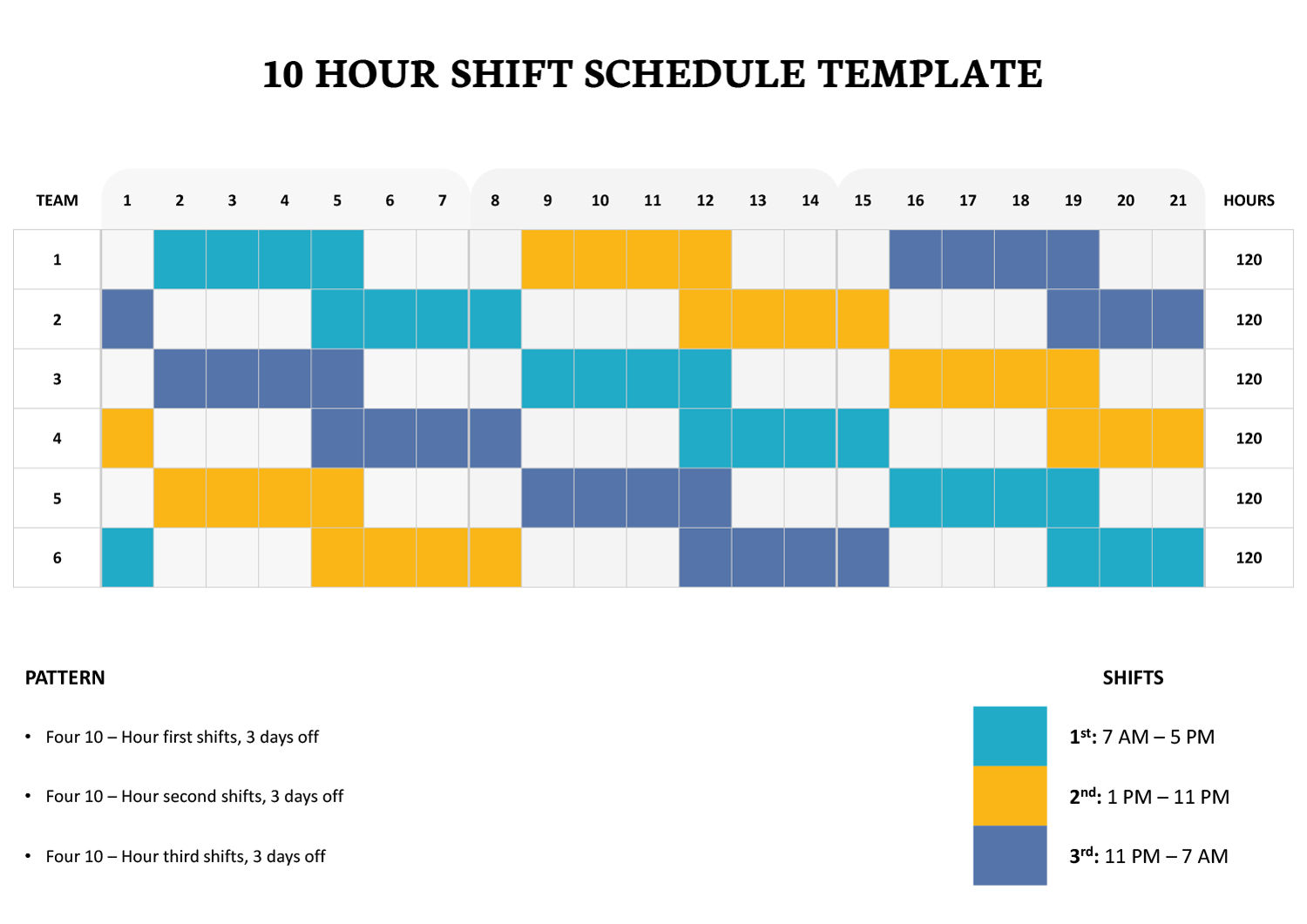
The main schedule is a grid. Across the top, you have Day 1 to Day 28. Down the left, you have Team 1 through Team 6. Each cell in the grid represents that team’s assignment for that day. Color blocks mark the shift type, and blank cells represent days off.
On the far right, an Hours column summarizes how many scheduled hours each team has across the full rotation. In the sample layout, each team totals 168 hours for the 28-day cycle, based on eight-hour shifts.
Below the grid, you also have two helpful references. The Scheduled Notes section summarizes the rotation idea in plain language, such as seven days on a shift followed by two days off. The Shifts section lists the three shift time ranges so anyone reading the schedule understands what “1st,” “2nd,” and “3rd” refer to.
The template uses three shift labels that match a standard three-shift day. First shift is 7 AM to 3 PM. Second shift is 3 PM to 11 PM. Third shift is 11 PM to 7 AM. If your workplace uses different start and end times, you can update the legend so the work schedule matches your operation’s hours.
In the Excel and Google Sheets versions, the grid is set up for quick entry. Using this template, you can type 1st, 2nd, or 3rd in a day cell, and the sheet applies the matching shift color and includes that shift in the Hours total automatically. Leaving a cell blank marks a day off.
How To Use This 24/7 Schedule Template
Start by confirming the times for your day, evening, and overnight shifts. The legend is the quickest way to communicate shift hours to your team, especially if you post schedules in a shared space or send them by email. If your shift times differ, update the shift time text so the schedule reads correctly for your workplace.
Name the teams the way your workplace refers to them
The template uses Team 1 through Team 6, which works well for crew rotations. If your teams are known by another naming style, update the labels to match what your staff already recognizes, such as Crew A through Crew F, Unit 1 through Unit 6, or a department-based naming system.
This small change reduces misreads when people scan the schedule quickly.
Review the rotation pattern before publishing
The grid displays a repeating rotation across 28 days. In the spreadsheet versions, the rotation is generated from a team-by-team pattern stored in the sheet, then displayed as color blocks across Day 1 through Day 28. If you need a different rotation, update the underlying pattern first, then review the grid again to confirm it reflects the new sequence.
In the document versions, the schedule is presented as a formatted grid that you can edit by adjusting the shaded blocks to match your rotation plan.
Use the column view to check daily coverage
A fast way to verify 24/7 coverage is to scan one day at a time.
Pick a day number, then read down that column to confirm you have teams assigned across all three shifts and that the coverage matches your staffing plan. If you notice too many teams off on the same day, or too much staffing on one shift, adjust the rotation pattern before you share the schedule.
Review total scheduled hours and plan exceptions
Before publishing, check the Hours column for each team. This gives you a quick confirmation of the workload balance for the rotation. If you track overtime or staffing costs, this is also a useful point to compare planned hours against expected staffing needs.
After that, plan how you will record exceptions like vacation, training, sick days, or shift trades. Many teams keep the base rotation unchanged and document exceptions separately so the main schedule stays easy to read.
Work-hour rules, rest periods, union policies, and overtime thresholds vary by workplace and location. Use your internal policy or HR guidance to confirm the rotation fits your requirements.
This template is designed in Excel, Word, Google Sheets, and Google Docs. The spreadsheet formats are best when you want automatic totals and quick rotation edits. The document formats are best when you want a clean schedule view for printing or sharing as a formatted document.
FAQs
Pick a start date for Day 1, then count forward one day at a time through Day 28. Many teams add a small date key above or below the schedule, or keep a separate date row in the spreadsheet that lists the actual dates next to the day numbers. This keeps the rotation intact while still giving staff a real calendar reference.
Keep the base rotation as your default schedule, then record exceptions as overrides. For example, you can mark a specific day as PTO for one person and assign coverage through a swap, a floater, or overtime. This approach keeps the rotation easy to follow while still reflecting real staffing changes.
To switch the schedule from 8-hour shifts to 12-hour shifts, you update the hour value the sheet uses when it totals the Hours column, then confirm the shift time legend matches your new hours.
In many spreadsheet schedules, the Hours total is calculated by counting how many shift labels appear in a team’s row, then multiplying by a shift-length value. If the template is currently using 8, changing that value to 12 updates the totals across the schedule automatically.
A common setup looks like this.
Shift-length cell: A single cell stores the shift duration, such as 8. The Hours formula multiplies the number of assigned shifts by that cell. Change 8 to 12, and the total updates.
Shift-hours lookup table: A small table lists each shift label and its hour value, such as 1st equals 8, 2nd equals 8, 3rd equals 8. Update each hour value to 12, and the Hours total recalculates using the new numbers.
After updating the hour value, update the shift time legend so it matches your actual 12-hour windows. The color formatting can stay the same because it is triggered by the text labels 1st, 2nd, and 3rd, not by the hour count.
Yes, as long as the rotation still covers all three shifts every day. If you reduce the number of teams, check coverage day by day to confirm you do not create gaps, especially on overnight shifts and around days off. Some workplaces also keep the team rows but treat a row as a relief or float team if coverage planning requires it.
Build a routine for handoff communication. A short overlap window, a written handoff note, or a shift log can cover ongoing issues, safety items, and priority tasks. Even if the schedule coverage looks correct, handoff planning reduces missed details and last-minute confusion at shift changes.