


A monthly construction schedule is meant for planning and coordination when you need a full-month view of work, not a daily hour-by-hour sequence. This template is designed for project managers, contractors, site supervisors, and owners who manage multiple activities at once and need a single schedule that can be reviewed in meetings, shared with trades, and updated as dates shift.
The spreadsheet versions are built around start and end dates. When you adjust those dates, the month view reflects the planned window of work across the daily timeline. This makes it easier to spot overlapping activities, identify days that look overloaded, and confirm that key milestones land on the right dates. The Word and Google Docs versions follow the same monthly layout, with manual editing for teams that prefer a printable schedule or need a document version for site binders and client updates.
How To Use This Monthly Construction Schedule Template
Before you begin, decide what the month view should represent for this project, such as major phases, trade tasks, or key milestones. Then enter project details, set the month, add tasks with start and end dates, and review the timeline for overlaps, handoffs, and deadlines. Ongoing updates stay manageable because you revise dates and status as the plan changes.
Set Project Details and Choose The Month
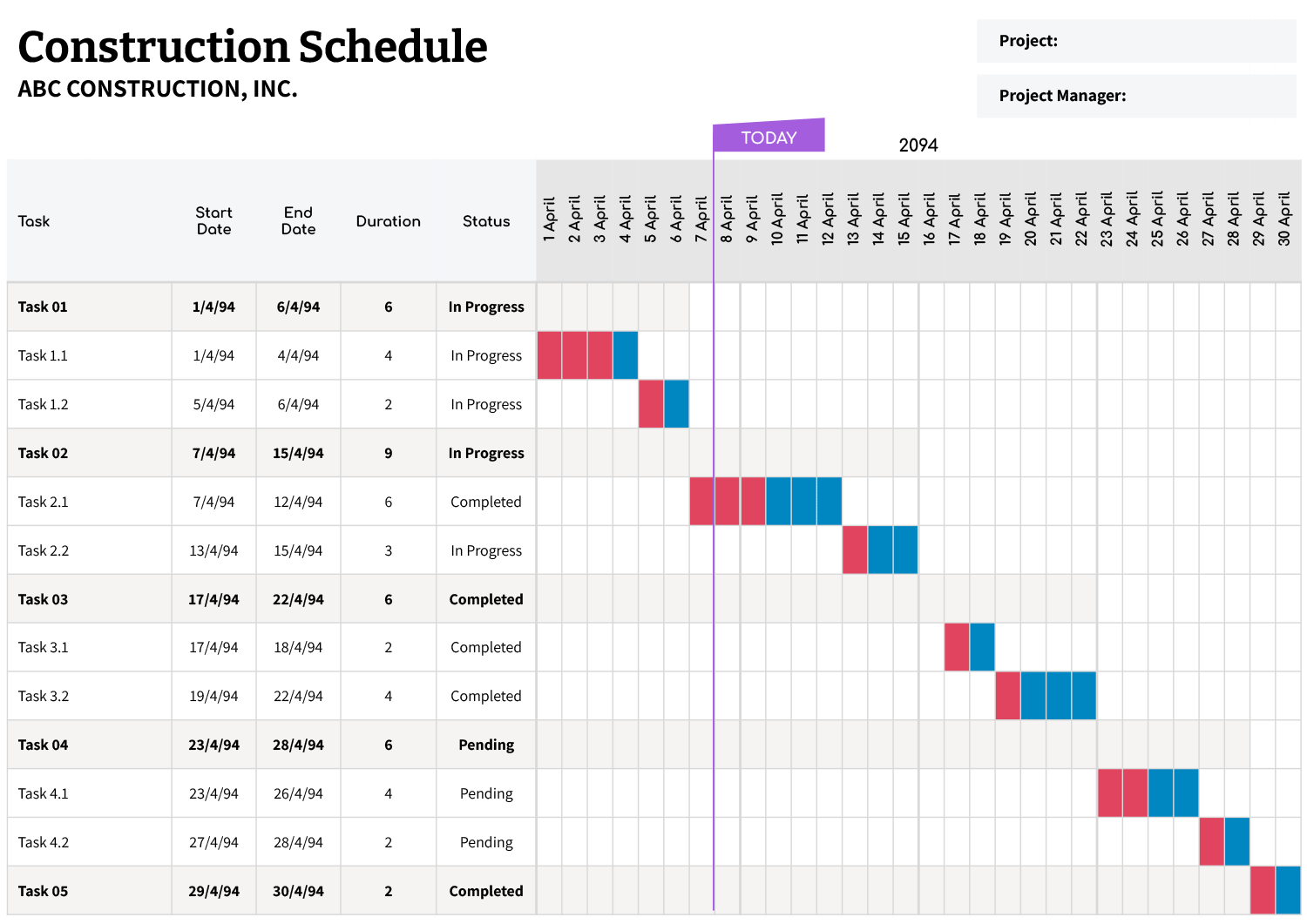
Start by filling in the project name and project manager at the top so the schedule stays identifiable after printing or sharing. Then set the month by editing the first date shown at the top of the daily timeline. In the Excel and Google Sheets versions, the remaining day columns follow that first date across the row, so you can move the schedule to a new month by changing one starting point instead of rewriting every date.
Set Up The Task List For Monthly Planning
Enter your tasks down the left side in the order you want to review them in meetings. Many teams keep higher-level phases as main task lines and then list smaller items underneath as sub-tasks so it is easier to scan progress without losing detail.
If you use a numbering style like 1, 1.1, 1.2, the spreadsheet version can visually distinguish main tasks from sub-tasks in the timeline area based on that dot-style format. That can make the month view easier to read when the task list grows.
Add Start and End Dates With Real Scheduling Intent
For each task, enter the start date and end date. The duration field calculates based on the dates you enter, which gives you a quick check that the planned window matches what you intended.
The duration is based on calendar days. If your plan needs workdays only, you can swap the duration formula to a workday calculation and, if needed, maintain a small holiday list for more accurate counts.
Read the Timeline Area Like a Working Calendar
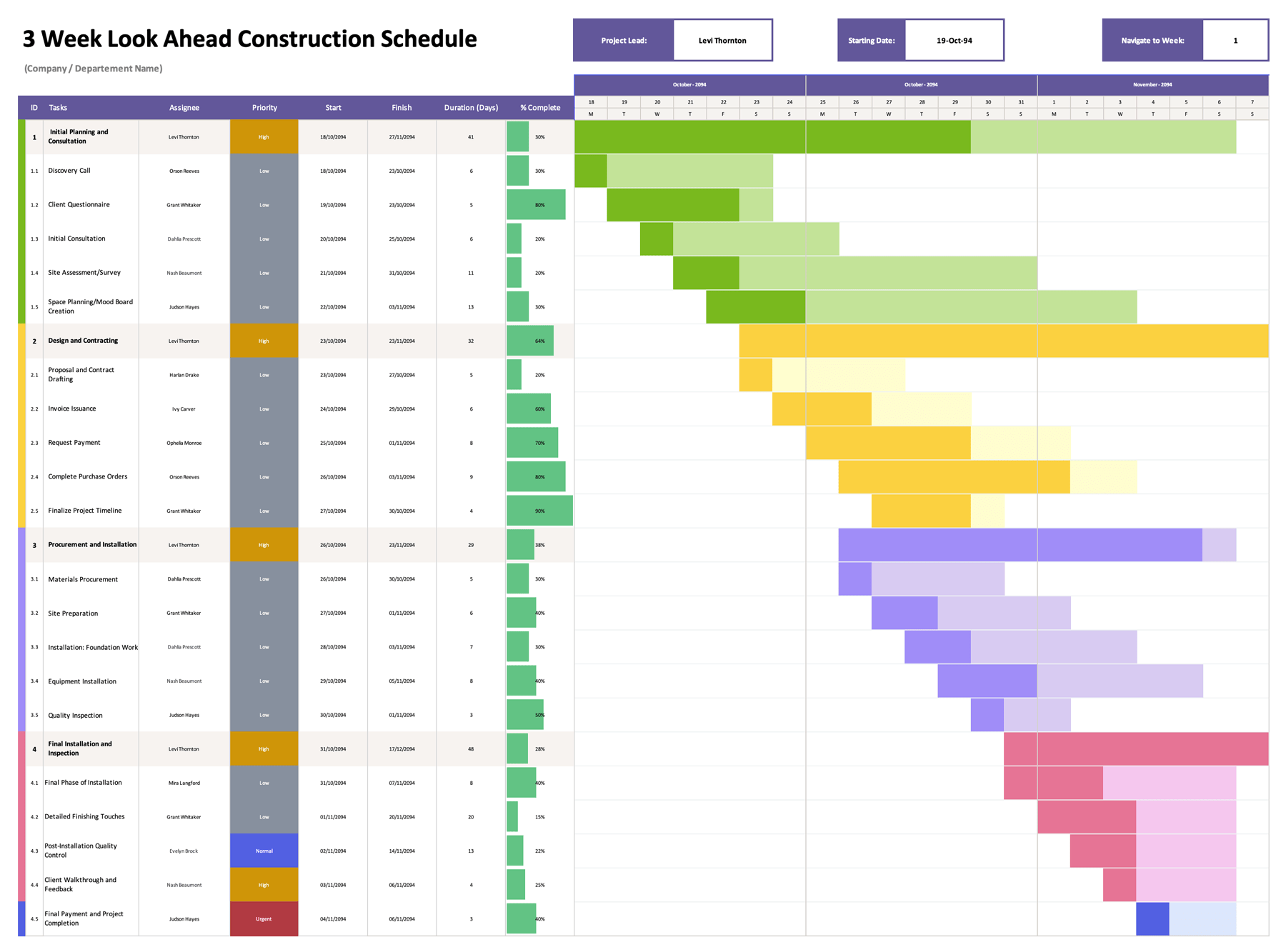
The day-by-day timeline is where the schedule becomes easy to interpret. In Excel and Google Sheets, the timeline shading updates based on each task’s date range, so the work window is visible across the month. This is useful during coordination because you can spot congestion quickly, such as several trades stacked on the same days, or an inspection scheduled too close to an activity that often slips.
If a task spans beyond the displayed month, the timeline still shows the portion that falls within the current month view, so you can carry longer activities across month boundaries without losing visibility.
Use Single-Day Entries for Milestones
For inspections, deliveries, mobilization, and other milestone-style items, set the start date and end date to the same day. That creates a one-day duration and shows the milestone clearly in the month grid.
Update Status for Reporting and Hand-Offs
Use the status column to reflect what is active, finished, or waiting. In spreadsheet versions, status is set up as a dropdown list so updates are quick and standardized across whoever maintains the schedule. If your workflow needs more labels, such as On Hold or Delayed, you can add them to the status list and keep your reporting language aligned across projects.
Extend the Schedule When the Task List Grows
If you need more lines, add new rows within the formatted task area so the same formatting and logic carry into the added rows. That keeps the timeline behavior and the date-based shading aligned with your new tasks.
Adjust for Month Length
This template uses a day-by-day row across the month. For a 31-day month, add one additional day column at the far right and copy the formatting from the last day so the final day displays the same way. For shorter months, keep the extra columns blank or hide them during printing, depending on how you share schedules with your team.
FAQs
Yes. The simplest approach is to split that activity into separate lines, each with its own start and end date range that matches the actual work window. A single line is best for continuous time windows. When work is scattered, separate lines keep the calendar view honest and avoid implying the crew is on-site every day between the first and last date.
By default, the duration is based on calendar days, so weekends are included. If you plan around workdays, change the duration calculation to a workday function and include a small holiday list. This gives you a duration that matches how crews actually work and makes comparisons between tasks more realistic.
For month-to-month planning, duplicate the sheet or page and set the new month’s starting date. Keep long activities listed in both months so each monthly view remains complete for meetings and weekly coordination. This also makes it easier to communicate what is happening right now versus what is coming next.
Yes. Edit the status list used for the dropdown in the spreadsheet versions, then use those same labels across your projects. A small, stable set of labels usually works best for reporting because it reduces interpretation differences between team members.