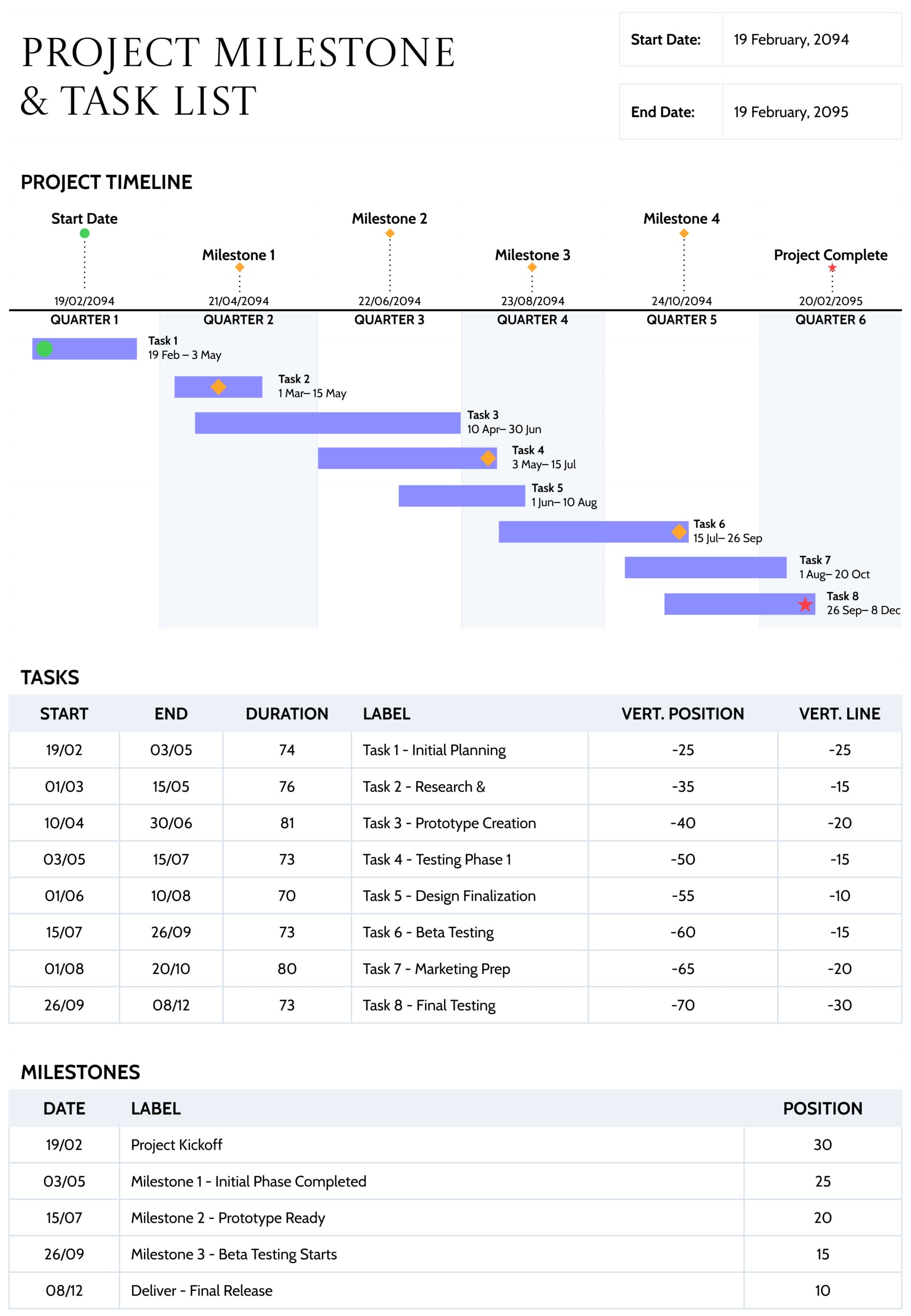
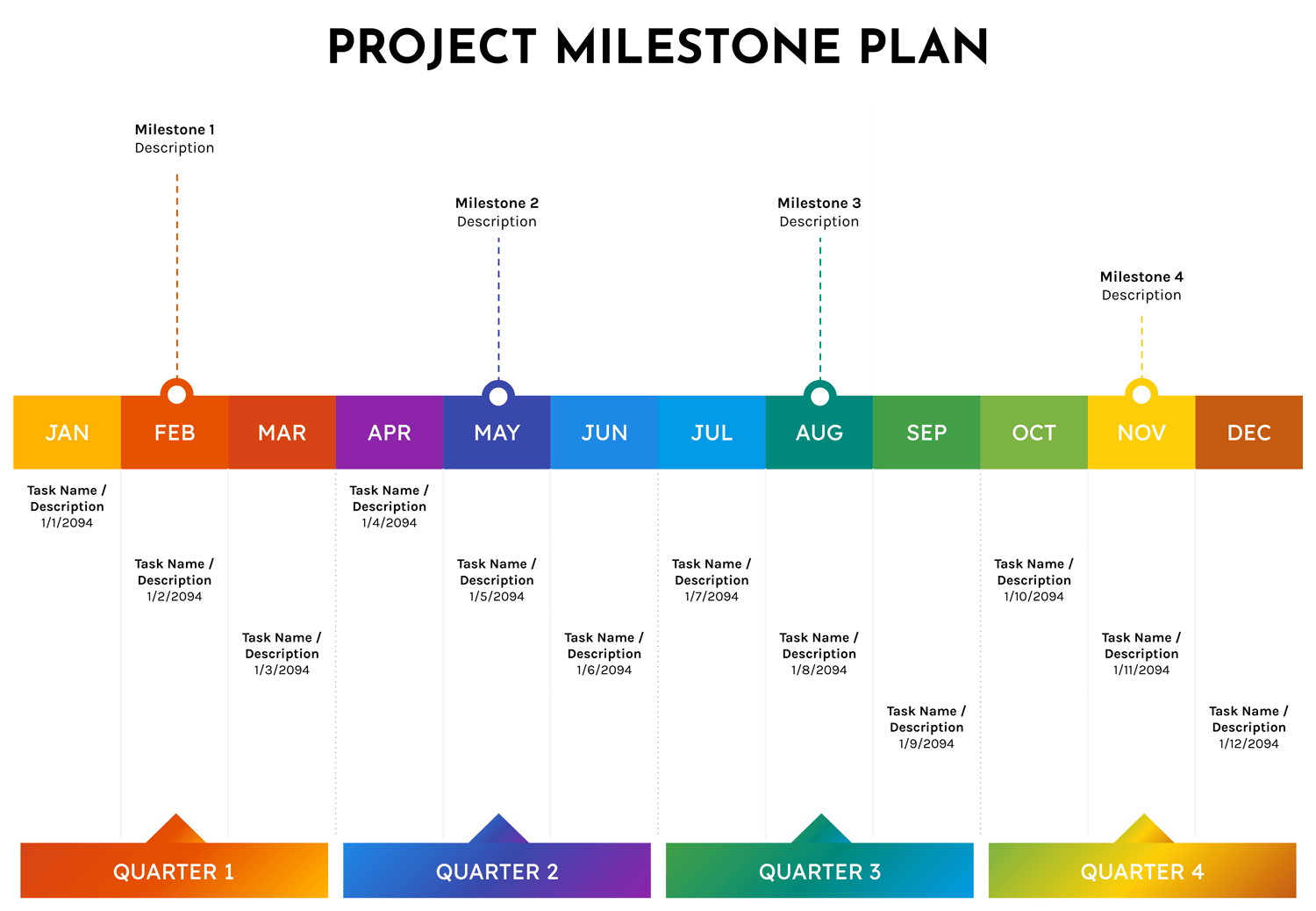


The project milestone plan template gives you a full year on a single slide, from January through December, with four major milestones placed across the timeline. Each month appears as a colored block, and underneath you have vertical space to note key tasks, short descriptions, and dates. At the bottom, the year is grouped into four quarters so you can talk about annual planning, quarterly goals, and month by month work in one view.
This template suits projects that run over a calendar year, such as product launches, marketing campaigns, policy rollouts, or operational changes. You can show when major checkpoints are expected, which months carry heavier workloads, and how individual tasks support the milestone above them. It is intended for planning workshops, steering committee meetings, and progress reviews where people want to see the year at a glance without going into a detailed task spreadsheet.
How to Use the Project Milestone Plan Template
When you open the template you see the year laid out month by month, four milestone markers placed above essential points, and quarters grouped along the bottom. To turn that static layout into a working plan you first decide which dates and events really matter, then add the work that belongs in each month and quarter. The next steps follow this same order so you can fill the slide in a steady, logical way rather than jumping around the timeline.
Confirm the timeline and adjust the year
Decide which year or twelve month period you want this slide to represent. The default layout follows January to December, which matches many budgeting and reporting cycles.
If your planning period starts in a different month, you can relabel the month blocks so the sequence matches your project. For example, you might start at April for a fiscal year or at September for an academic year. The important point is that the order of months on the slide reflects the actual planning window you are using in other documents.
Choose the major milestones for the year
Look at your project and pick the few checkpoints that really matter at a senior level. These might be dates when you promise a client delivery, internal cutovers, regulatory deadlines, or major launches. The template shows four milestone markers positioned above February, May, August, and November, which tends to fit a quarterly rhythm.
Rename each milestone with a short outcome based label, such as “Design Approved,” “Pilot Completed,” “Public Launch,” or “Stabilization Finished.” Under each title you can add a single sentence that describes what success looks like at that point. Aim for language that is easy to read aloud in a meeting and unambiguous for anyone who was not involved in drafting the plan.
If you need more than four milestones, you can duplicate an existing marker and move it above another month. Try to keep the number small enough that each milestone still feels meaningful rather than just another activity.
Attach tasks and deliverables to each month
Under every month you have lines where you can enter task names, short descriptions, and dates. This space is not meant for every item from your project schedule. Use it for the work that either drives a milestone or is important enough to mention in a review.
For each month, think about three questions.
- What must be completed before the next milestone can be reached
- What preparation or groundwork will make later months smoother
- What handovers or approvals need to happen during that month
Write task descriptions in plain language, ideally as short phrases such as “Content draft complete,” “Vendor contract signed,” or “User testing round one.” Include the planned date or week so that people can judge how busy a month will be. If you find that one month carries too much, shift some tasks into the previous or following month and adjust expectations during planning discussions.
Use the quarters row to summarize the story
The bottom row labels each group of three months as Quarter 1, Quarter 2, Quarter 3, and Quarter 4. These banners are useful when you talk to executives or anyone who thinks mainly in quarters rather than weeks.
You can leave the default quarter labels as they are or expand them slightly. For example, you might rename them “Quarter 1 – Planning,” “Quarter 2 – Build,” “Quarter 3 – Testing,” and “Quarter 4 – Launch and Handover.” This gives you a simple way to describe the focus of each part of the year before you move into the detail of months and tasks.
When you review the plan, check that the workload across the four quarters looks balanced. If all heavy tasks land in a single quarter, the slide can help you argue for extra support or a more realistic schedule.
Add ownership, status, and notes
Once milestones and tasks are in place, decide how you want to show responsibility and progress. A few small additions can make the plan far more practical.
- Ownership
You can add initials or team names next to each task or underneath the month label. This makes it clear who leads which part of the plan without crowding the main text. - Status
During execution, you may want to mark tasks or months as “On track,” “Watching,” or “Delayed.” You can do this with short text labels, subtle icons, or color changes. Try to keep the meaning of each visual cue consistent from one review to the next. - Notes
If a milestone carries important assumptions or dependencies, add a brief note near the milestone description or in a small text box at the side of the slide. This is often enough to remind people of key risks without moving into a full risk register.
Use the template in planning and status meetings
At the planning stage, this slide can anchor conversations about scope and timing. Bring it into the room early, enter milestones and tasks while people talk, and adjust the layout as decisions are made. The visual flow of months and quarters helps people notice overcrowded periods, long gaps, or unrealistic expectations.
Once the project is running, you can duplicate the original slide and maintain a live version that shows progress. Completed tasks can be greyed out, milestone markers can change color once reached, and delayed items can gain a subtle warning icon. When you revisit the plan each month, update the dates or notes so the slide remains a reliable reference rather than a one time planning artifact.
Keep the plan connected to your detailed schedule
Most teams still need a separate detailed schedule in a spreadsheet or project management system. The milestone plan should stay consistent with that schedule even though it is simpler.
Whenever you shift a milestone or add a significant task in your detailed plan, review this slide and make the same change. This alignment keeps everyone speaking about the same timing in emails, meetings, and reports. It also reduces the chance of a stakeholder quoting an outdated date from an old copy of the slide.
FAQs
This template suits any project that runs across several months and connects naturally to a calendar year. Examples include annual marketing campaigns, system upgrades that follow budget cycles, product roadmaps tied to quarterly releases, and organizational changes that require long preparation and staggered rollouts.
Short projects that last only a few weeks can still use the template if you treat each month as a stage rather than a literal month, but the layout is most useful when real dates stretch across the year.
For long running activities such as “Ongoing content production” or “Support and maintenance,” you have a few options. You can repeat the task in each relevant month with slightly different wording, for example “Content production – planning,” “Content production – execution,” and “Content production – review.” This shows that the work evolves over the year rather than sitting in a single place.
If you prefer a visual cue, you can draw a light line or arrow across the relevant months and add a label above or below the line. This quickly signals that one stream of work continues over time while leaving space for shorter tasks in the monthly columns.
Yes, as long as you adjust how you think about months and milestones. You might treat each month as a group of sprints and use milestones to show major release points or increments delivered to customers. The monthly task area can list the main objectives for each sprint cycle rather than traditional phase based tasks.
This approach gives you a way to communicate agile work to stakeholders who still expect calendar based reporting, while your detailed boards or backlog tools continue to manage day to day sprint tasks behind the scenes.